
Getting started: company, property and SES credentials
Set up your account, your first property, and get everything ready for your first check-in.
Last reviewed: 16 August 2026
Set up your accommodation
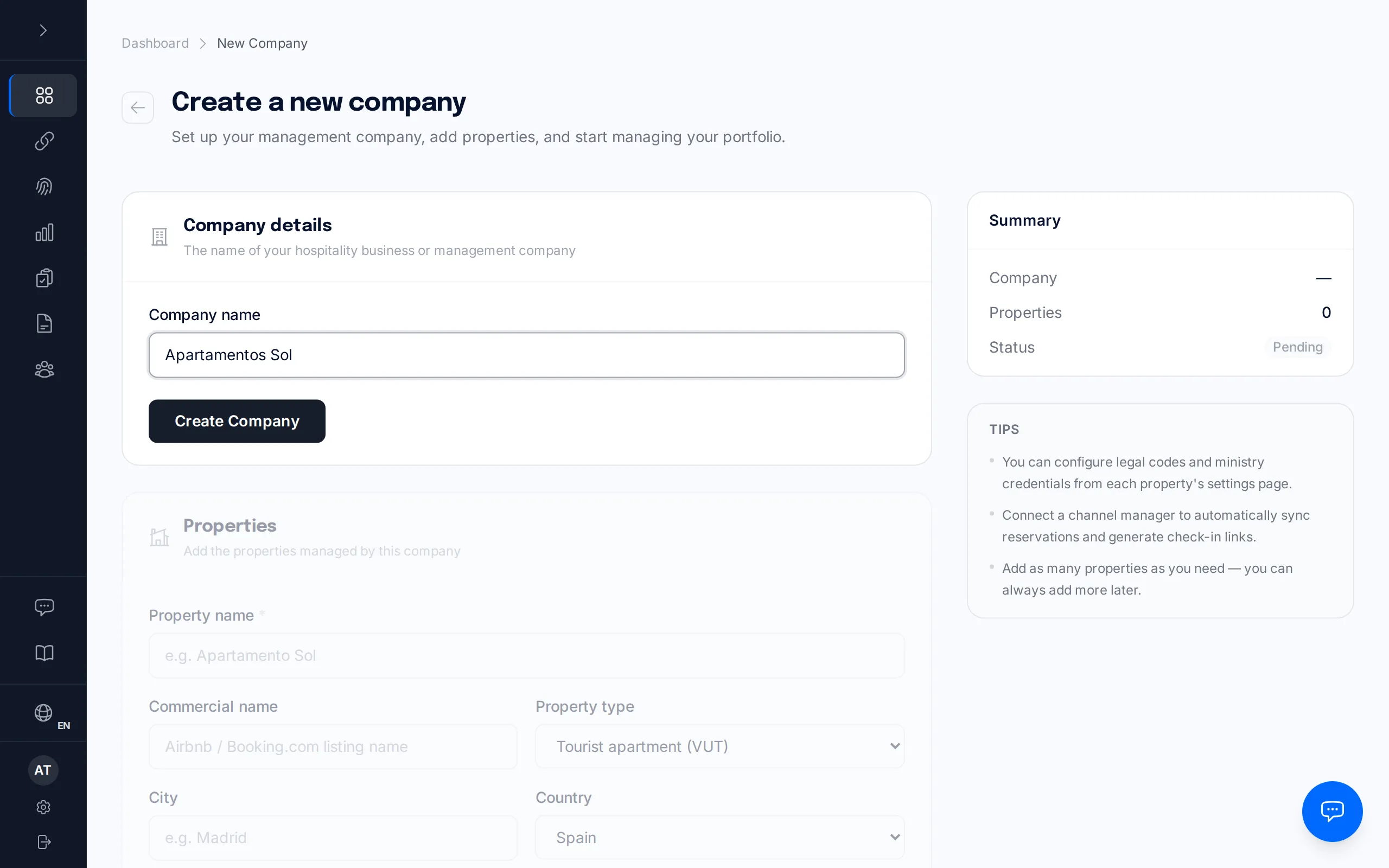
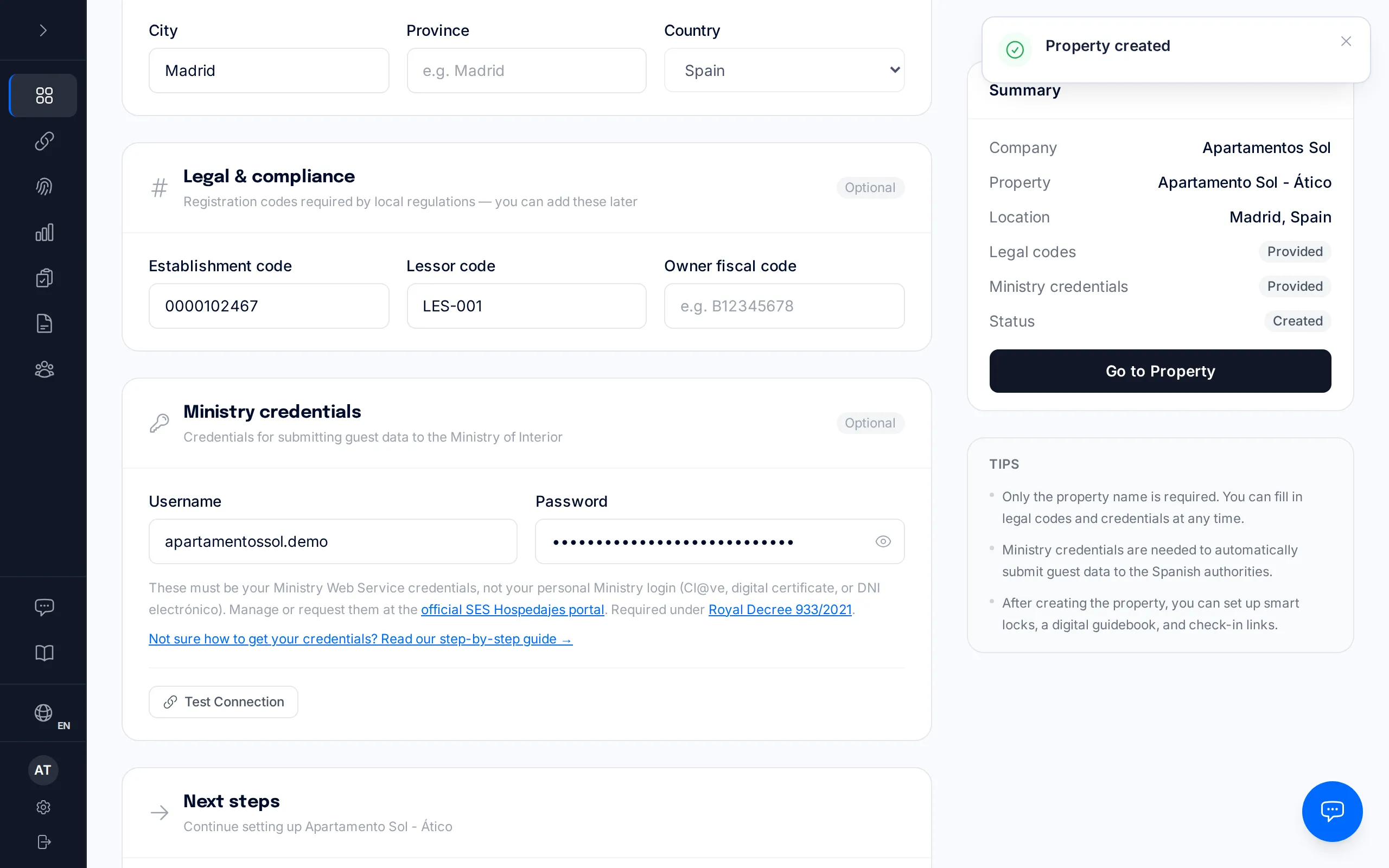
There is no company to create first any more. The first time you sign in, the dashboard takes you straight to a single screen: "Set up your accommodation". There you give it a name, say where it is, and enter the three SES Hospedajes credentials the traveller reports are filed with. Nothing else.
The property name is never sent to the Ministry; it is the one you will see in your own dashboard. If you also fill in the "Commercial name" — the name of your Airbnb or Booking.com listing — that is the one the guest sees during check-in.
City and province are worth filling in right away: BookCheckin uses them to warn you if your property is in Catalonia or the Basque Country, regions that don't file traveller reports through SES Hospedajes (the FAQ below explains this).
If you manage properties belonging to several companies, you can create companies from Settings whenever you need them. For a single property none of that is necessary, and you will not be asked.
Save and check, in a single step
The main button is "Save and check": it saves the property and then, straight away, tests the credentials against the Ministry. There is no separate test button to hunt for on another screen afterwards, and you do not need a subscription to do it.
If you don't have your web-service credentials yet — registering with SES Hospedajes is an external procedure that takes its time — use "Save without credentials for now". The property is saved, and the first item on the dashboard's task list stays open, linking back to that property's Legal tab so you can finish it off once you have them.
SES codes
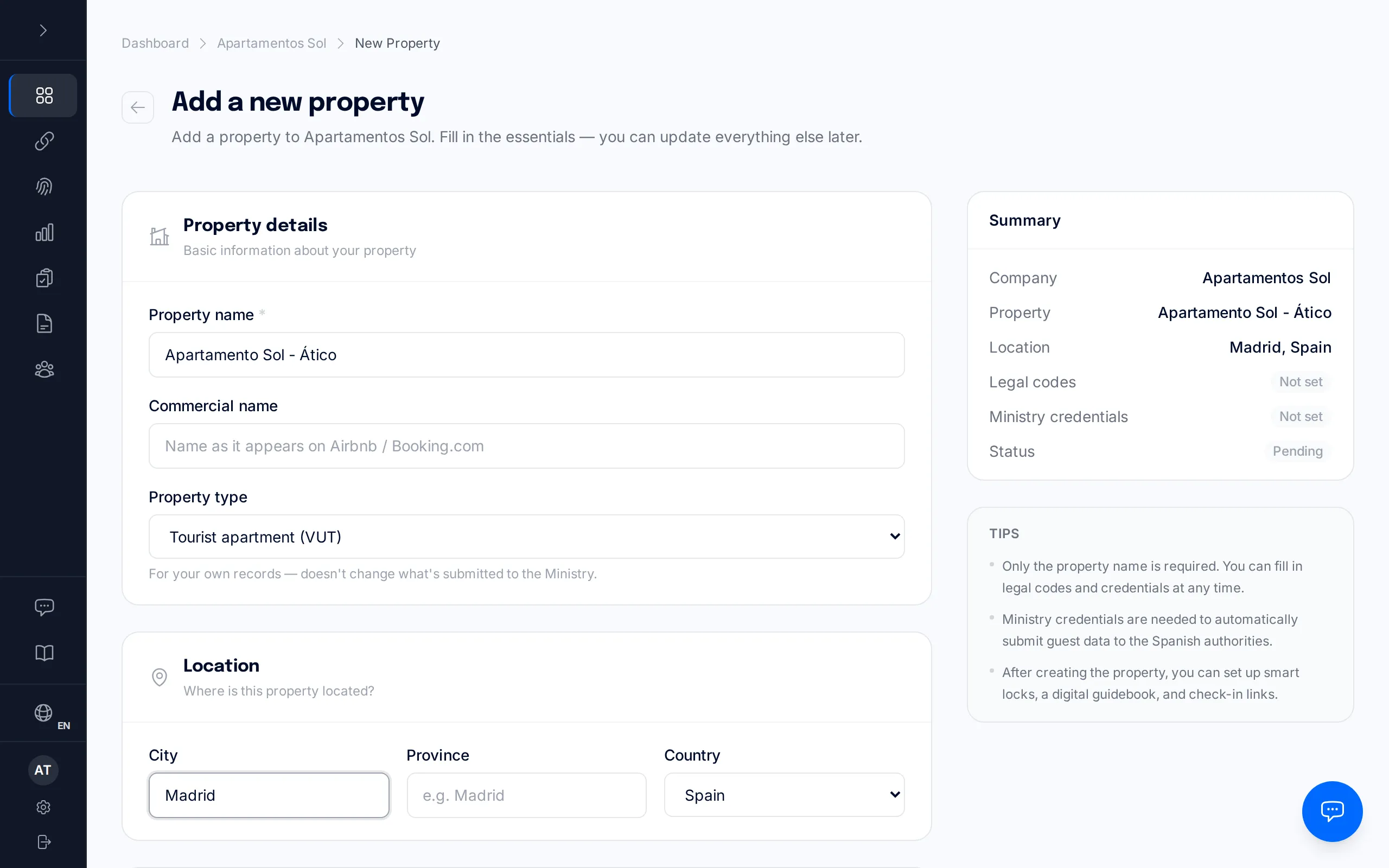
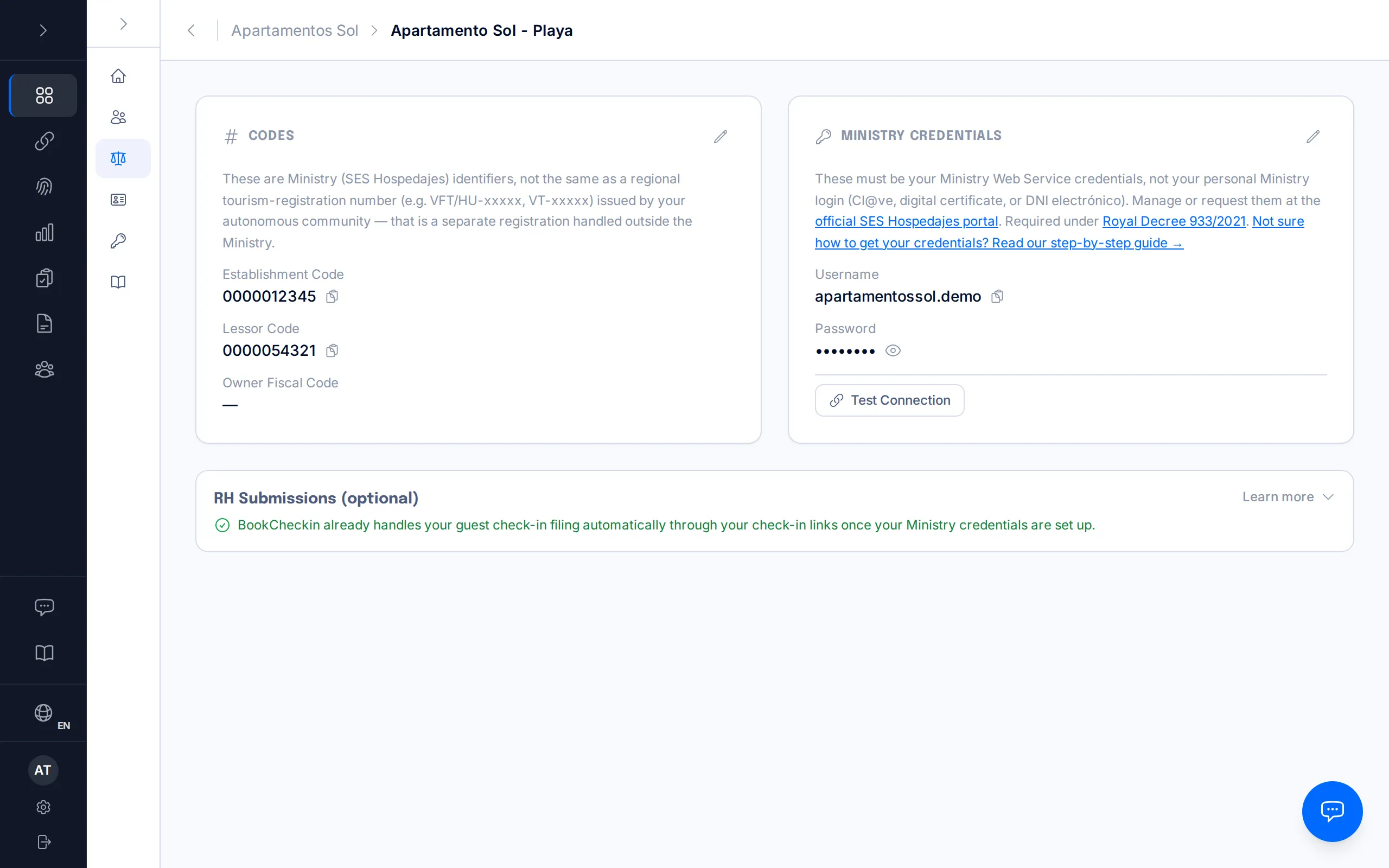
The establishment code and the lessor code are the identifiers the Ministry of the Interior assigns to your property inside SES Hospedajes. You receive them when you register as a host on the official portal — BookCheckin doesn't generate them.
They're optional when you create the property — you can save it without them and add them later from the property's own page. But you won't be able to file traveller reports until they're set.
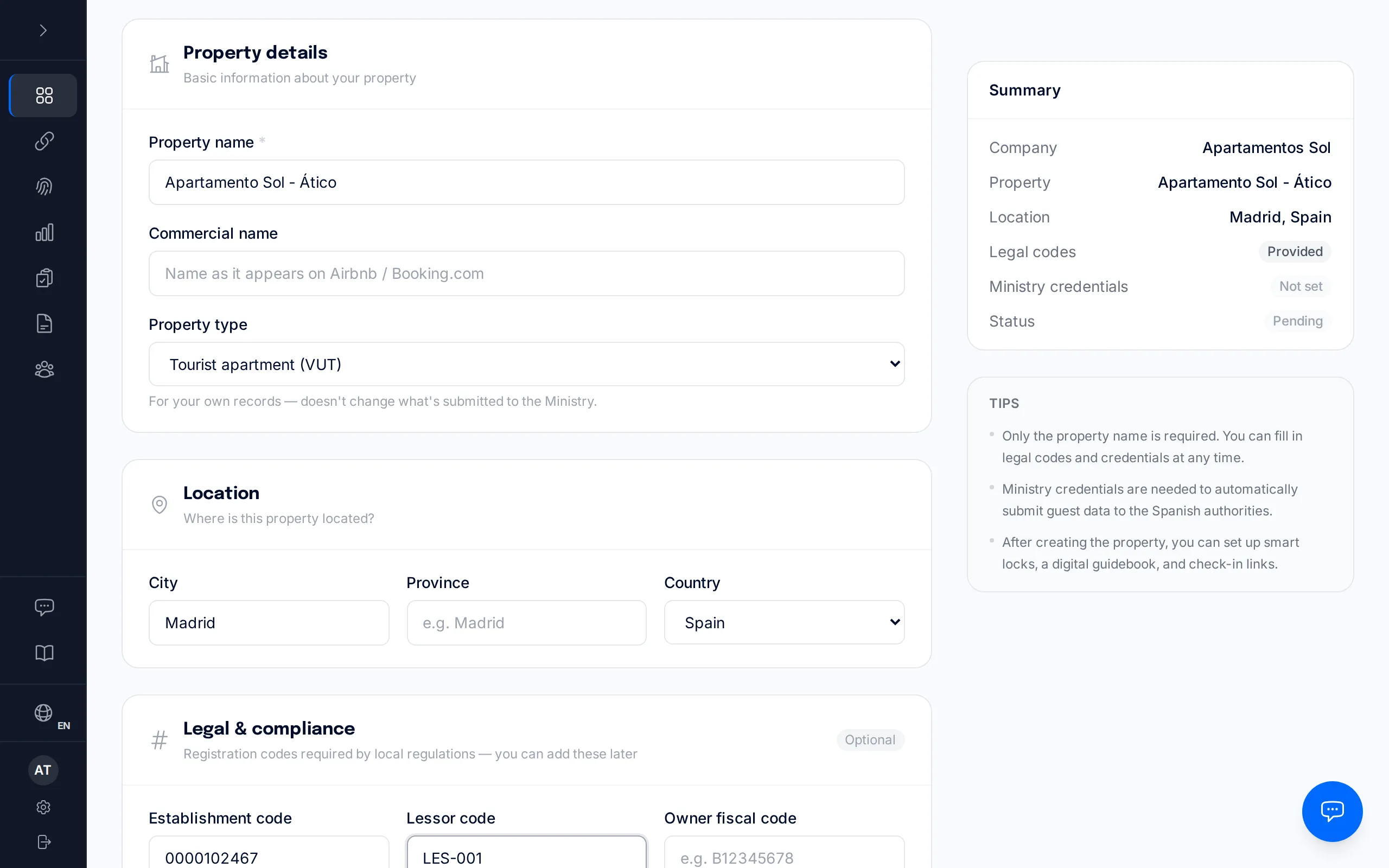
The Ministry's establishment code is 10 characters (e.g. 0000000000). If you paste something longer — usually a regional tourism-registration number like VFT-… or VT-… — BookCheckin will reject the save: the right code is the short one SES Hospedajes assigns you.
Ministry credentials
These credentials are for your Ministry of the Interior web service, not your personal Cl@ve login, digital certificate, or electronic ID. You request and manage them from the SES Hospedajes portal itself.
BookCheckin uses them to authenticate and send traveller reports automatically on your behalf, within the legal 24-hour window. Like the codes, they're optional at this step — you can create the property without them and add them later.
They are managed per entity (the arrendador), under “Servicio de comunicación” → “Credenciales” on the SES Hospedajes portal — not inside each establishment's own registration. If you haven't registered yet, see the prerequisite at the top of this guide.
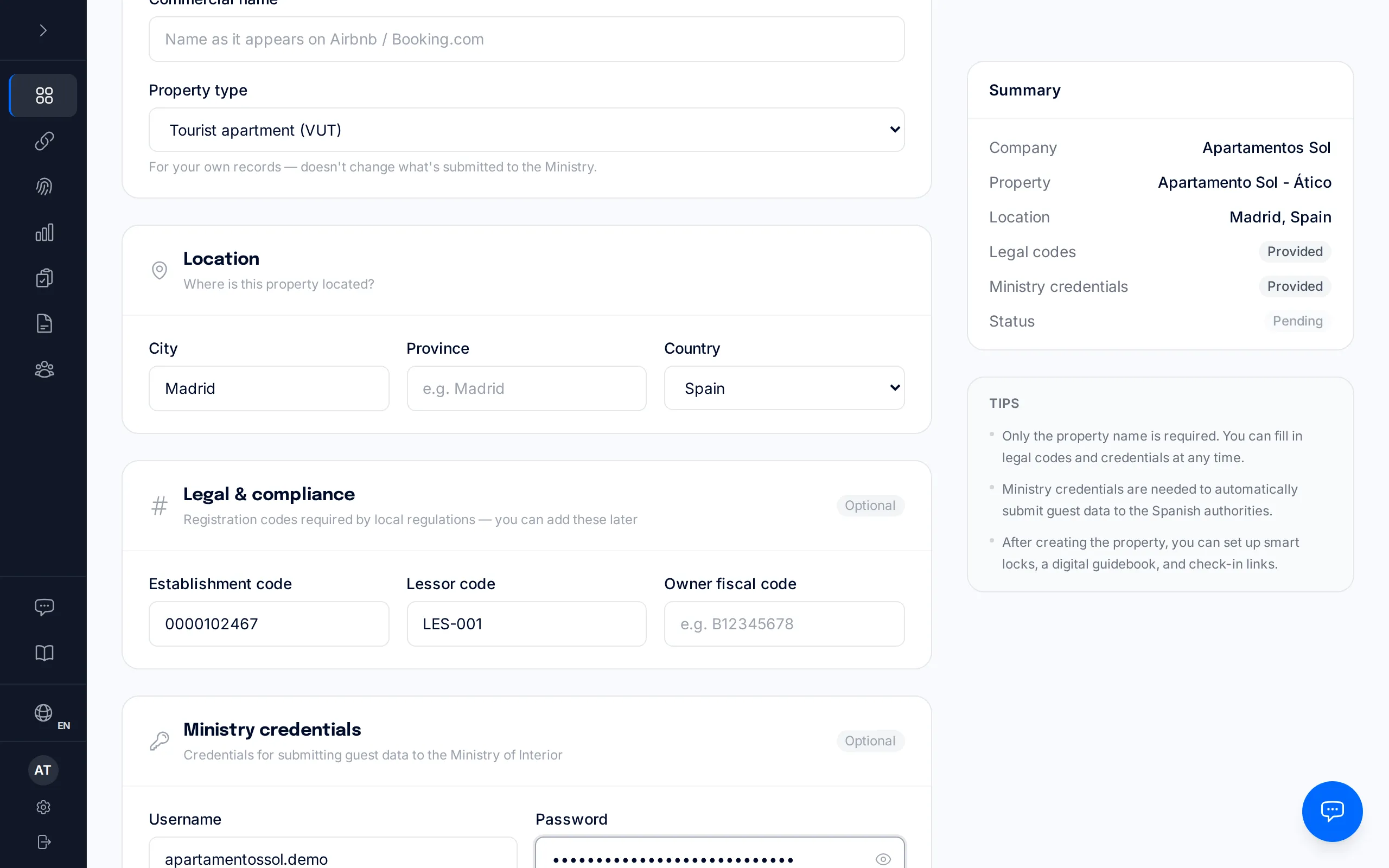
The most common mistake isn't a mistyped password — it's entering your personal portal login (the DNI/NIE you use on the SES Hospedajes website) instead of the web-service credential. If the connection test fails with a permissions error, check this first.
Test the connection
Once you save the property with a username and password filled in, the "Test Connection" button appears. Always click it: besides confirming the Ministry accepts those credentials, it's a requirement — the property can't create check-in links until a test ends in "Connected!".
"Connected!" only confirms that the username and password authenticate with the Ministry — it does not guarantee that any specific submission will be accepted. An individual report can still fail afterward for other reasons (a malformed postal code, an unsupported document type…) that have nothing to do with whether the connection works.
If a submission fails later despite a successful connection test, the "When an SES submission fails" manual explains how to diagnose and fix it.
Review and edit any time
None of this is final at creation time. From the property's page, under the "Legal" tab, you can edit the SES codes and the Ministry credentials whenever you need to, without recreating anything. One thing to remember: changing the username, password, or codes invalidates the previous verification — click "Test Connection" again after saving.
The password is stored hidden; the eye icon next to it reveals it only when you ask (and only if you're an owner or manager), and it isn't shown by default, even to you.
Frequently asked questions
Can I create the property without SES codes or Ministry credentials?+
Yes. Only the property name is required. You can save it and add the codes and credentials later, but you won't be able to create check-in links or file traveller reports until you complete them and the connection test ends in "Connected!".
My property is in Catalonia or the Basque Country — does anything change?+
Yes. Catalonia and the Basque Country don't file their traveller reports through the national SES Hospedajes system — they report to the Mossos d'Esquadra and the Ertzaintza through their own regional portals. In Catalonia BookCheckin works: on the property's Legal tab you save the establishment identifier the Mossos issued you and switch the property to Mossos filing; from then on you can create check-in links, and BookCheckin prepares the official file that you upload to the portal yourself — the "Guest registration in Catalonia" manual explains it. The Basque Country works the same way: on the property's Legal tab you save the establishment code the Ertzaintza issued you and switch it on; from then on you can create check-in links, and BookCheckin prepares the XML file for the Ertzaintza's Registro Hostelero, which you upload to its portal yourself. Until that code is on file, check-in links cannot be created for Basque properties; you'll see a notice when you add the property, and you can still add it and use the rest of the platform.
Does "Connected!" mean no submission can ever fail?+
No. It only confirms that your credentials authenticate with the Ministry. A specific submission can still fail afterward for other reasons, like a badly formatted field.
Related manuals
A tour of your dashboard: what lives in each section
A map of everything in your BookCheckin dashboard: what each menu section is for, and where to go to read more about it.
Create and send a check-in link
Generate a manual check-in link for a walk-in guest or a property without a PMS, and share it however you like.
Calendar sync (iCal)
Import your Airbnb, Booking.com or Vrbo reservations from their calendar export URL — no PMS connection needed — and confirm which entries are real bookings before BookCheckin creates the check-in link.
When an SES submission fails
Diagnose the real error the Ministry returned, fix the guest data that caused it, and resubmit the report within the legal deadline.
Guest registration in Catalonia: the file for the Mossos d'Esquadra
Generate the file with your guests, upload it yourself to the Mossos portal within 24 hours, and record in BookCheckin what you did with it.