
Create and send a check-in link
Generate a manual check-in link for a walk-in guest or a property without a PMS, and share it however you like.
Last reviewed: 16 August 2026
Open Links
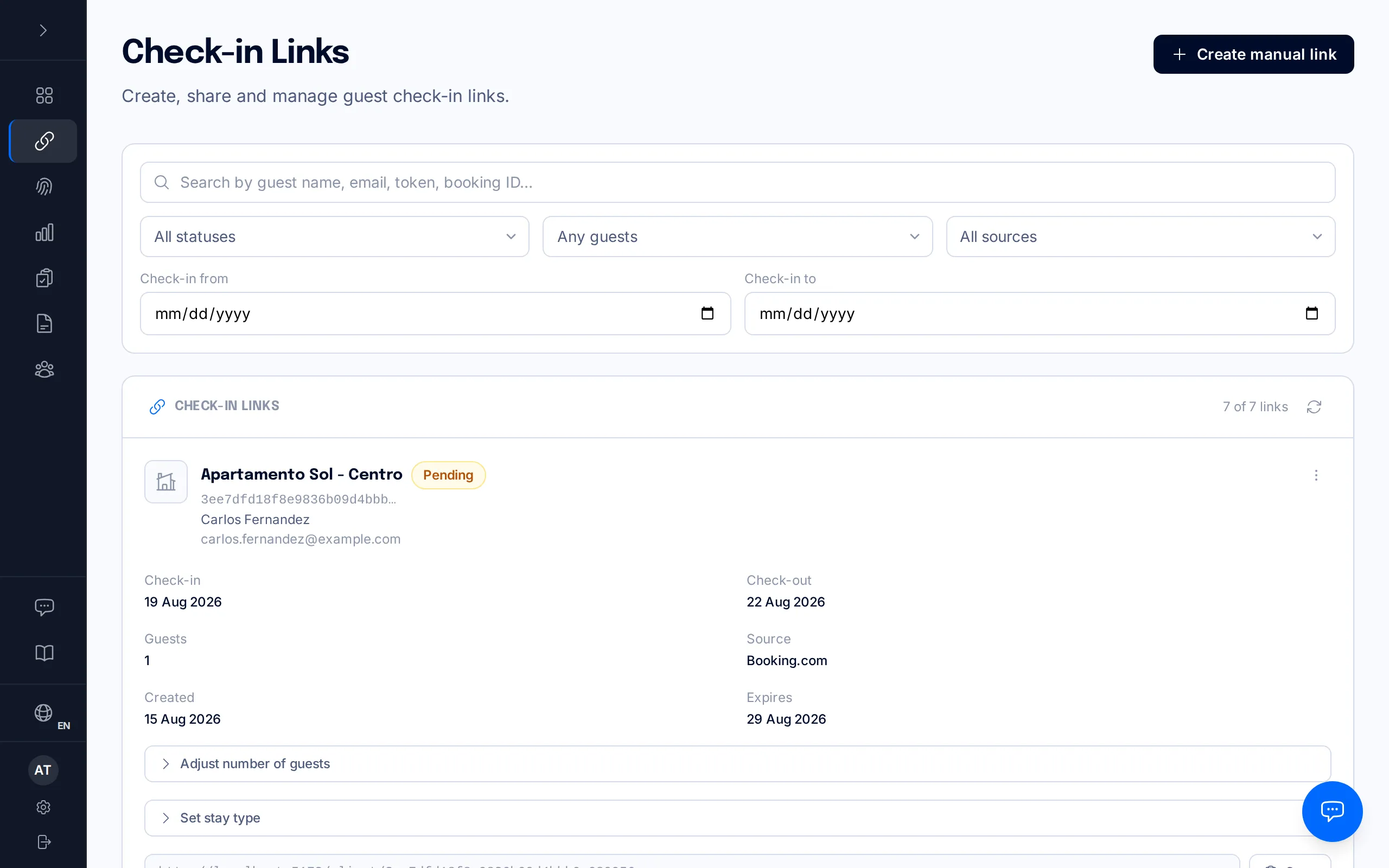
In BookCheckin's sidebar, open "Links". You'll see every check-in link across your properties — both the ones a connected PMS generates automatically and the ones you create by hand.
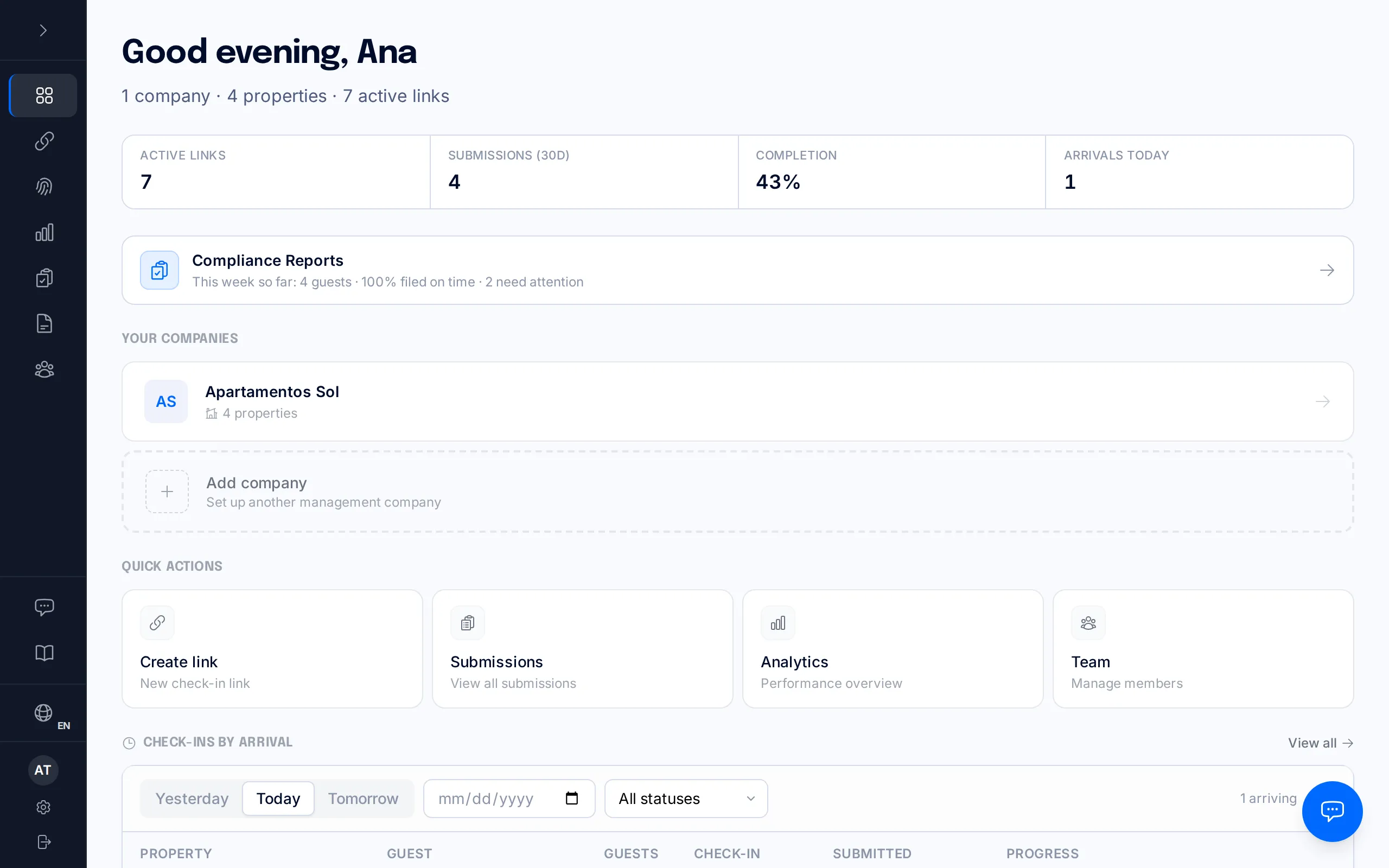
New manual link
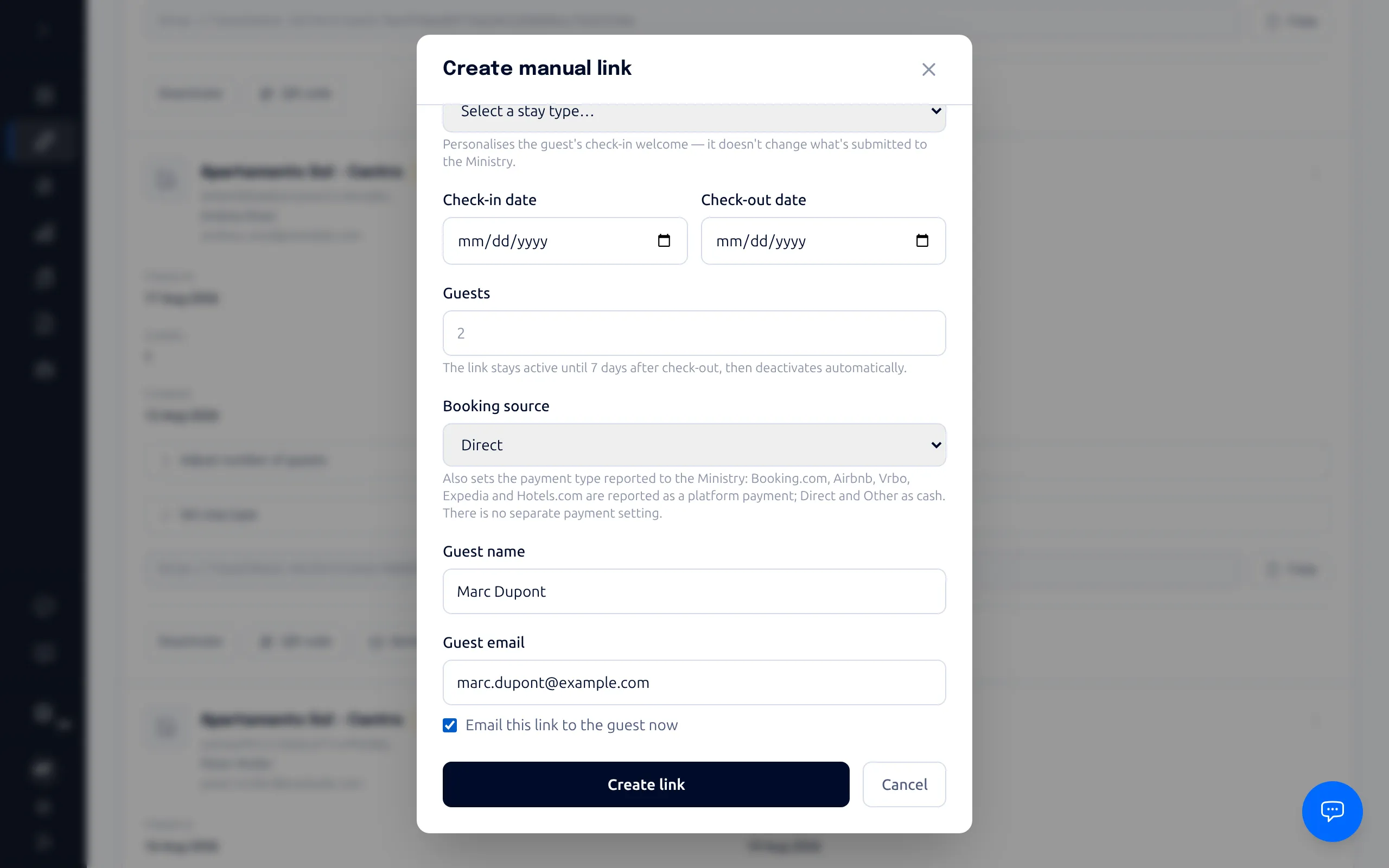
Click "Create manual link" at the top right. Manual links are for walk-in guests or properties without a PMS connection — reservations synced from a PMS generate their own link automatically, so there's no need to create one here; copy it from the property's Reservations tab instead.
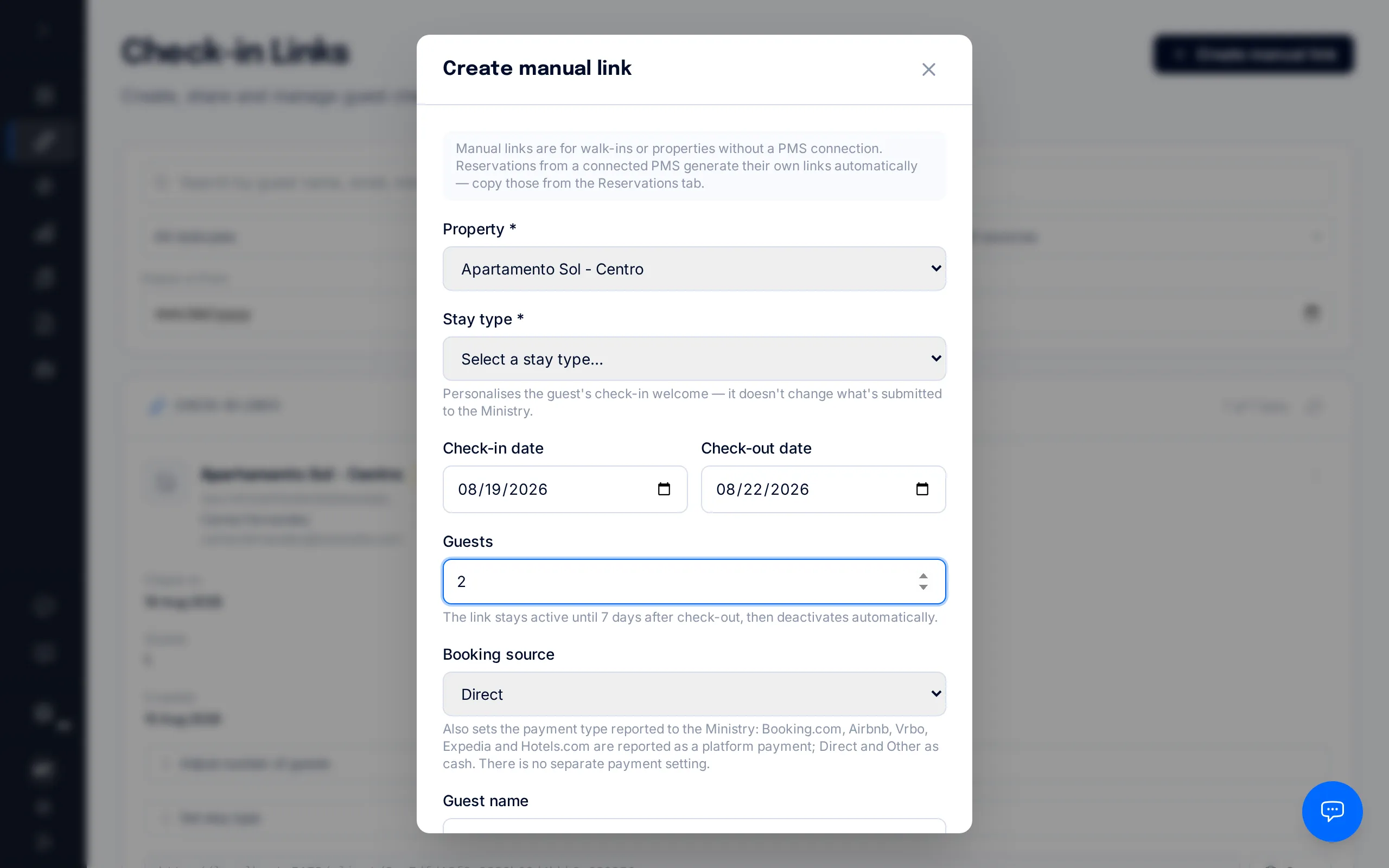
Property, dates and guests
Choose the property you're registering the stay for and, if you already know them, the check-in and check-out dates.
In "Guests", enter the total number of people staying, including any children — this field counts the whole party, not just adults.
At check-in, at least one guest must register as an adult (18 or over); a booking made up of only minors cannot be completed.
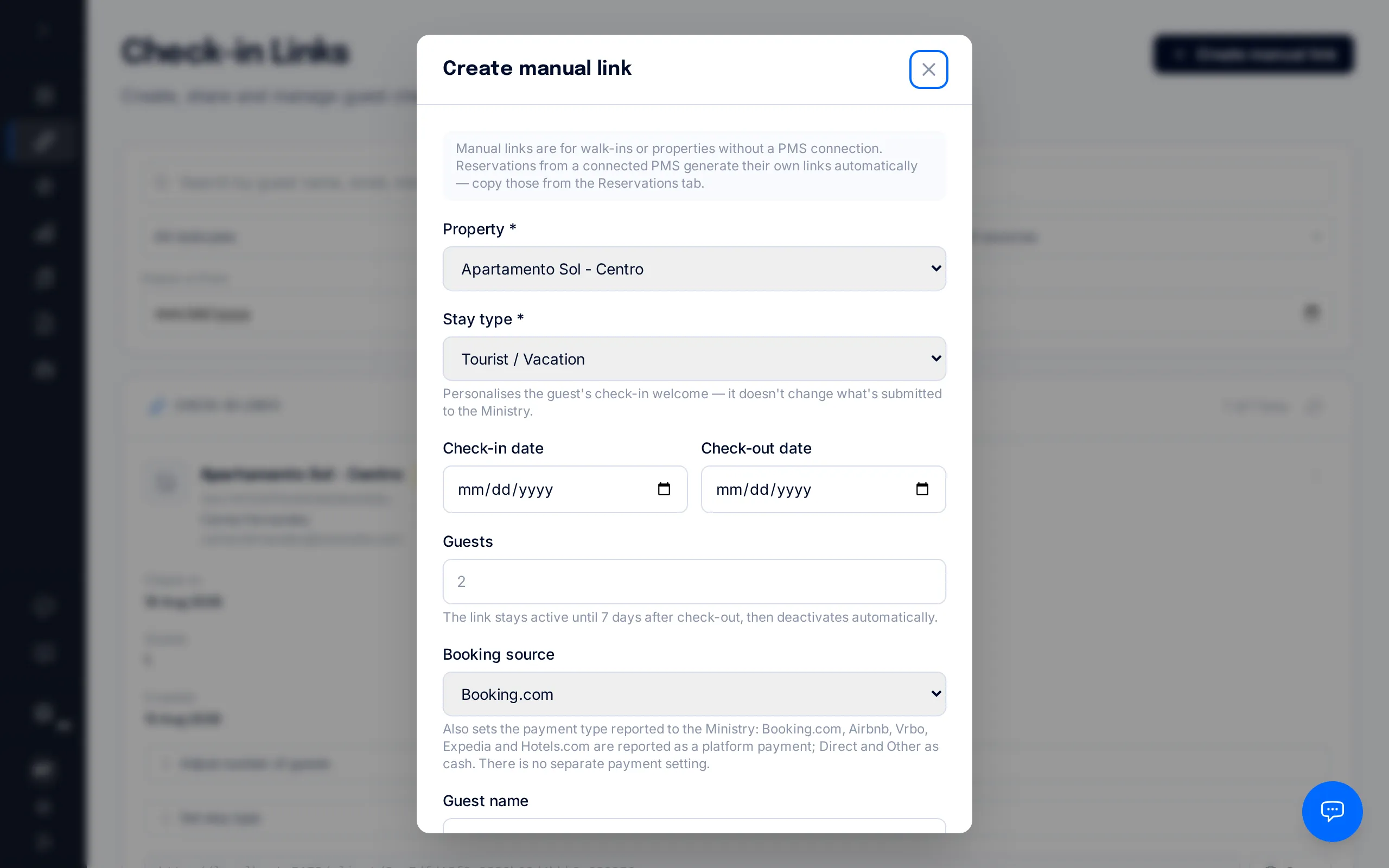
Booking source and stay type
"Booking source" isn't just informational: BookCheckin uses it to fill in the payment type declared on the official report. Booking.com, Airbnb, Vrbo, Expedia and Hotels.com are reported as a platform payment; Direct and Other are reported as cash — there's no separate payment-type field. Always pick the reservation's real source, and don't leave it on the default if the guest came through an OTA.
"Stay type" only appears on short-term-rental (temporada) properties — not tourist apartments — and is required there. It only personalises the welcome copy the guest sees at check-in; it doesn't change anything submitted to the Ministry.
Guest details and create
The guest's name and email are optional, but they help you identify the link in the list and are needed if you want to email it. Check "Email this link to the guest now" to have BookCheckin send it as soon as you create it.
Click "Create link" to generate it. If the property doesn't have valid Ministry credentials, BookCheckin won't let you create the link — add them in Property Settings first.
Share and track the link
Each link shows up as a card with a status: "Pending" (created, waiting on the guest to complete check-in), "Completed" (every expected guest has submitted their details), "Expired" (the deadline passed before it was completed) or "Deactivated" (you turned it off, or it expired, before any guest had submitted their details).
Copy the link with the "Copy" button to send it to the guest however you prefer, or use "Send email" if you already have their email and haven't sent it yet — that button disappears once the email goes out.
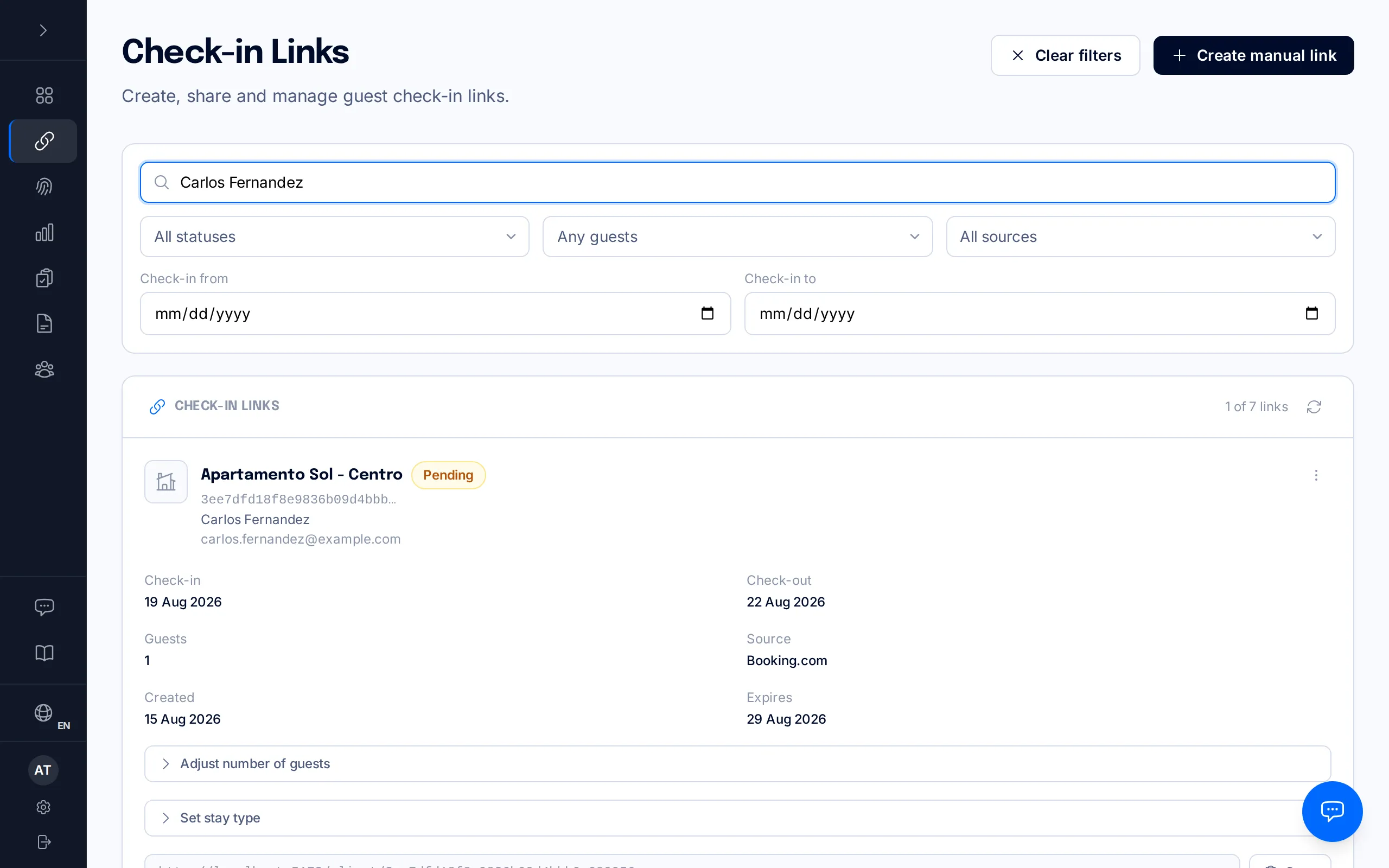
The link stays active until 7 days after the check-out date; after that it deactivates automatically. Any data already submitted is kept regardless, as required by law.
Frequently asked questions
What's the difference between a manual link and a PMS-generated one?+
You create manual links yourself from this screen, for walk-in guests or properties without a connected property management system (PMS). If a property is connected to a PMS, every reservation generates its own link automatically — copy it from the property's Reservations tab instead of creating one here.
Why can't I create a link for one of my properties?+
Two common reasons: the property doesn't have valid Ministry (SES Hospedajes) credentials yet — add them in its settings and test the connection before creating links — or the property is in Catalonia or the Basque Country, where guest registration is filed through a regional system (Mossos d’Esquadra or Ertzaintza) that BookCheckin does not report to automatically. In Catalonia you switch the property to Mossos filing yourself on its Legal tab (save the establishment identifier and change the mode): BookCheckin prepares the file and you upload it to the portal — see the “Guest registration in Catalonia” manual. In the Basque Country it is the same: on the Legal tab of the property you save the establishment code the Ertzaintza issued you and switch it on; BookCheckin prepares the XML file for the Ertzaintza’s Registro Hostelero and you upload it to the portal. Until that code is on file, check-in links cannot be created. "Test Connection" only checks that the credentials are valid — it doesn't guarantee a real submission will be accepted.
How long does a link stay active?+
Until 7 days after the check-out date — and never less than 7 days from the moment you create it, for example when you register a stay that has already ended. If you didn't set a check-out date, it lasts 7 days from creation. After that it deactivates automatically; any data already submitted is kept regardless.
Can I change the guest count or stay type after creating the link?+
Yes. Open the link's card in the list: "Adjust number of guests" lets you lower the party size (for example, if fewer people show up than booked), and on short-term-rental properties you can also change the stay type from there.
Related manuals
Calendar sync (iCal)
Import your Airbnb, Booking.com or Vrbo reservations from their calendar export URL — no PMS connection needed — and confirm which entries are real bookings before BookCheckin creates the check-in link.
What your guest sees: the check-in portal
A screen-by-screen walkthrough of what your guest sees and does after opening the check-in link: document, signature and submission.
How a check-in works, from start to finish
The whole journey of a traveller registration: from sending the link to the Ministry accepting the guest's report, and what you can do at every step in between.
When an SES submission fails
Diagnose the real error the Ministry returned, fix the guest data that caused it, and resubmit the report within the legal deadline.