
What your guest sees: the check-in portal
A screen-by-screen walkthrough of what your guest sees and does after opening the check-in link: document, signature and submission.
Last reviewed: 16 August 2026
Before you start
The guest opens the link
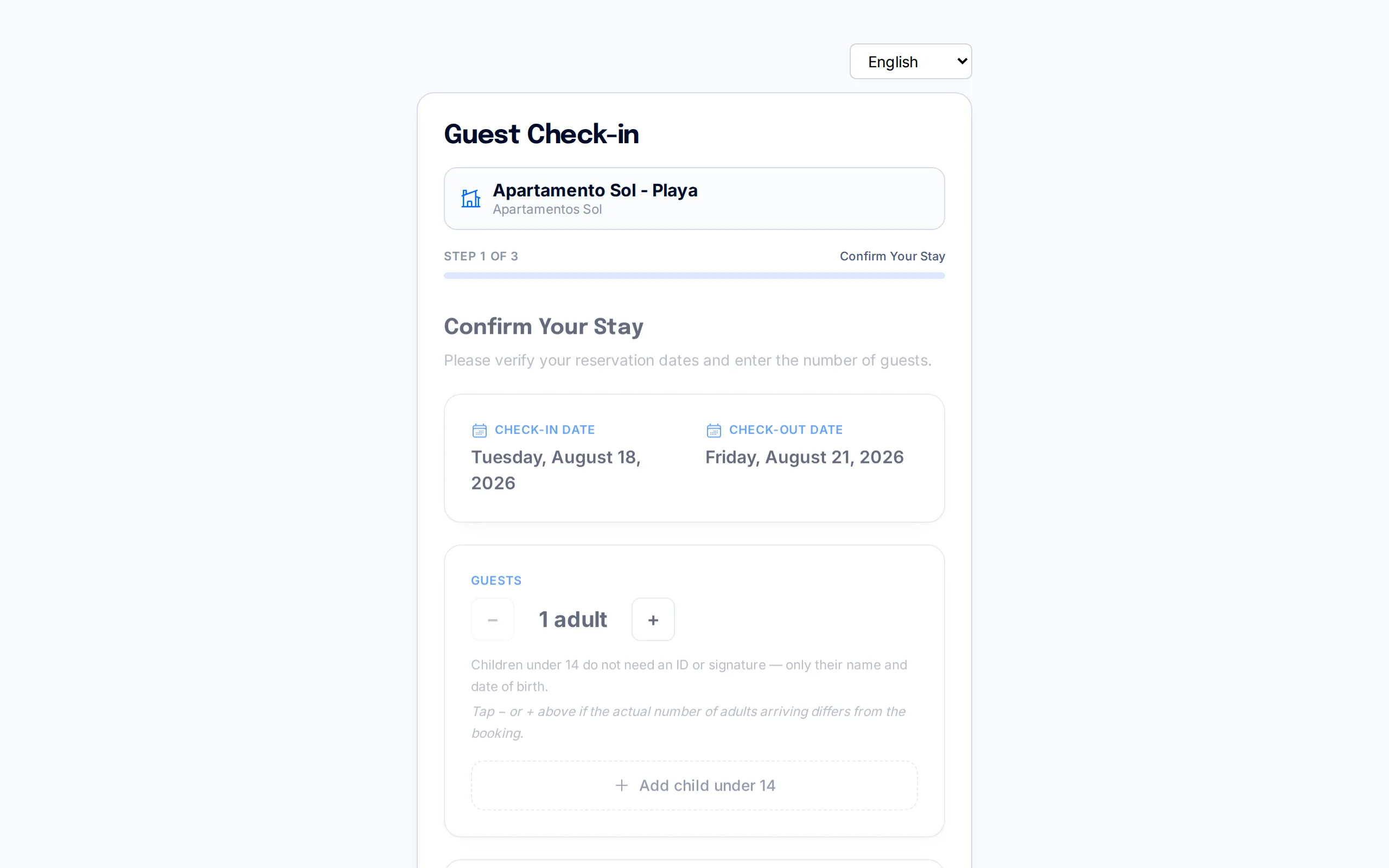
When your guest opens the check-in link, they don't need to create an account or install anything: the page opens straight in their phone or computer's browser, already labelled with your property's name.
If the link has reservation dates attached, they see those shown at the top along with the number of guests. The progress bar at the top tells them which step they're on and how many remain, and they can switch the whole screen to their own language among six options (Spanish, English, French, German, Italian and Portuguese) without losing any data they've entered.
To move forward, they first have to tick two boxes: confirming their stay dates and accepting the terms of the registration process. Only then does the "Next" button let them continue.
Identity document
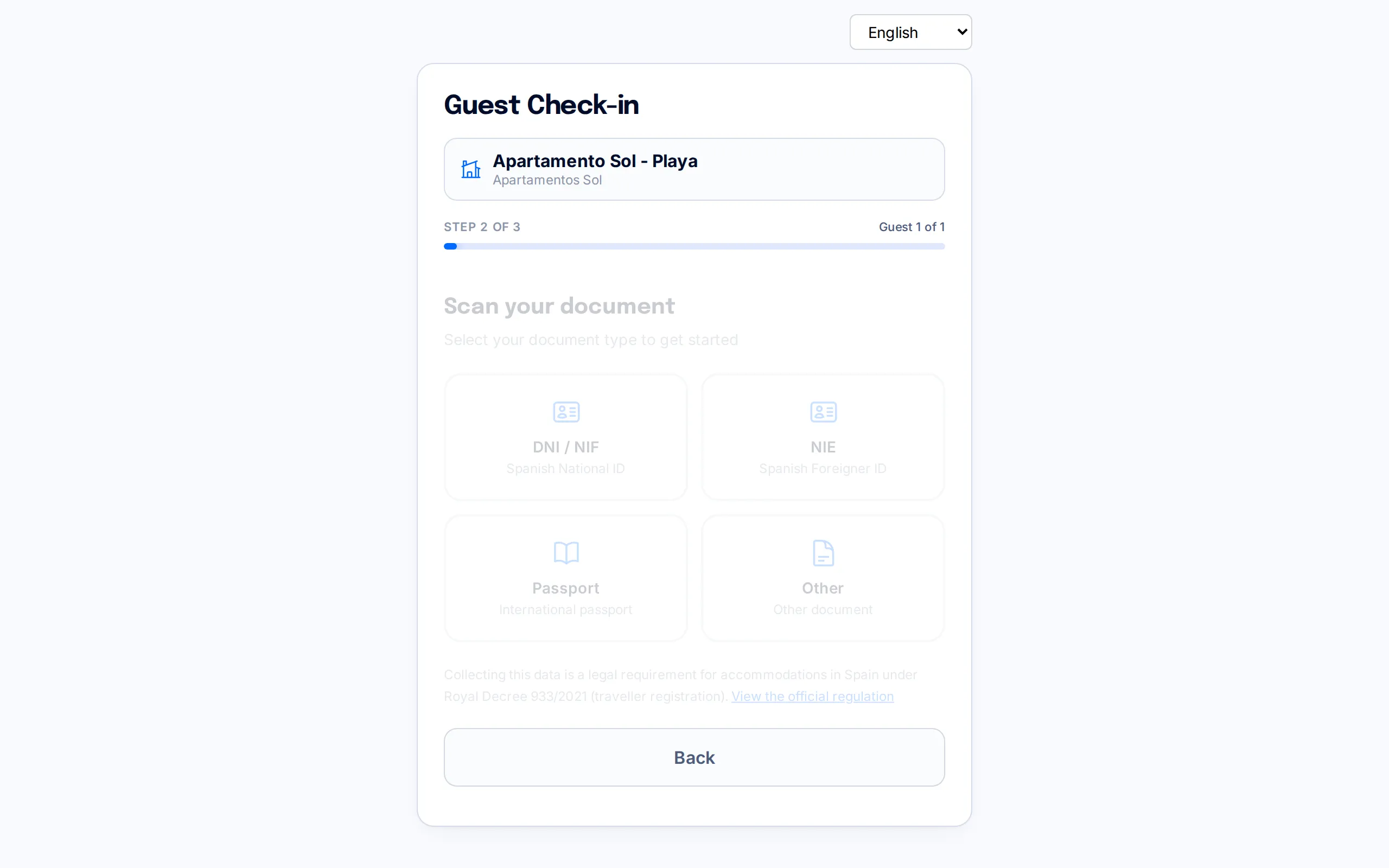
The next step asks which type of document the guest will use: DNI / NIF, NIE, passport, or "Other". This choice determines exactly what the app asks for next.
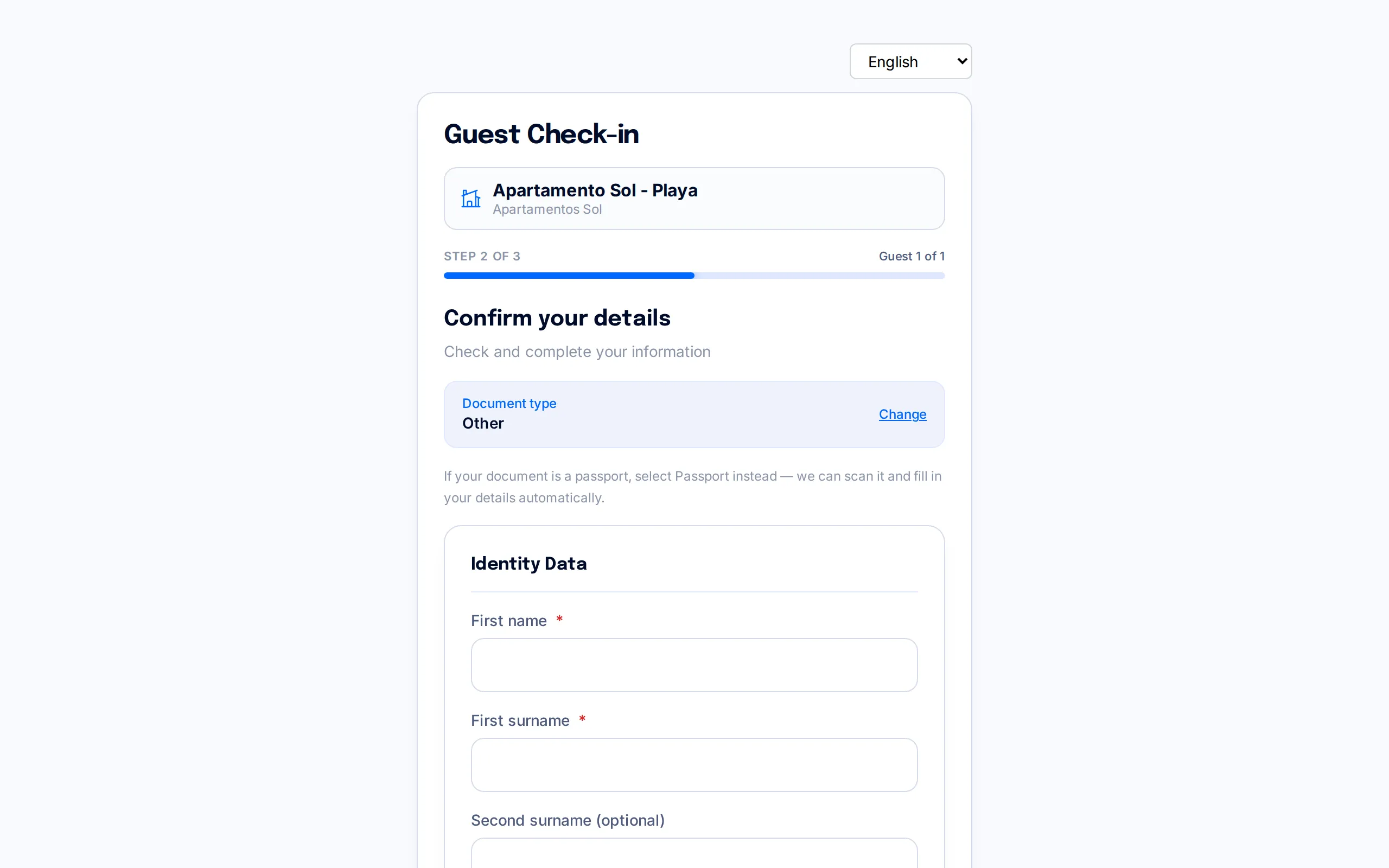
If they pick DNI or NIE, the app asks them to scan the front and then the back of the card. With a passport, only one side is scanned. If they pick "Other" (for example, a foreign ID that doesn't fit the categories above), the scan is skipped entirely and they go straight to typing their details by hand.
Right below the selector, the screen reminds the guest that collecting this data is a legal requirement in Spain (Royal Decree 933/2021, traveller registration), with a link to the official regulation — useful if they ever question why this information is being asked for.
Scanning the document
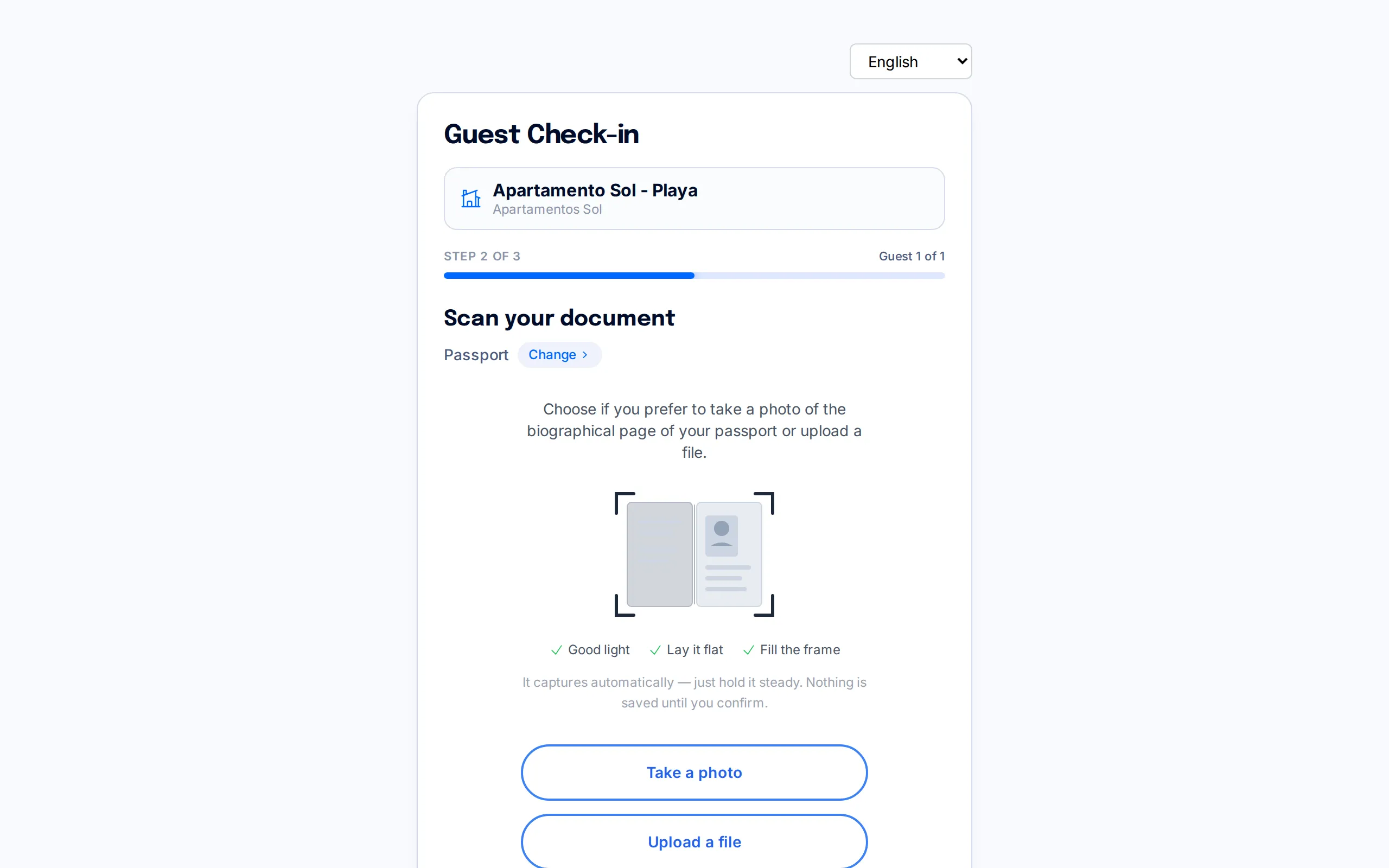
For scannable document types, the app opens the phone's camera (or lets the guest upload a photo they already have) to capture each side of the document.
Once the image is captured, BookCheckin automatically extracts the document's data — name, surnames, number, date of birth, nationality — via optical recognition, so the guest doesn't have to type it all in by hand. If the photo is blurry or the system can't read a field clearly, it tells them and lets them retry the capture or fill that field in manually on the next screen.
This automatic extraction is a convenience, not the final source of the record: every field stays editable by the guest on the next screen, right up until they sign and submit.
Details and signature
This is where the guest reviews and completes all their information: first and last name, date of birth, sex, nationality, document number, home address, phone and email. Fields the app was able to fill in automatically from the scan show up highlighted for the guest to double-check, but any of them can be corrected.
Right below those fields, on the same screen, sits the signature box: the guest signs with a finger (or the mouse) directly there. There is no separate step just for the signature — details and signature are completed together. When they tap "Next", the app checks that every required field is filled in and the signature is done; anything missing is flagged in red, and they can't move on until it's corrected.
A signature is required from age 14 up. Guests under 14 get a reduced form asking only for their name and surname, date of birth, nationality and their relationship to the responsible adult — no document and no signature, as allowed under Royal Decree 933/2021.
Review and submit
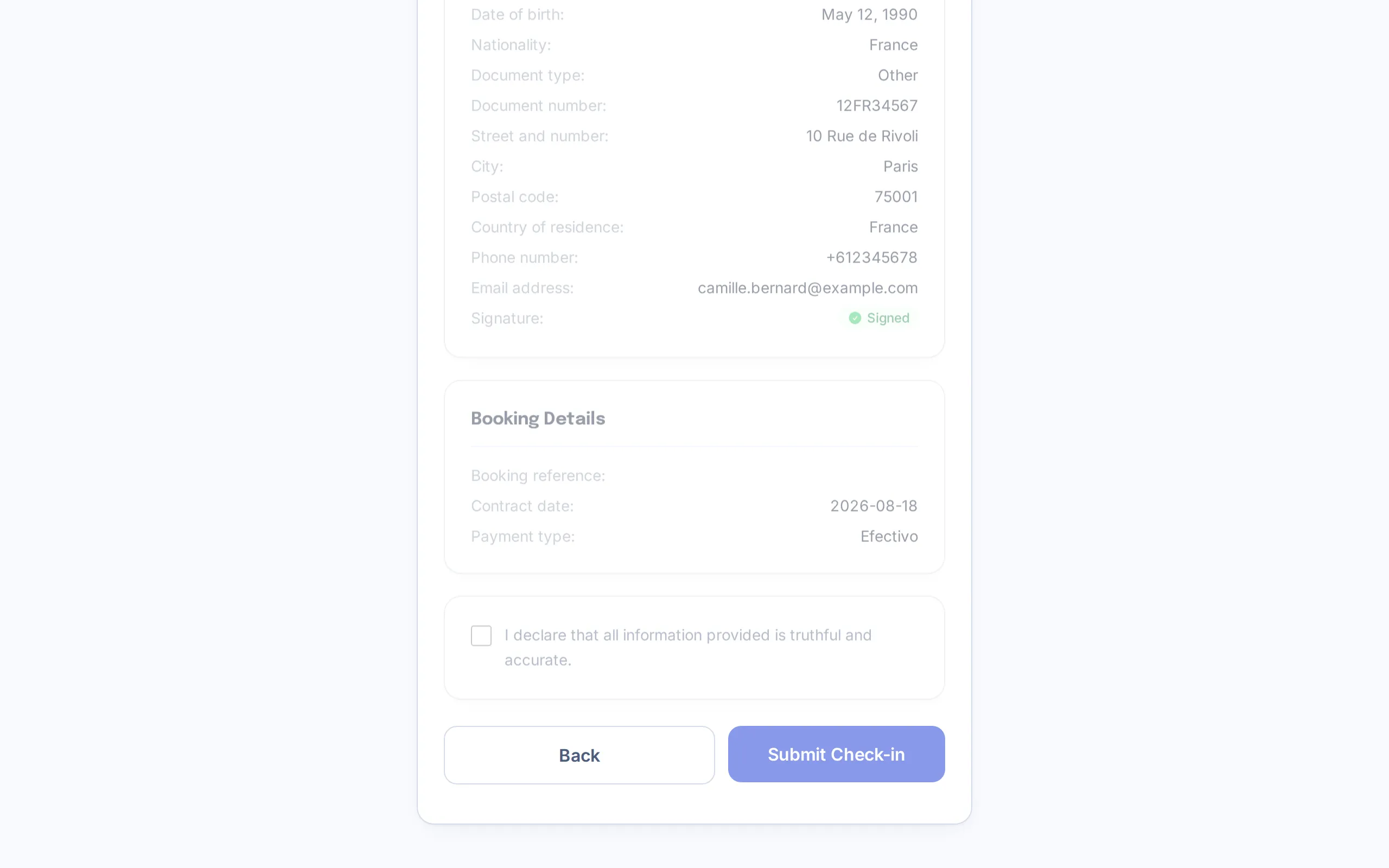
Before anything is sent, the guest sees a full summary: the stay dates, each registered person's details (including their signature, where it applies) and the booking/contract details.
To complete the submission they have to tick one last box declaring that all the information provided is truthful and accurate. Only then does the "Submit Check-in" button become active.
On a booking with several guests, each person can complete their own portion from a different device by sharing the same link — their details are saved as soon as they finish, without waiting for the rest of the group to be done.
Afterwards
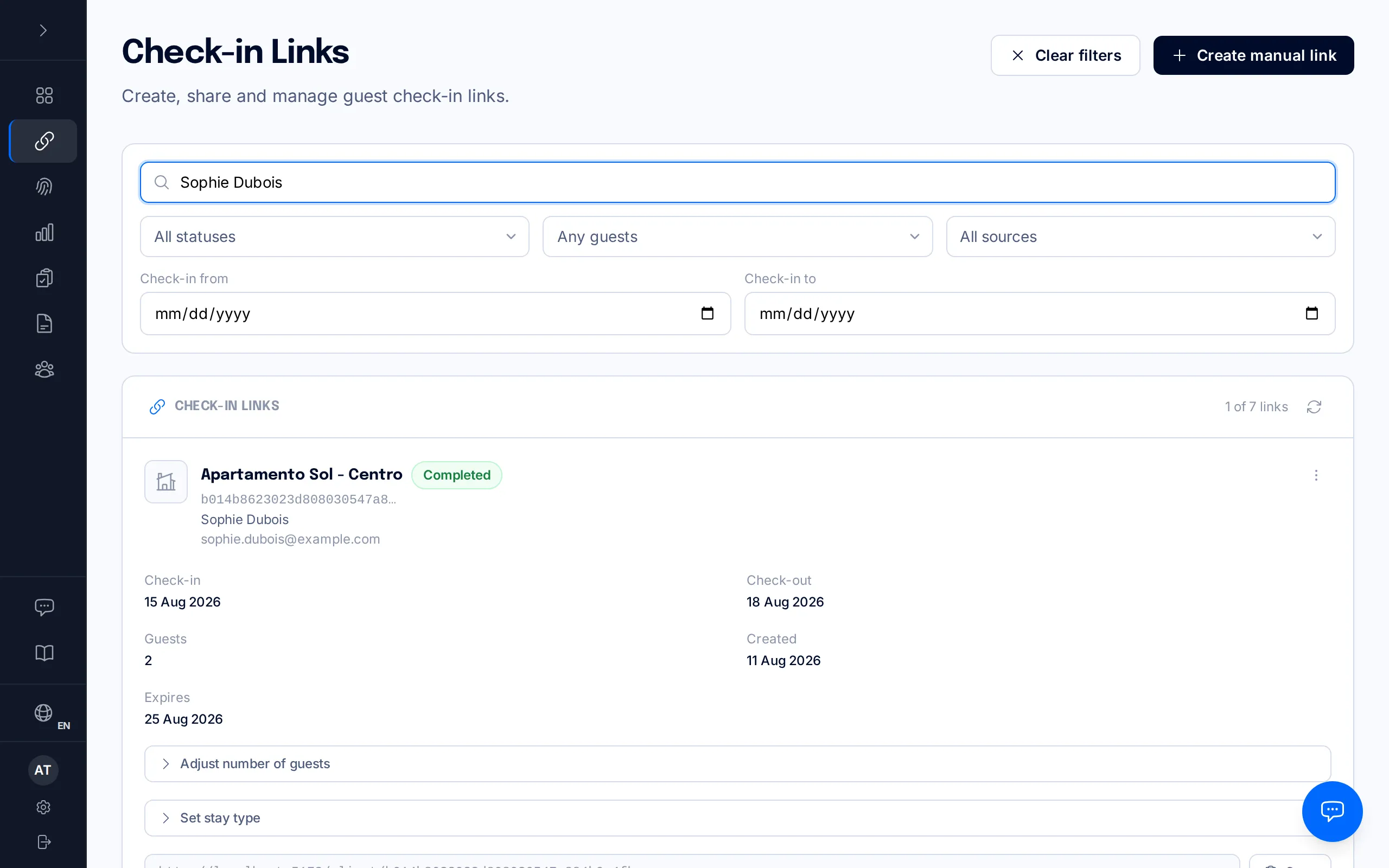
As soon as every guest on the link has submitted their registration, that link's card in your Links panel changes to "Completed" status — so you know at a glance, without having to ask, that check-in is done. While anyone is still left to register, the card stays "Pending".
From there, BookCheckin takes care of filing the traveller report to SES Hospedajes automatically — nothing to do on your end. You don't need to manually check that it went through: if a submission ever can't be completed (for example, a field the Dirección General de la Policía rejects), we notify you and you can see how to resolve it in the failed-submission manual.
Royal Decree 933/2021 requires guest data to be reported to SES Hospedajes within 24 hours of their check-in. BookCheckin files the report automatically within that legal window as soon as the check-in is complete.
Frequently asked questions
Does the guest need to create an account or install an app?+
No. The link opens the check-in portal directly in the browser, no sign-up or password required. All they need is the link you sent them.
What languages can the guest complete check-in in?+
The portal's language selector offers Spanish, English, French, German, Italian and Portuguese. The guest can switch it at any point without losing what they've already filled in.
What happens if the document scan doesn't read a field correctly?+
Nothing to worry about: every auto-extracted field is editable. The guest reviews and corrects whatever is needed on the details screen before signing, so a misread never blocks check-in.
Can several guests on the same booking use the same link from different devices?+
Yes. Each person completes their own portion of the form and their details are saved as soon as they finish, so the link can be shared within the group without anyone waiting on the others.
Do I need to submit the traveller report myself after the guest completes check-in?+
No. As soon as check-in is complete, BookCheckin files the report to SES Hospedajes automatically within the 24-hour legal window. If a specific submission ever fails, we notify you so you can resolve it.
Related manuals
Create and send a check-in link
Generate a manual check-in link for a walk-in guest or a property without a PMS, and share it however you like.
How a check-in works, from start to finish
The whole journey of a traveller registration: from sending the link to the Ministry accepting the guest's report, and what you can do at every step in between.
When an SES submission fails
Diagnose the real error the Ministry returned, fix the guest data that caused it, and resubmit the report within the legal deadline.