
Calendar sync (iCal)
Import your Airbnb, Booking.com or Vrbo reservations from their calendar export URL — no PMS connection needed — and confirm which entries are real bookings before BookCheckin creates the check-in link.
Last reviewed: 4 September 2026
Open "Calendar sync" on the property
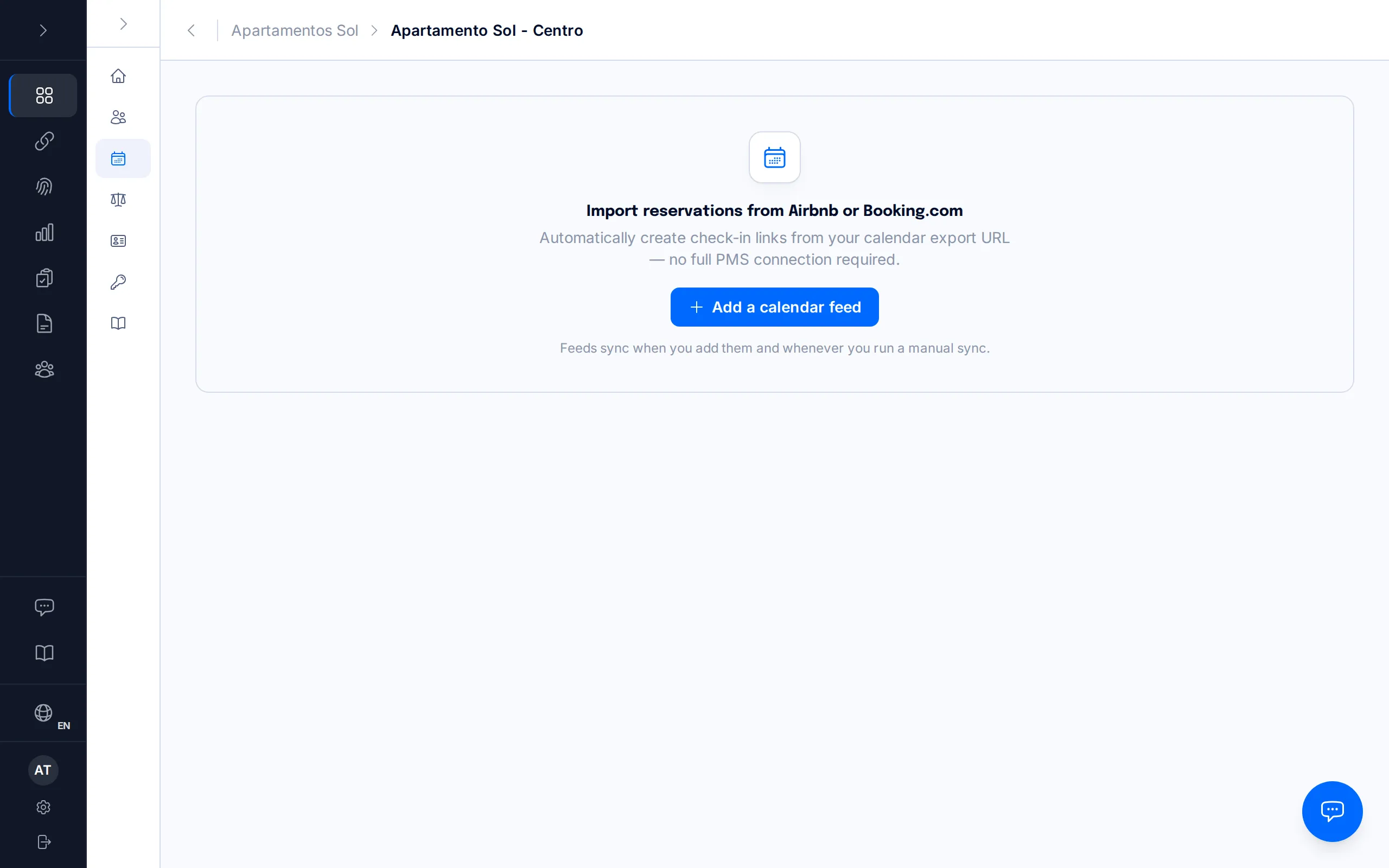
Open the property whose calendar you want to import and, in its sidebar, click the "Calendar sync" tab.
If you haven't connected a calendar yet, click "Add a calendar feed". If you already have one, the button sits at the top right and reads "+ Add another feed" — you can connect several calendars to the same property, one per platform or one per room.
Only the account owner can add or remove calendar feeds. Confirming or dismissing the bookings that come in through them can be done by anyone on the team.
Pick the platform and find its export URL
Under "Which platform is this from?", choose Airbnb, Booking.com, Vrbo or Other. The choice matters: it decides how BookCheckin treats whatever arrives on that calendar (step 4 explains how).
Expand "Where do I find this?" for the path on each platform. Airbnb: Calendar → the settings (Availability) icon → Sync calendars → Export calendar. Booking.com: Extranet → Rates & Availability → Sync Calendars → Export Calendar — there's one URL per room or unit, so copy the one for the unit you're setting up. Vrbo: Calendar → Import/Export calendar → Export. On any other platform, look for "export calendar", "sync calendar" or "iCal" in its calendar settings.
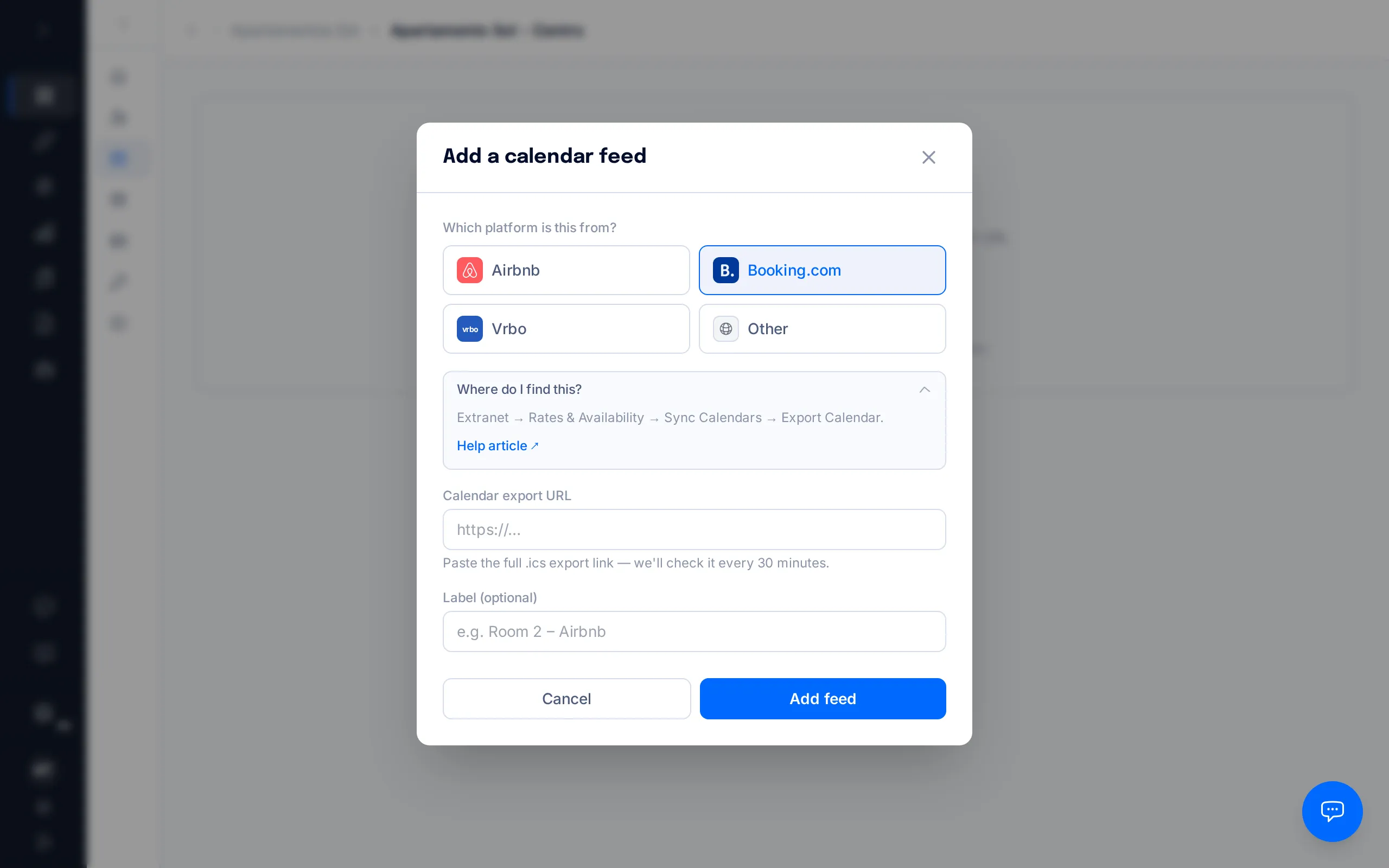
That URL contains a private key — anyone who has it can read your calendar. Don't publish or forward it, and check that it starts with https://; BookCheckin won't accept anything else.
Paste the URL, label it, and add the feed
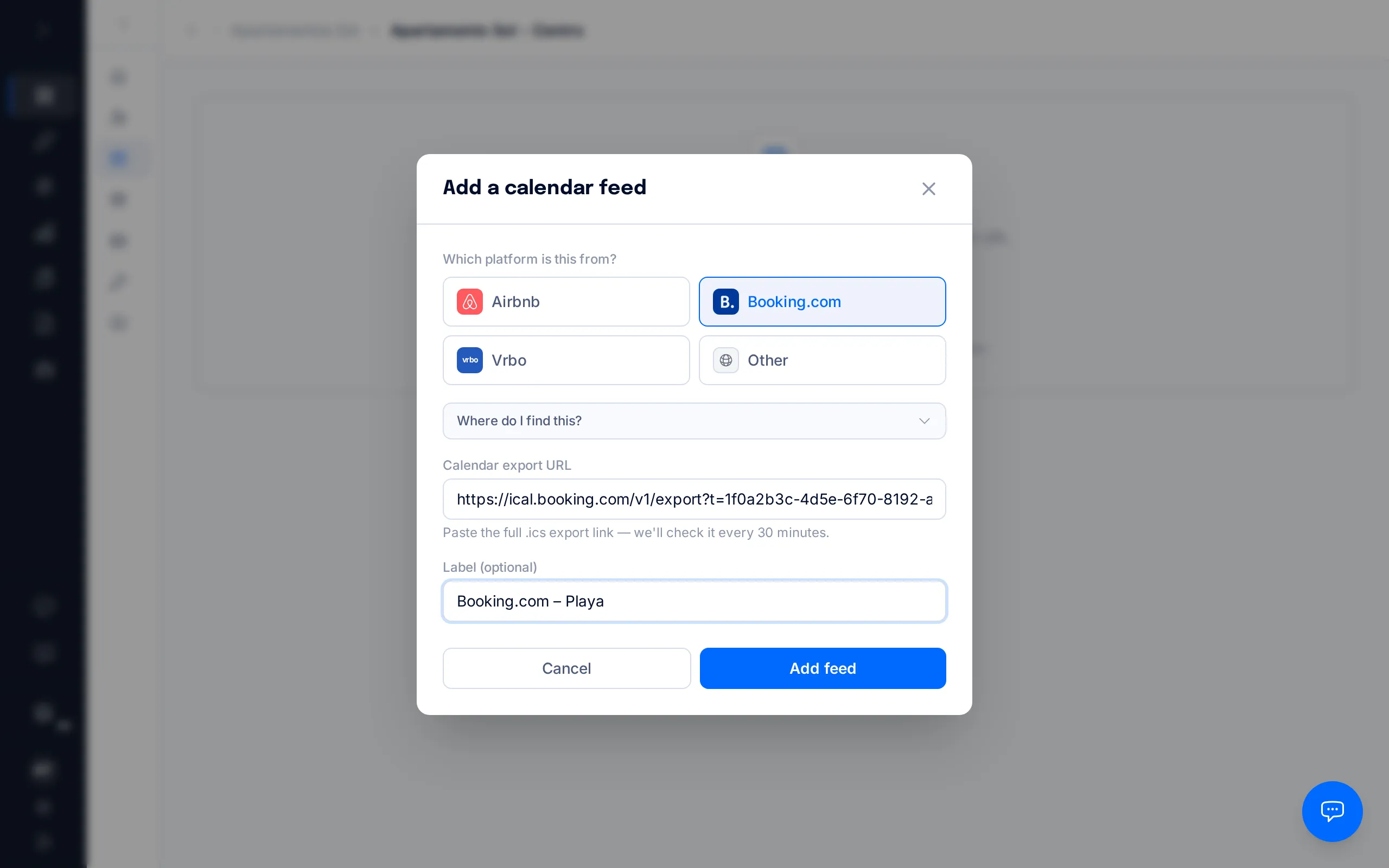
Paste the full link into "Calendar export URL". In "Label (optional)", write something that will help you recognise it later — "Room 2 – Airbnb", say; it's only for you and changes nothing about what gets imported. Then click "Add feed".
BookCheckin checks the calendar right then, so you don't have to wait to find out whether the URL works: next to the feed you'll see "Connected", "Never synced yet" or "Sync error", along with when it was last checked.
Later on you can use "Replace URL" if the platform issues you a new link, or "Remove" to stop importing from that calendar. Removing a feed leaves the check-in links it already created — and the guest data already submitted — completely untouched.
What happens automatically (and what doesn't)
It depends on the platform. On Airbnb and Vrbo, every new reservation on the calendar creates its check-in link straight away — but it arrives with the guest count unconfirmed, because no calendar ever sends that number. Until you set it, that reservation can't be filed with the Ministry: you'll find it in the amber notice on your dashboard, or by filtering your reservations by "Needs action (iCal)". Dates you blocked yourself don't count: when the calendar itself marks them as a block ("Airbnb (Not available)", say), BookCheckin recognises that and creates no link.
On Booking.com and "Other", nothing is created on its own. Those calendars export a real booking and a date you blocked yourself in exactly the same way, with the same opaque wording ("CLOSED - Not available", typically), so BookCheckin asks you entry by entry before creating anything.
No link can be created at all unless the property has verified Ministry credentials — add them and test the connection before you connect a calendar. And entries whose check-out date has already passed are not imported: only current and future stays come in.
The notice on your dashboard
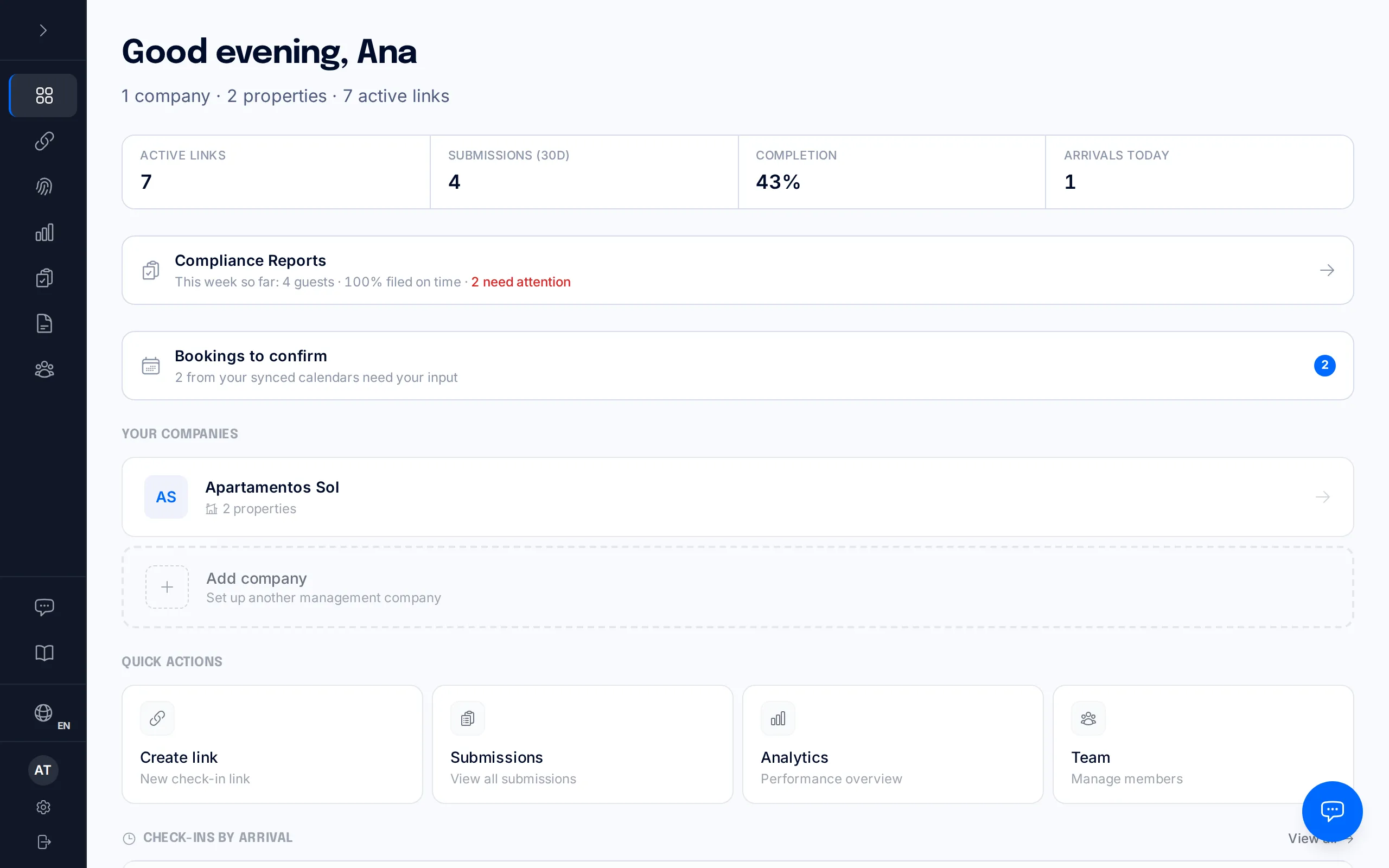
Whenever entries are waiting on you, a "Bookings to confirm" notification appears on your dashboard with the number still pending. Click it to open the full list.
If you also have already-created reservations missing a guest count, a separate amber notice sits above it — they're two different questions: one is "is this a booking?", the other is "how many people are staying?". That notice is clickable too: it takes you straight to those reservations, already filtered by "Needs action (iCal)".
Confirm the real bookings
On "Calendar bookings to confirm" — sorted by soonest check-in first — each row shows the property, the platform, the label of the feed it came from ("Room 2 – Booking.com", if you gave it one), the dates along with the number of nights, the day the entry first appeared on your calendar, and the platform's text exactly as it was sent. That's what you use to decide whether it's a guest or one of your own blocks.
When there is more to tell you, the row shows "What else do we know?": open it to see whether another of your reservations already covers those same nights, whether the dates have changed since the entry appeared, or whether it has stopped showing up on the calendar. If that link isn't there, there is nothing more to show you.
If you click "Add the guest count now (optional)" and say how many people are staying, the booking is ready to be filed with the Ministry with no extra step. If you don't know yet, click "I don't know it yet" and leave it pending — you can set it later from the reservation itself.
"Confirm booking" creates the check-in link for that stay and takes you to a card for finishing it off: there you say how many guests are staying and give the guest's phone or email (either one is enough). With that, the booking is ready to be filed with the Ministry and the guest can be sent their link. Prefer to do it later? Click "Not now — open the reservation": nothing is saved, and the reservation itself keeps reminding you.
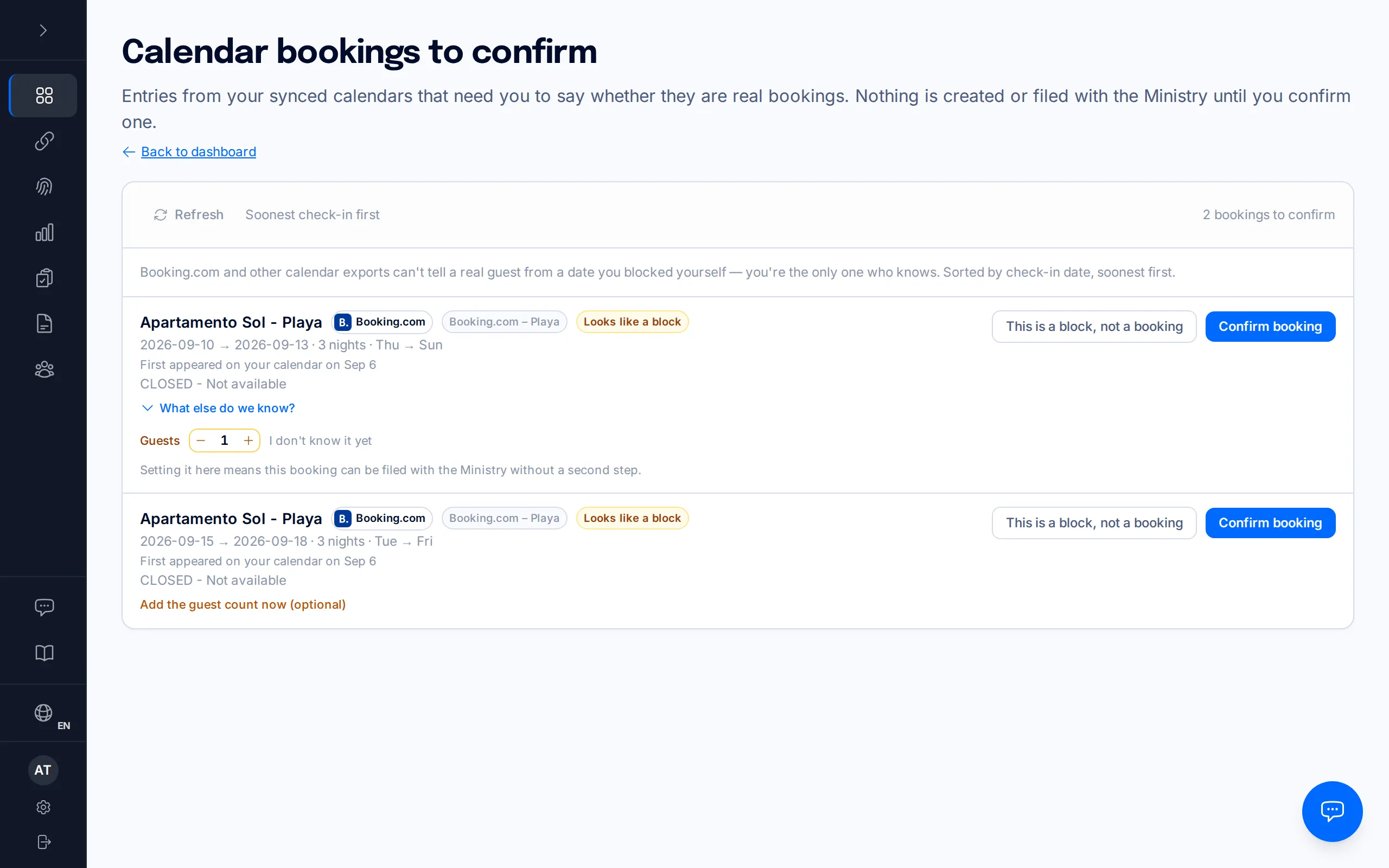
If the calendar's text uses wording that usually means closed dates, the row adds a "Looks like a block" label. It is only a hint drawn from that text: Booking.com sends those same words for real bookings too, so it dismisses nothing on its own and changes neither button — the decision stays yours.
Dismiss anything that is a block
If the entry is a block you created yourself — maintenance, personal use, closed dates — click "This is a block, not a booking". BookCheckin dismisses it and never asks you about it again.
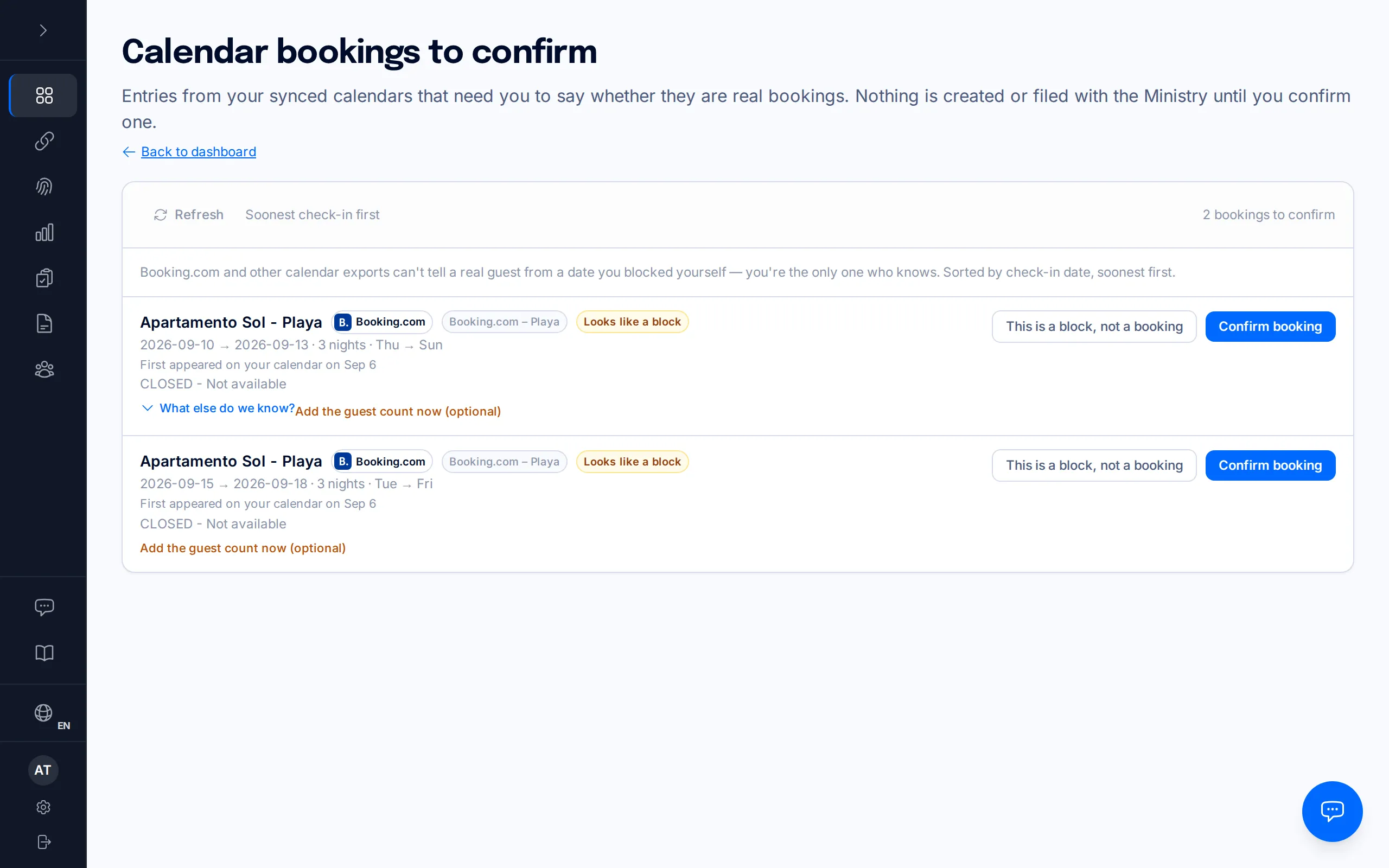
Dismissing is permanent: the entry never returns to the list, not even after the next sync. If you get it wrong, create the check-in link by hand from "Links" using the same dates.
Frequently asked questions
Why do I have to confirm Booking.com reservations but not Airbnb ones?+
Because the calendars don't say the same thing. Airbnb's (and Vrbo's) distinguishes a booking from a block, so BookCheckin can create the check-in link on its own. Booking.com's exports both the same way, with the same opaque text — and so do most platforms under "Other". Nobody but you knows whether those dates are a guest or a closure of yours, so we ask before creating anything.
What does the "Looks like a block" label mean?+
That the text the calendar sends uses wording which usually means closed dates ("CLOSED - Not available", "Blocked", "Maintenance"…). It is a hint, not an answer: Booking.com sends that exact same text whether the dates are ones you closed yourself or there is a real guest behind them. That is why the label never dismisses anything on its own and never leaves a button pre-selected — the decision is still yours.
What counts as a "block"?+
Dates you closed on your calendar with no guest behind them: building work, maintenance, personal use, or a booking you handle through another channel. On the exported calendar they look exactly like a reservation, which is why BookCheckin asks. A block produces no check-in link and no traveller report.
I dismissed a real booking by mistake — what now?+
That entry will not come back to the pending list, not even after the next sync. Nothing is lost, though: go to "Links", create a manual check-in link with that reservation's property, dates and guest count, and send it to the guest as usual.
Why does it ask me for the guest count?+
Because the report filed with the Ministry has to reflect how many people are actually staying, and it is the host who answers for a headcount lower than the real one. No Airbnb, Booking.com or Vrbo calendar sends that number, so an imported reservation arrives without it — and until you set it, BookCheckin cannot file the report. That is why it asks at the one moment you are already looking at that booking.
When are the calendars checked?+
Always at two moments: when you add the feed (that check is immediate, which is why you see the status straight away) and every time you press "Sync now" under your company's Integrations. On top of that, if periodic sync is enabled on your account, they are also checked on their own at a set interval — the "Calendar sync" tab itself tells you which applies to you: either the real interval, or "Feeds sync when you add them and whenever you run a manual sync."
What if the guest changes the dates, or cancels?+
If the dates change, the next sync updates them on its own — both on the calendar entry and on the check-in link already created. A cancellation is different: a reservation disappearing from the calendar does not deactivate the link by itself, so deactivate it yourself from "Links" if you want it closed. Any data the guest already submitted is kept regardless, as required by law.
Related manuals
Create and send a check-in link
Generate a manual check-in link for a walk-in guest or a property without a PMS, and share it however you like.
What your guest sees: the check-in portal
A screen-by-screen walkthrough of what your guest sees and does after opening the check-in link: document, signature and submission.