How to connect a channel manager
Connect your channel manager or PMS to BookCheckin (BedBooking as the example) and get a unique check-in link for every upcoming arrival.
Last reviewed: 24 October 2026
Before you start
- ✓A BookCheckin Pro plan: the company's "Integrations" tab is available on the Pro plan.
- ✓Your provider's credentials (the FAQ at the end shows what each one asks for).
- ✓One integration per company: if you already have one connected, the "Add integration" button does not appear.
- ✓BedBooking: API access is only included in its Max plan. You use the email and password you sign in to BedBooking with; we check them with BedBooking before saving, they are stored encrypted and only used to read your reservations.
Sign in
Sign in to BookCheckin with your username or email and your password.
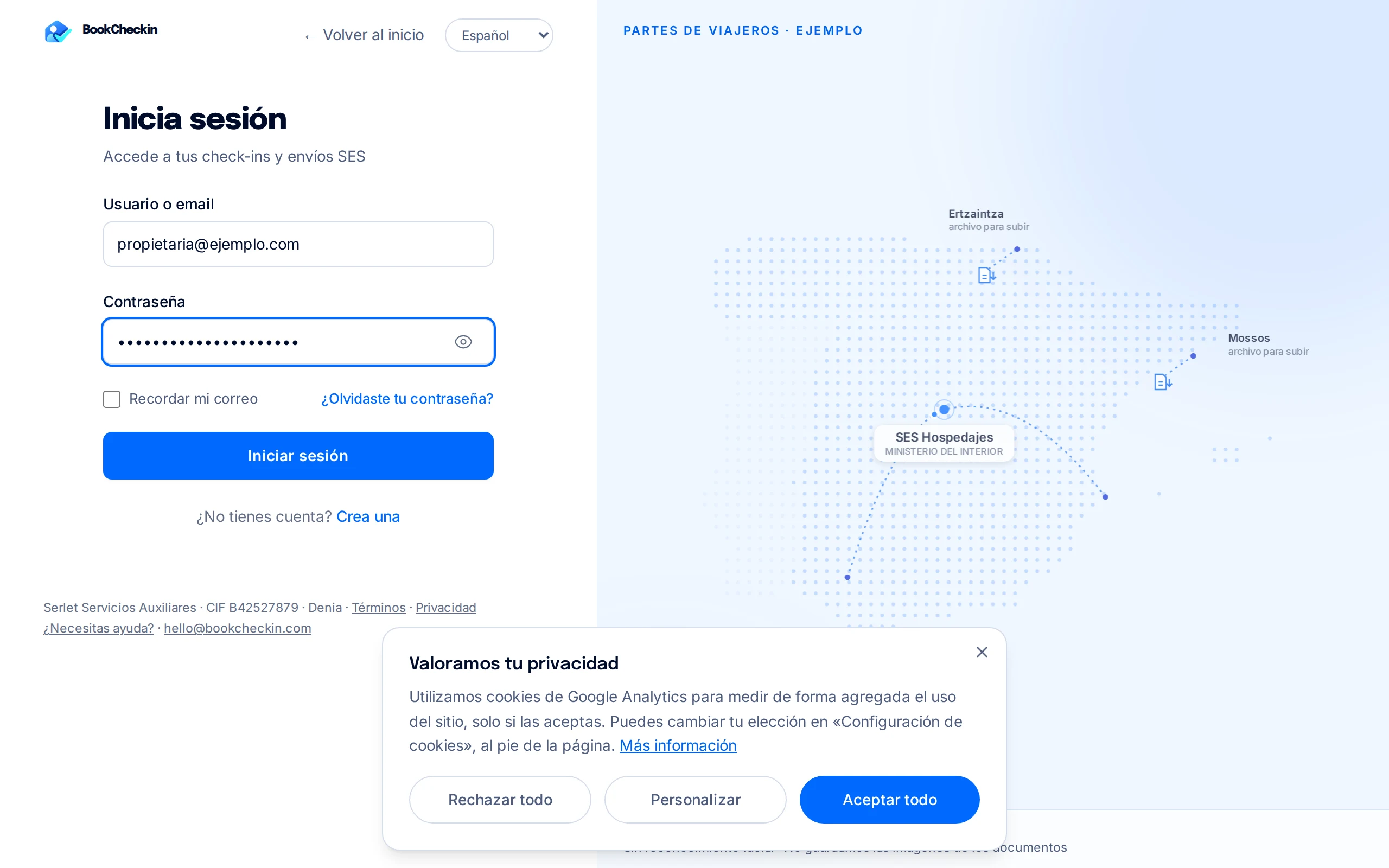
The screenshots come from a demo account with invented data.
Open your company
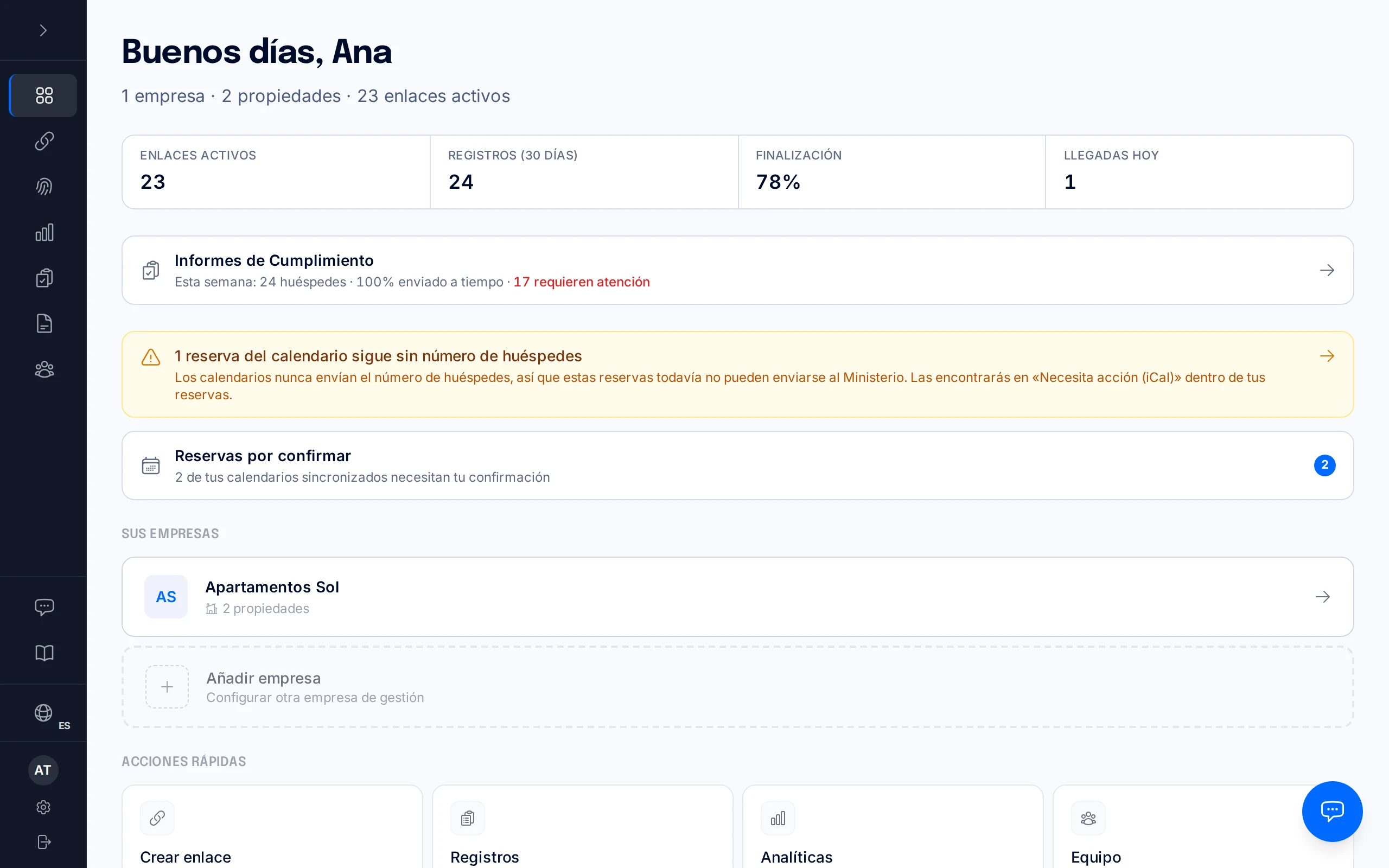
On the "Dashboard", under "Your companies", click the company where you want to connect the channel manager.
Go to the Integrations tab
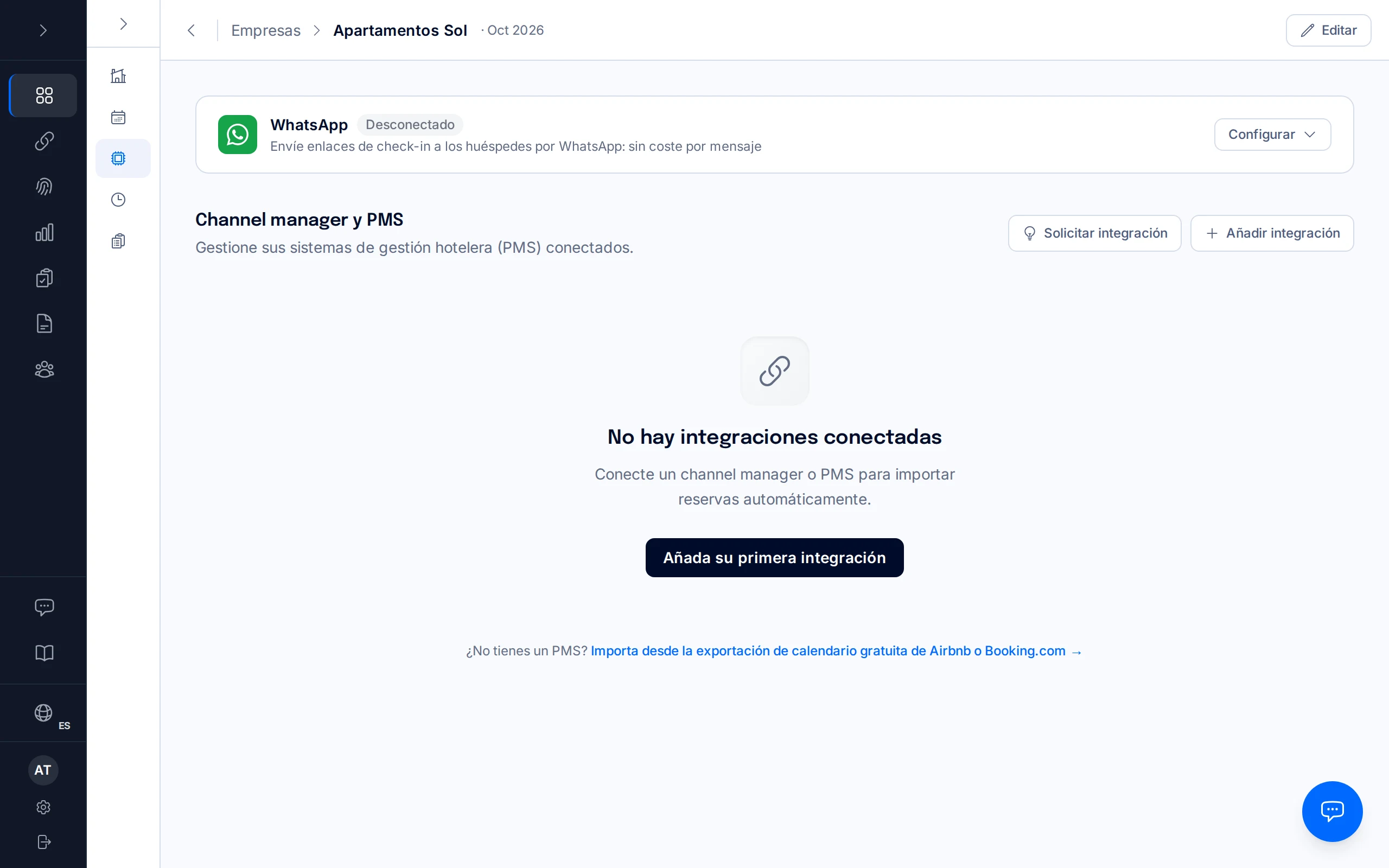
Inside the company, open the "Integrations" tab. In the "Channel manager & PMS" section, click "Add integration" (or "Add your first integration").
Choose your provider
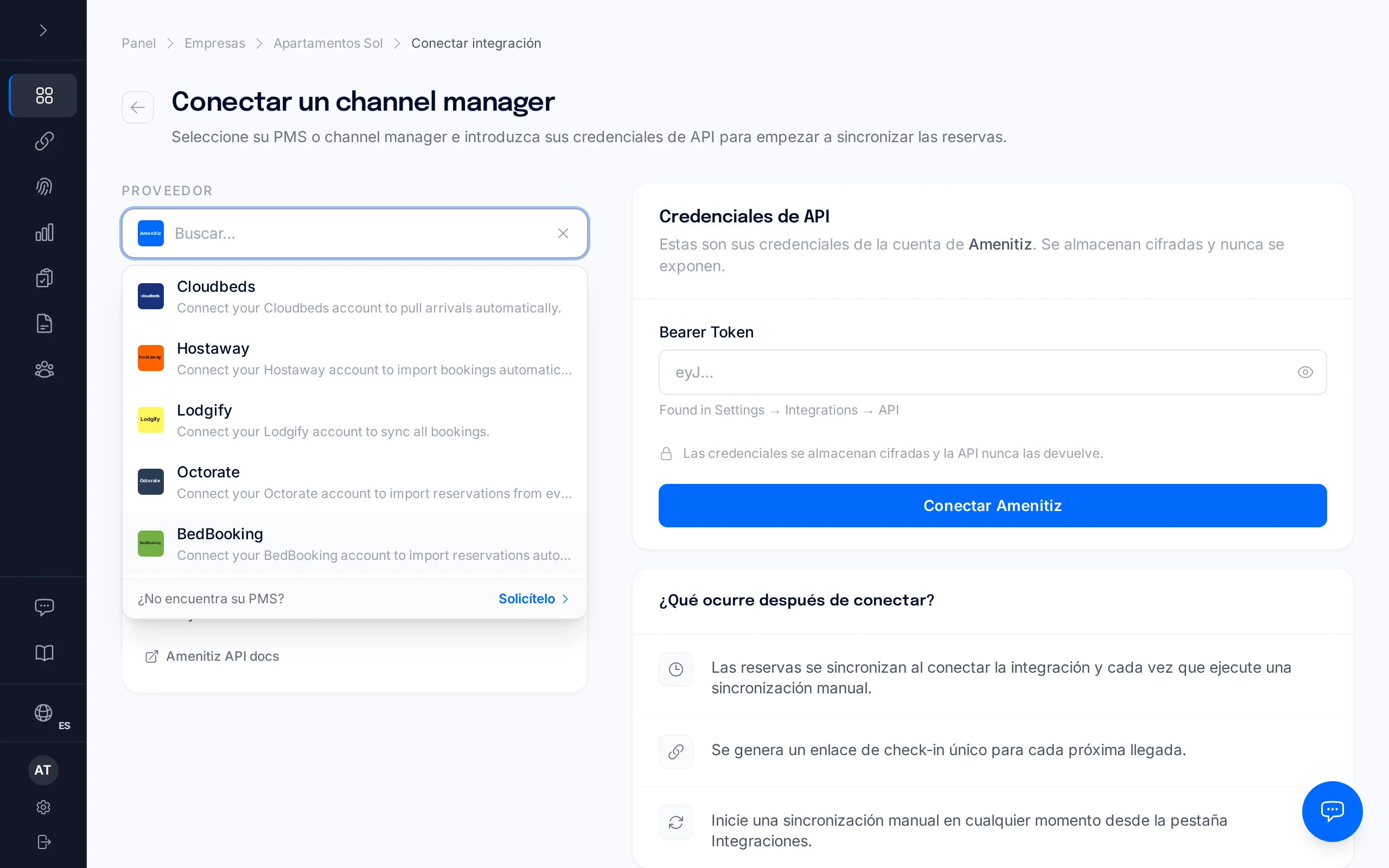
Under "Connect a channel manager", open the "Provider" list and choose yours; in this example, "BedBooking". If your provider is not listed, click "Request it".
Enter your credentials
On the left you will see that provider's "Setup guide"; on the right, the "API credentials" card. For BedBooking, enter your email ("BedBooking email") and your password ("BedBooking password").
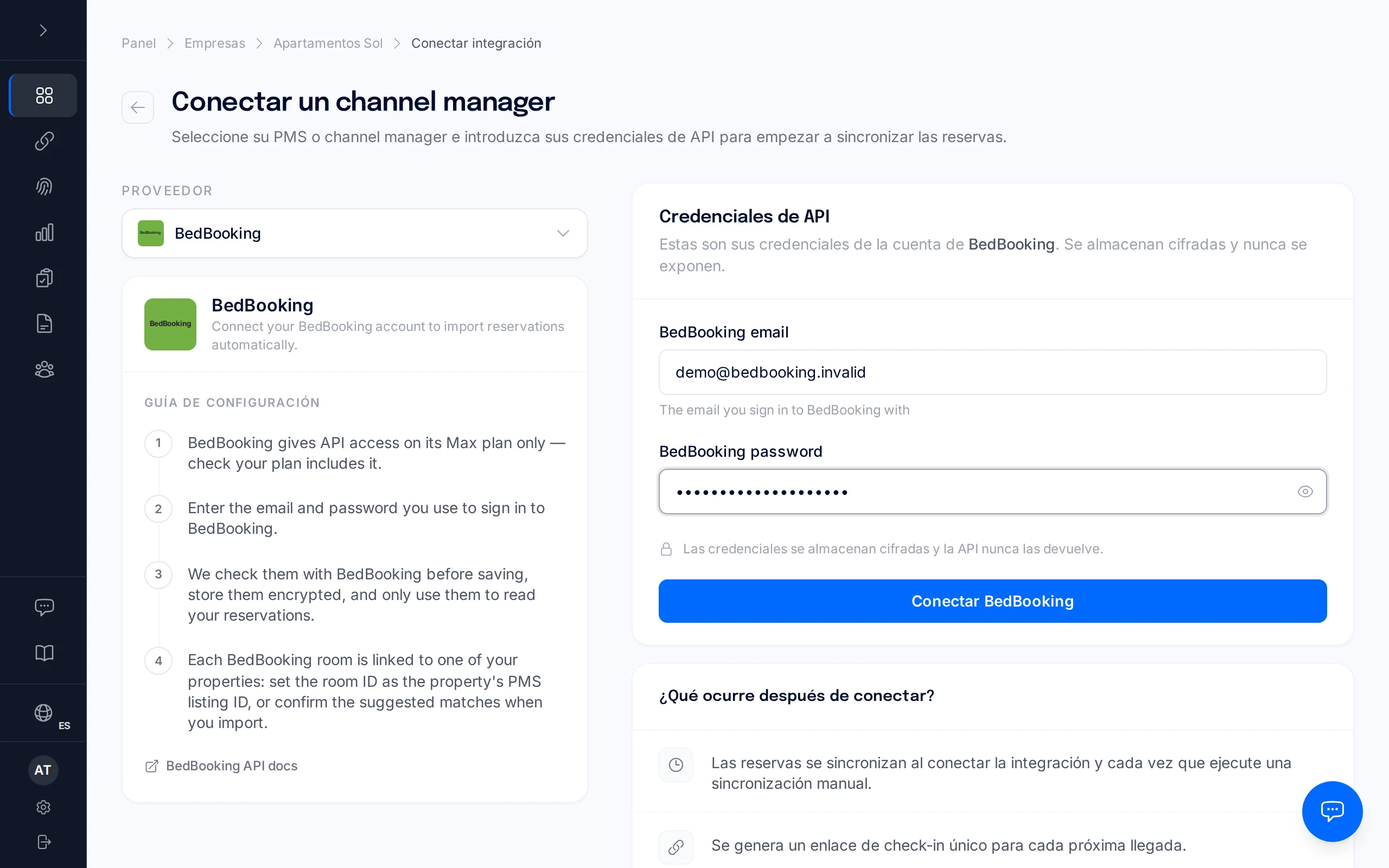
The setup guide texts and the field names of each provider appear in English.
Click "Connect BedBooking"
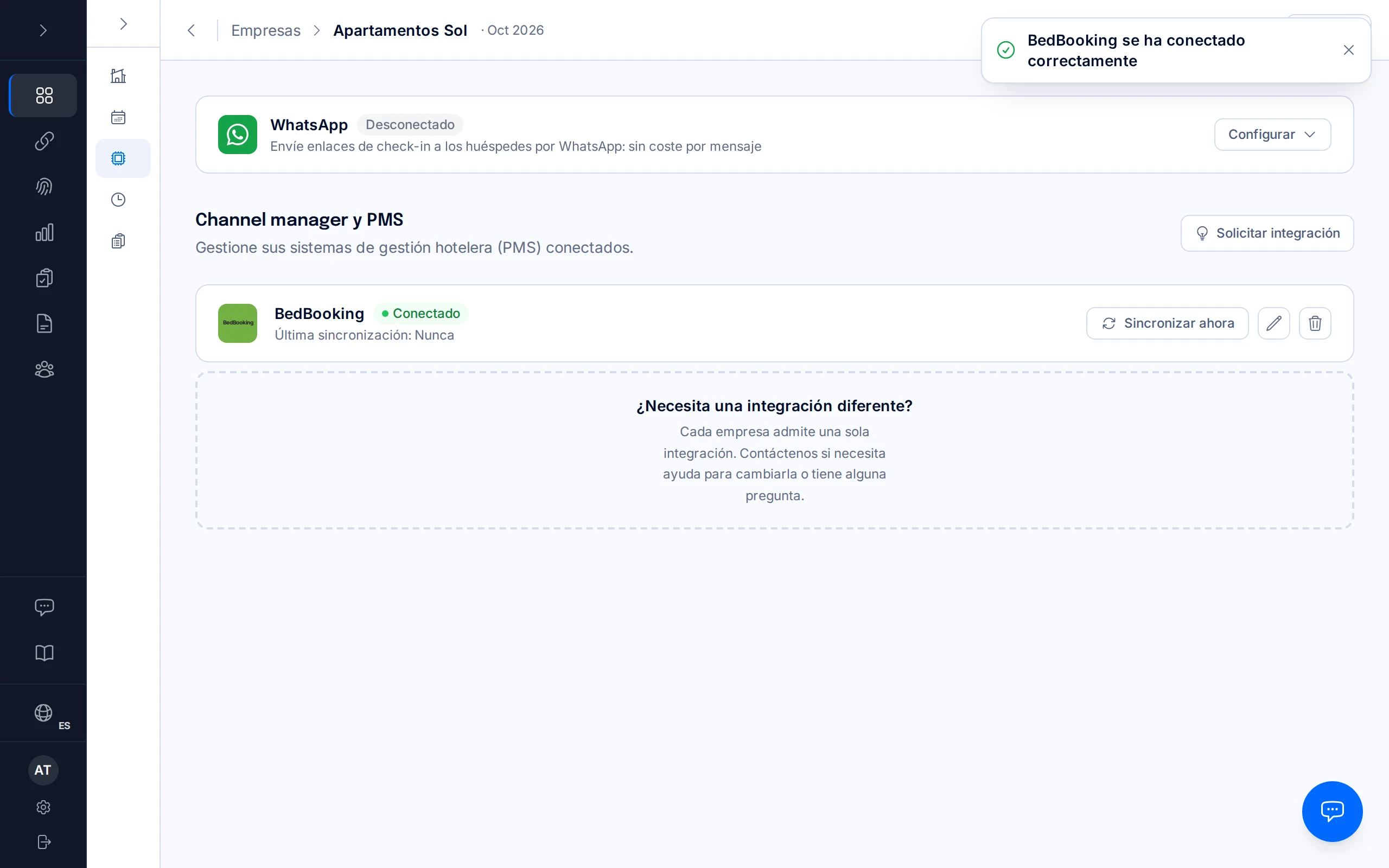
We check the credentials with BedBooking. If they are correct you will see the message "BedBooking connected successfully" and you will be taken back to the "Integrations" tab, with BedBooking marked as "Connected".
Link each room to its property
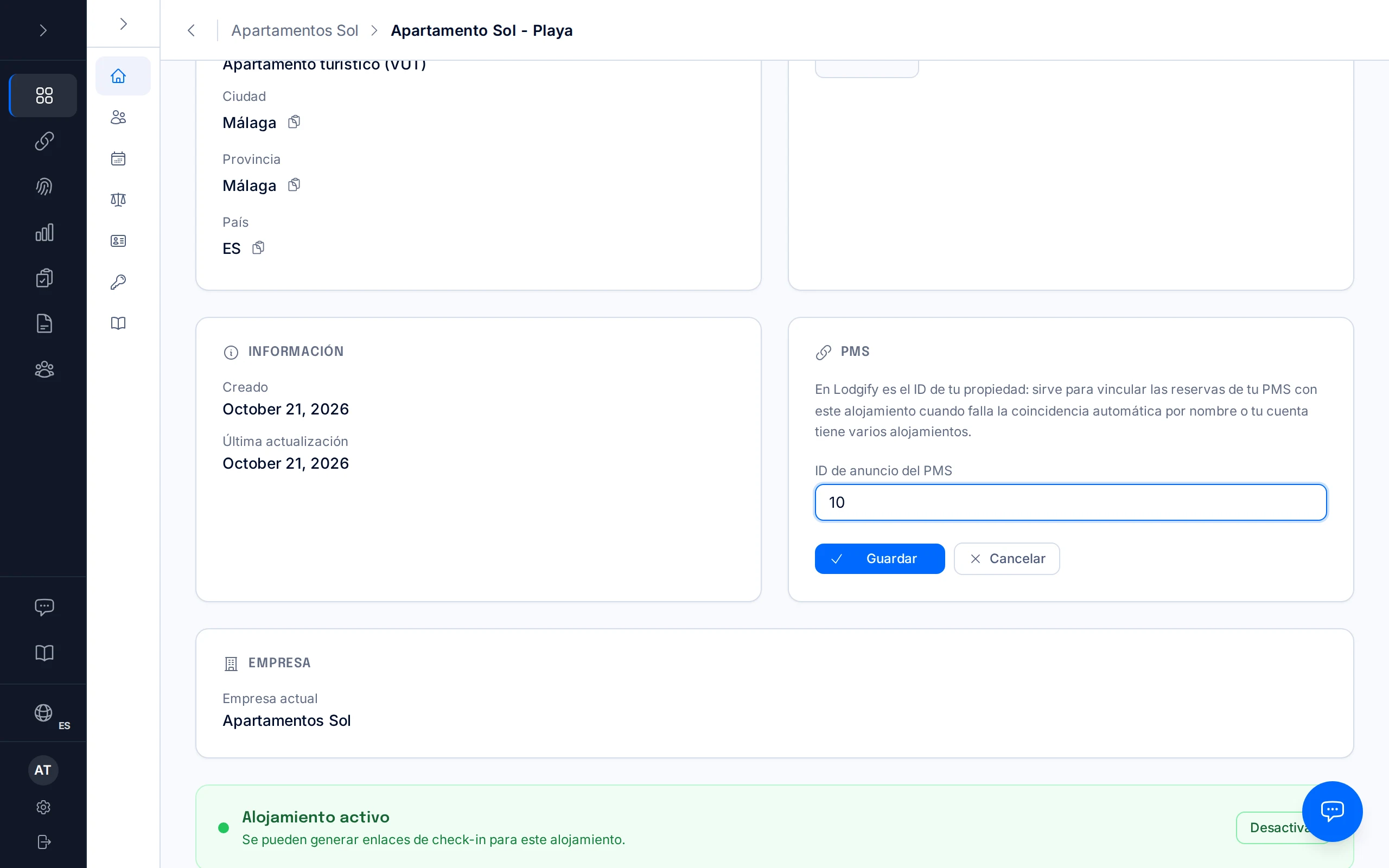
So that each reservation ends up in the right property, open each property, find the "PMS" card, click the edit pencil and enter the BedBooking room ID (the number, not the name) in "PMS Listing ID". Click "Save".
If your company has a single property, this step is not needed: all reservations go to it.
Sync
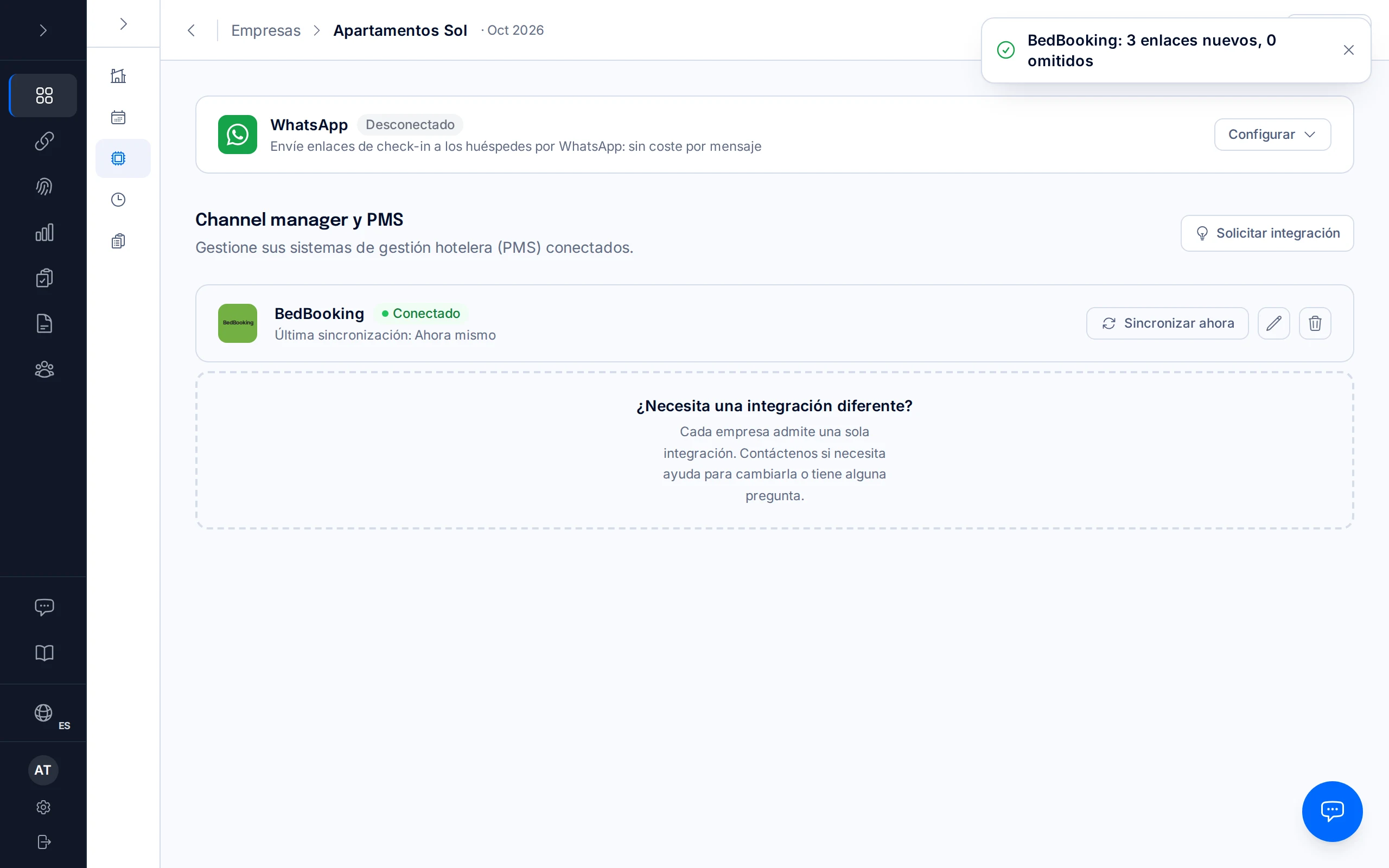
Go back to "Integrations" and click "Sync now". You will see a message with the result, for example "BedBooking: 3 new links, 0 skipped", and under the name the "Last sync".
Review the links created
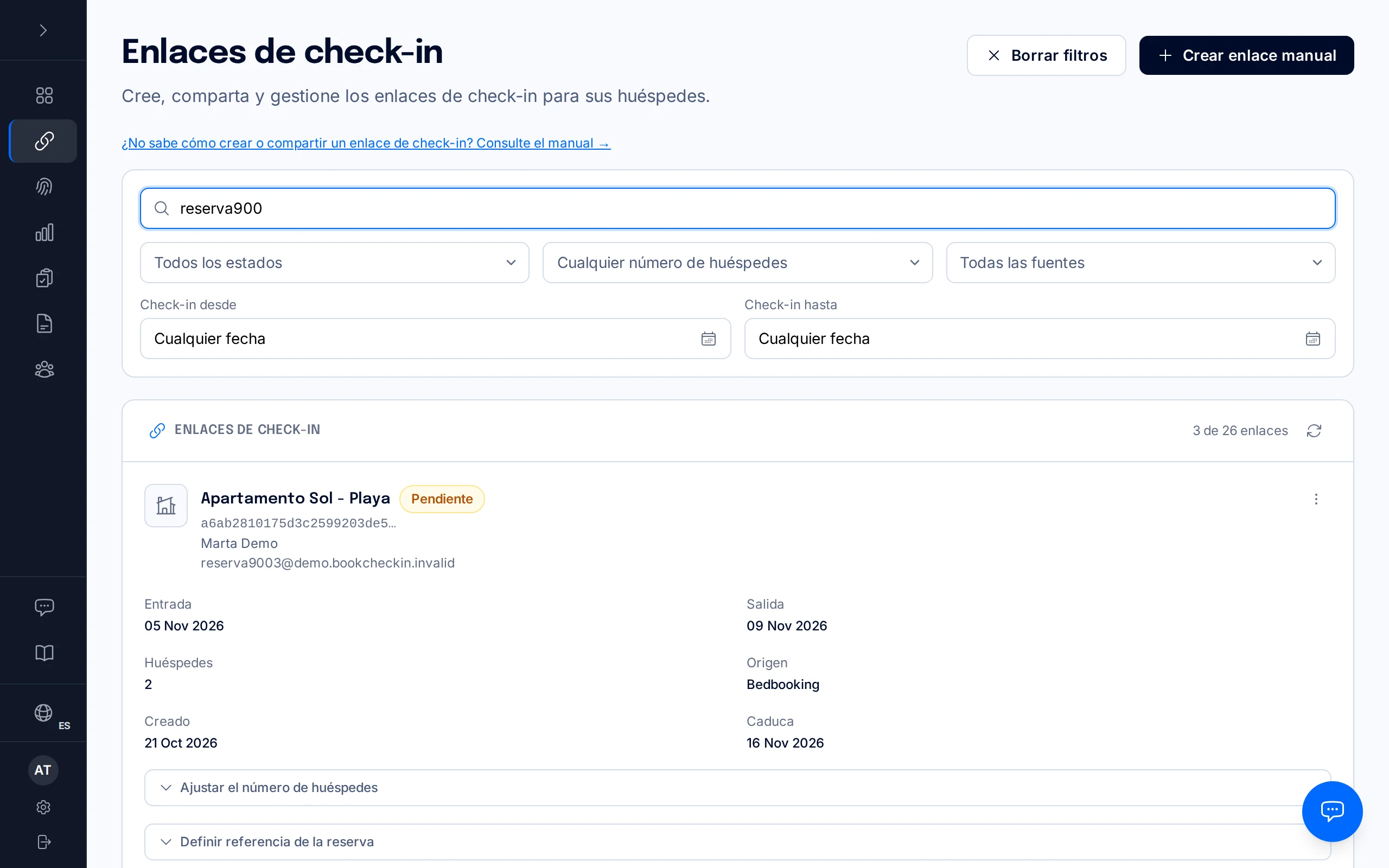
Under "Check-in Links" there is one link for each upcoming arrival, with the guest's name, the dates and the "Source" (Bedbooking). From there you can copy it, see the QR code or send it by email.
Frequently asked questions
What does the integration do?+
When you connect your channel manager, BookCheckin reads your reservations and creates a unique check-in link for every upcoming arrival. You decide when and how to send it to the guest. Connecting the integration does not send anything to the police or the Ministry by itself.
Which credentials does each provider ask for?+
Amenitiz: Bearer Token. Cloudbeds: API Key, and Property ID (optional). Hostaway: Client ID and Client Secret. Lodgify: API Key. Octorate: Access Token and Refresh Token (Client ID and Client Secret, optional). BedBooking: the email and password of your BedBooking account. The steps are the same for all of them; only the credentials change.
How do I bring in new reservations after connecting?+
Click "Sync now" on the "Integrations" tab whenever you like. A reservation that already has a link is not duplicated, so you can sync as many times as you need.
I get "BedBooking did not accept that email and password". What do I do?+
The full message reads: "BedBooking did not accept that email and password. Check them, and check that your BedBooking plan includes API access." Check the email and password you sign in to BedBooking with, and that your plan is Max.
"Sync error" appears with "reservation(s) without an assigned property". What does it mean?+
The app shows this text in Spanish: "N reserva(s) sin propiedad asignada — configure el ID de la habitación de Bedbooking en la propiedad (PMS listing ID)". Those reservations belong to rooms that are not yet linked to any property. Do step 7 on each property: "PMS Listing ID" takes the numeric BedBooking room ID; entering the room name there does not work. Then click "Sync now": the error goes away and the missing links are created.
Why are some links "skipped"?+
A reservation is skipped, for example, if it already had a link or if the property does not yet have its traveller-reporting credentials verified.
"Add integration" does not appear. Why?+
Because the company already has an integration connected: each company supports only one.
Related manuals
Calendar sync (iCal)
Import your Airbnb, Booking.com or Vrbo reservations from their calendar export URL — no PMS connection needed — and confirm which entries are real bookings before BookCheckin creates the check-in link.
Create and send a check-in link
Generate a manual check-in link for a walk-in guest or a property without a PMS, and share it however you like.
Getting started: company, property and SES credentials
Set up your account, your first property, and get everything ready for your first check-in.