Door access with TTLock: the code reaches your guest on its own
Connect your TTLock account, link each lock to your properties and let the guest receive their access after online check-in.
Last reviewed: 25 November 2026
How door access works
When a guest completes online check-in, BookCheckin sends them the door access: a code by email and, if you have it connected, by WhatsApp, or a personal link with a button to open. With the hours you set (by default 14:00 on arrival day to 11:00 on departure day), the code works from check-in and stops working at check-out.
If the booking is cancelled, BookCheckin cancels the access too. From the reservation itself you can resend the codes, send a fresh code or cancel the access.
This guide covers what you do once (connect TTLock, link each lock, set hours and sending), what you see on each reservation and what the guest receives.
What you need before you start
The Business plan, or a pilot account where we have switched door access on. Owners and managers can set it up; the rest of the team can see reservations but not the codes.
A TTLock account: the main account that owns the locks. BookCheckin connects with it in step 4.
For exact times and for cancelling remotely, the lock needs a keypad and a gateway (or to be a WiFi lock). With a keypad and no gateway, the lock itself makes the code: it runs in whole hours, the guest must type it once within 24 hours of its start, and it cannot be cancelled remotely.
A lock with no keypad, with a gateway or WiFi and Remote unlock switched on in the TTLock app, gives the guest an Open door button on a personal link, with no code. With no keypad and no gateway, BookCheckin cannot give access to that door.
Door access is switched on per account, on request. If opening "Smart Locks" shows "Available on request", get in touch with us to have it switched on.
Start here: open Smart Locks and choose TTLock
In the side menu open "Smart Locks" and, inside it, "Accounts" (1). This is the screen where lock accounts are connected.
Under "Connect a lock account" press the TTLock card (2). The form of the next step opens.
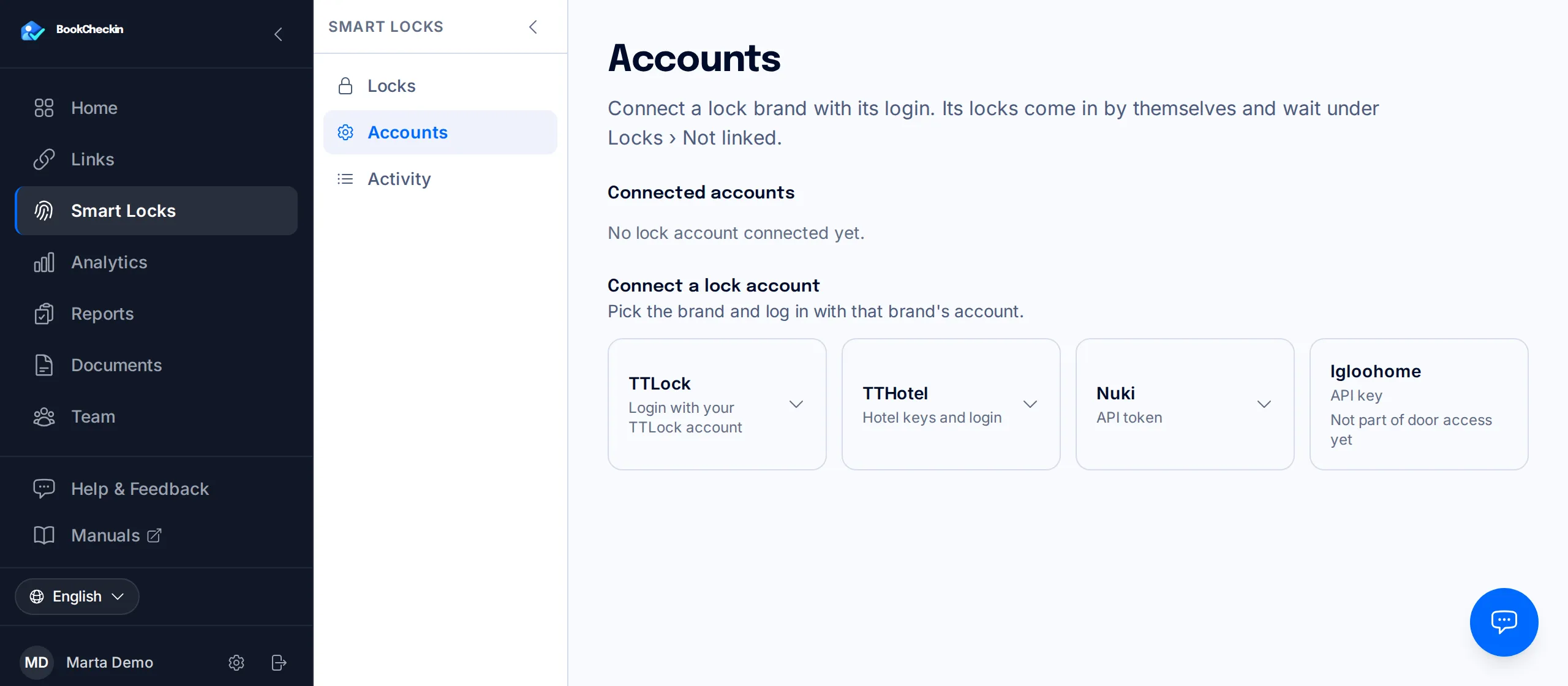
Connect your TTLock account
Under "Account login" (1) enter the "Email or phone" and the "Password" of the main TTLock account. The password is used once to connect and is not stored. If the screen also shows "Integration keys" (2), paste the "Client ID" and the "Client Secret" of your application from the TTLock developer portal. If you see the link "Use my own TTLock developer keys" instead, the login alone is enough.
Press "Connect and find locks". The account's locks are imported on their own and wait in "Locks", under the "Not linked" tab, until you link them to a property.
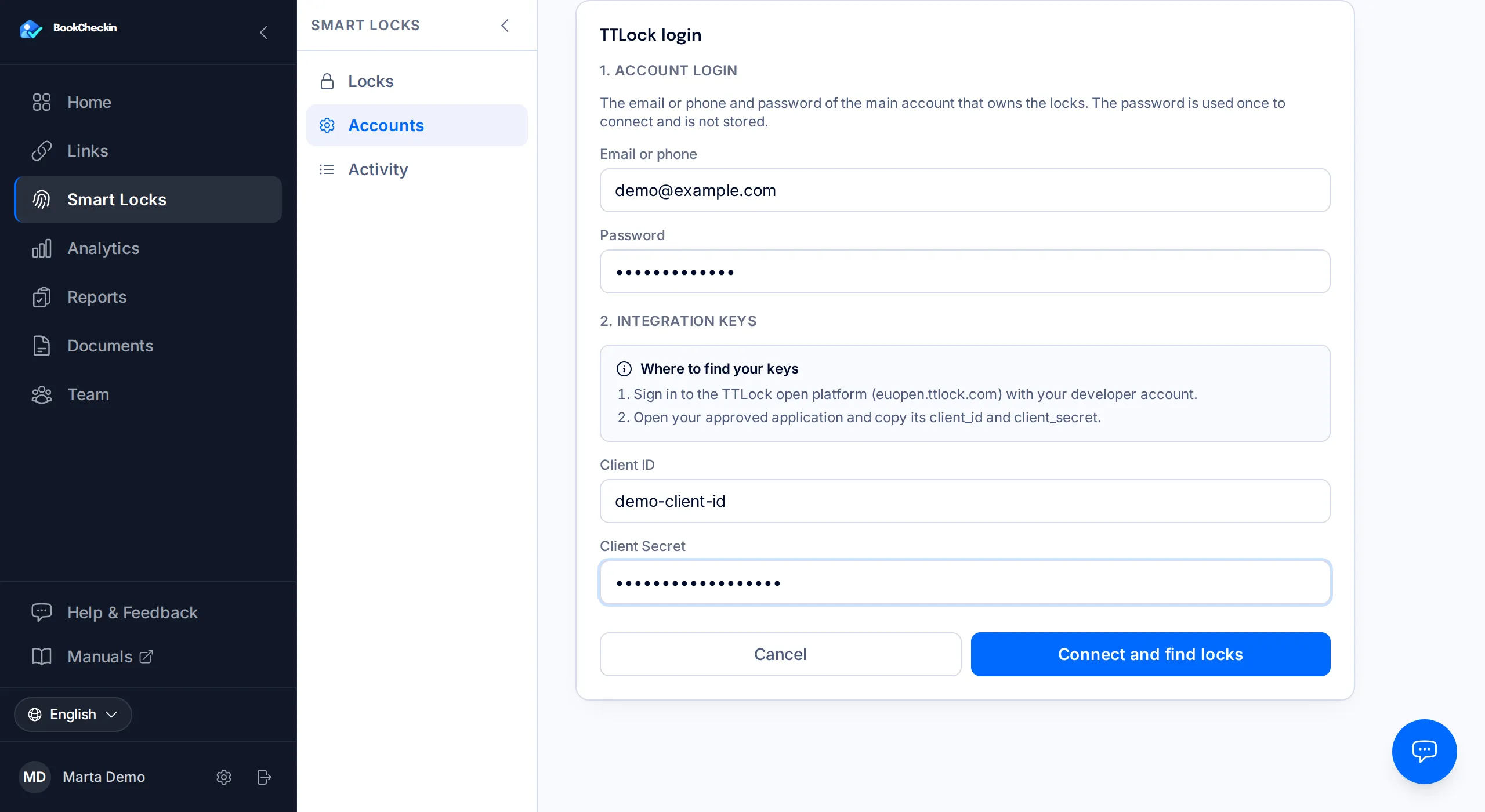
Link a lock to a property
In "Locks", open the "Not linked" tab and press "Link ›" on the lock you want to set up.
Under "Link to properties" type the "Name shown to guests" (up to 40 characters) and tick the properties this door serves (1). At least one is needed. Under "Read from the lock" you see what BookCheckin read from it: keypad, gateway or WiFi, battery and how guests will get in.
Press "Save lock". Until you save it, guests get nothing for this door. Once linked, "Check lock" reads it again.
Check that the lock works
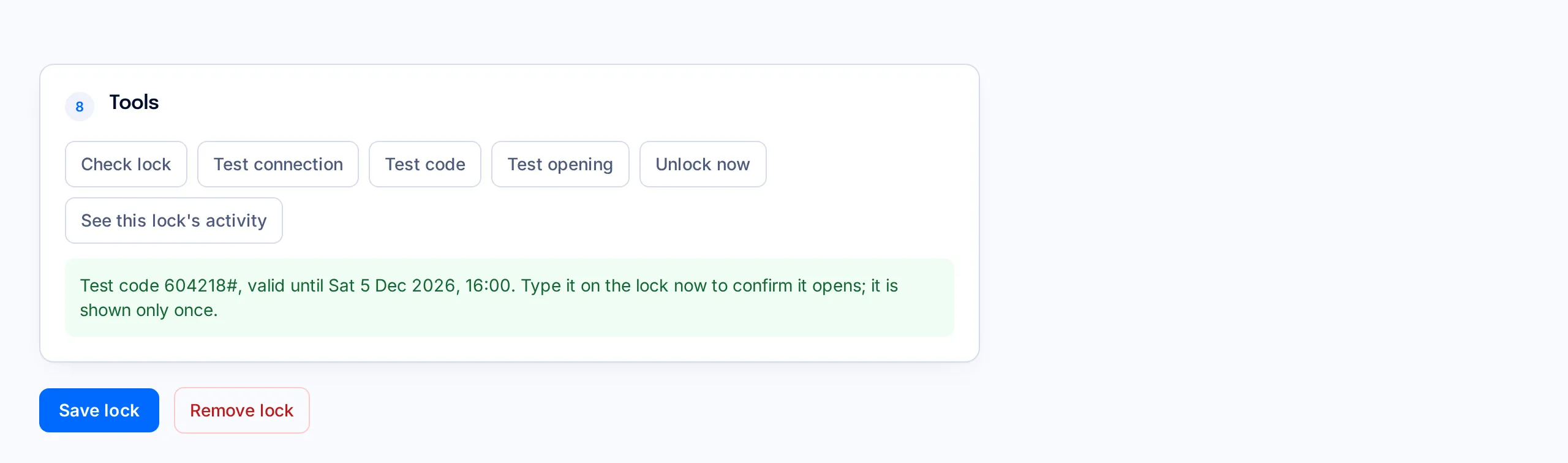
Open the lock you just linked in "Locks". Under "Tools" are the checks (1).
"Test connection" checks that the TTLock cloud answers for this lock. It does not prove the keypad accepts codes.
"Test code" creates a code on the lock that is valid for 2 hours and shows it (2) with the time it is valid until. Type it on the lock keypad now to confirm it opens; it is shown only once, so press the button again if you need another.
If the lock has a gateway or is a WiFi lock, "Unlock now" opens the door from BookCheckin, after you confirm.
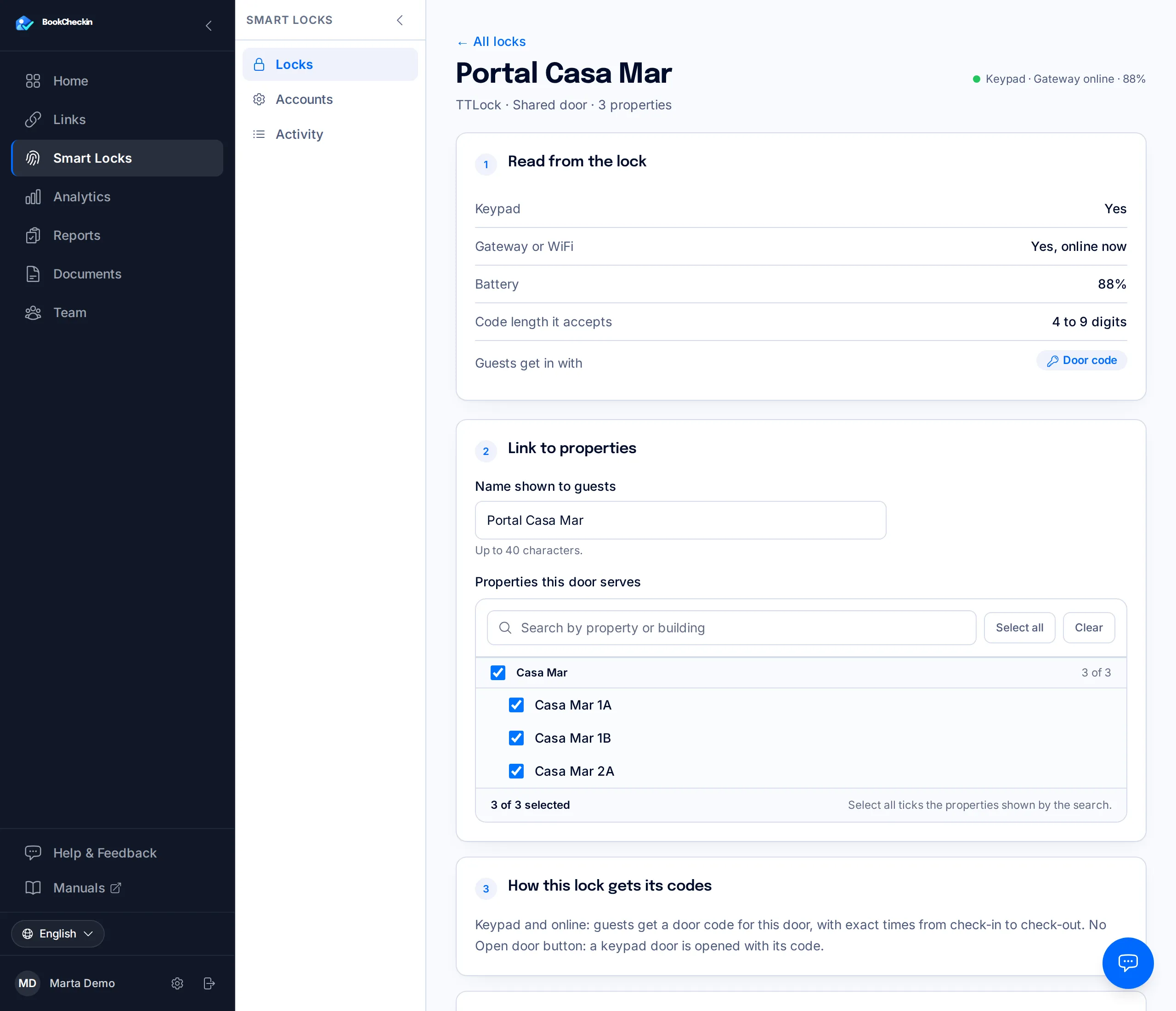
One door shared by several properties
A street door or building entrance serves several properties. To share it, tick more than one property when you link it (1): the lock shows as a shared door, with the number of properties it serves.
Each guest receives the doors of their property: their own and the shared ones. Hours and sending are set once on the lock and apply to every property it serves.
Access hours
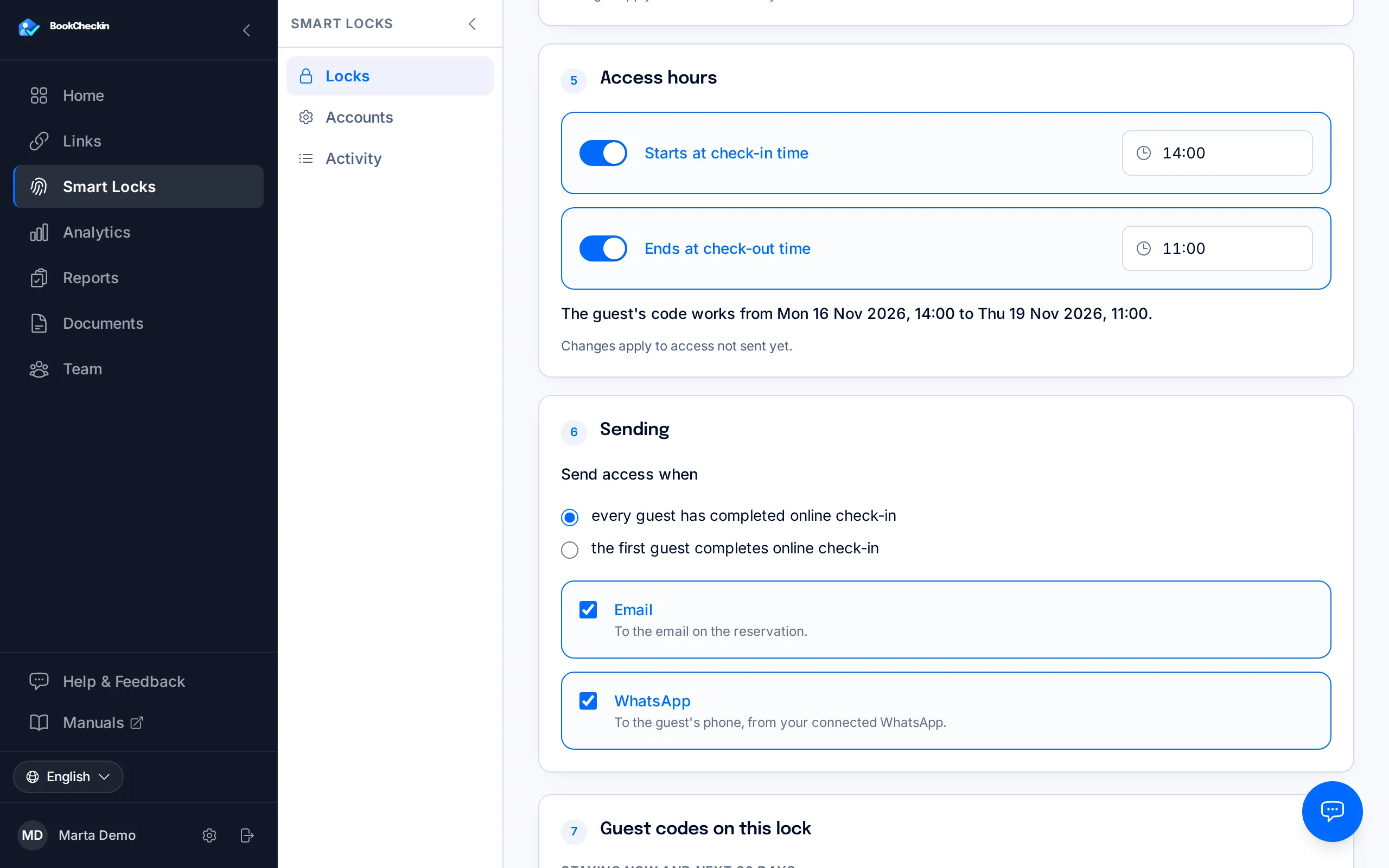
On the same screen, "Access hours" (1) sets when the code works. With "Starts at check-in time" and "Ends at check-out time" on, the code works from the "Check-in time" to the "Check-out time"; by default 14:00 and 11:00.
If you turn the start off, it works from the moment access is sent, never before 00:00 on the arrival day; a lock without a gateway always starts at 00:00 that day. If you turn the end off, it works until 23:59 on the departure day.
A lock with no gateway works in whole hours, so the time is rounded. Changes apply to access not sent yet.
Sending and cancelling
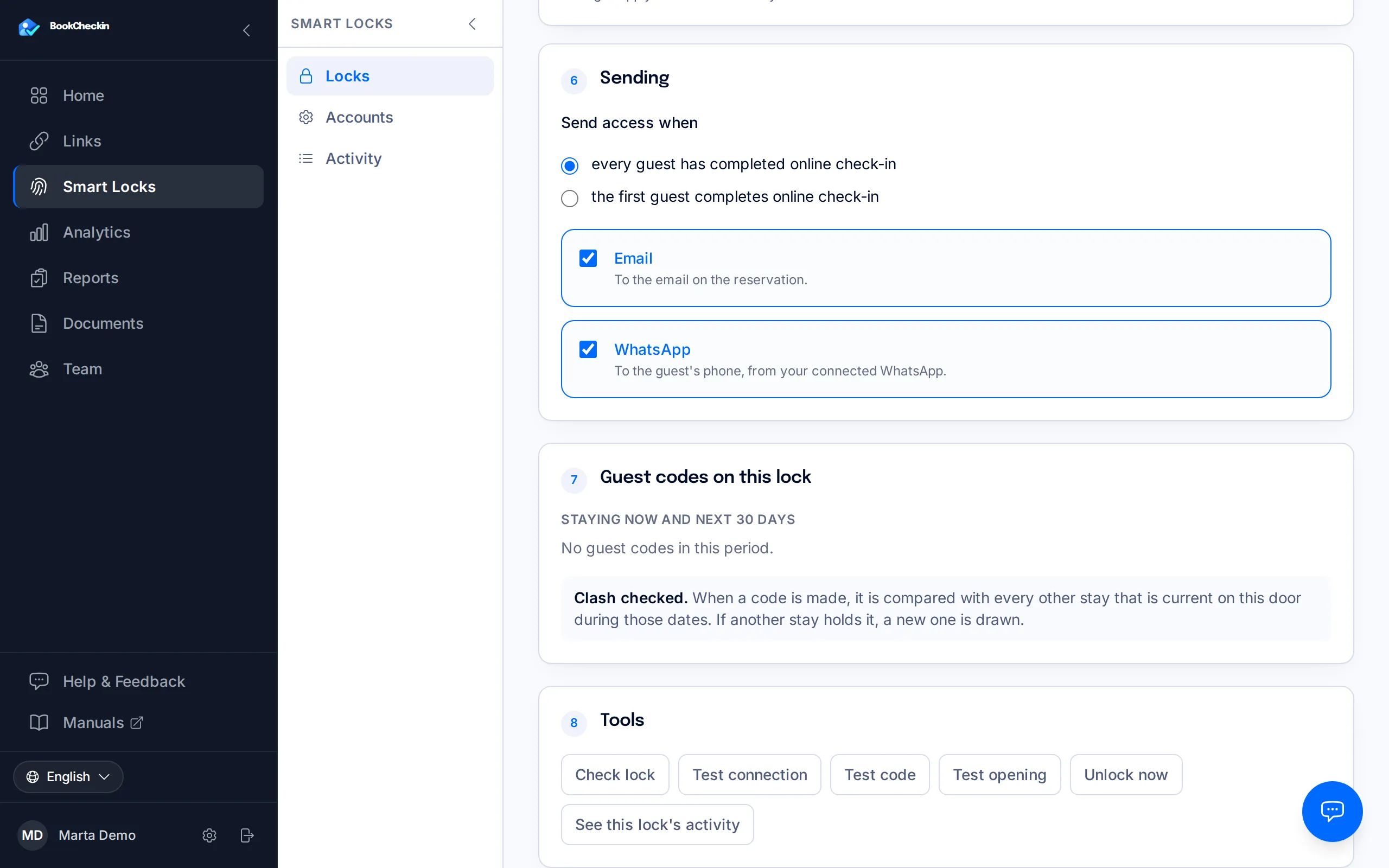
Under "Sending" (1) you choose when access goes out: "Send access when" "every guest has completed online check-in" or "the first guest completes online check-in".
You also choose the channel: "Email" (to the email on the reservation) and "WhatsApp" (to the guest's phone, from your connected WhatsApp). Both are ticked by default; tick at least one. WhatsApp is only sent if you have it connected in Company › Automation; otherwise its card shows as disabled and the access goes by email only.
At check-out time the code stops working on its own. If the booking is cancelled, BookCheckin cancels the access: a gateway code is deleted at the lock; a code the lock makes cannot be deleted remotely and keeps opening until its end, and we tell you by email.
What you can do on each reservation
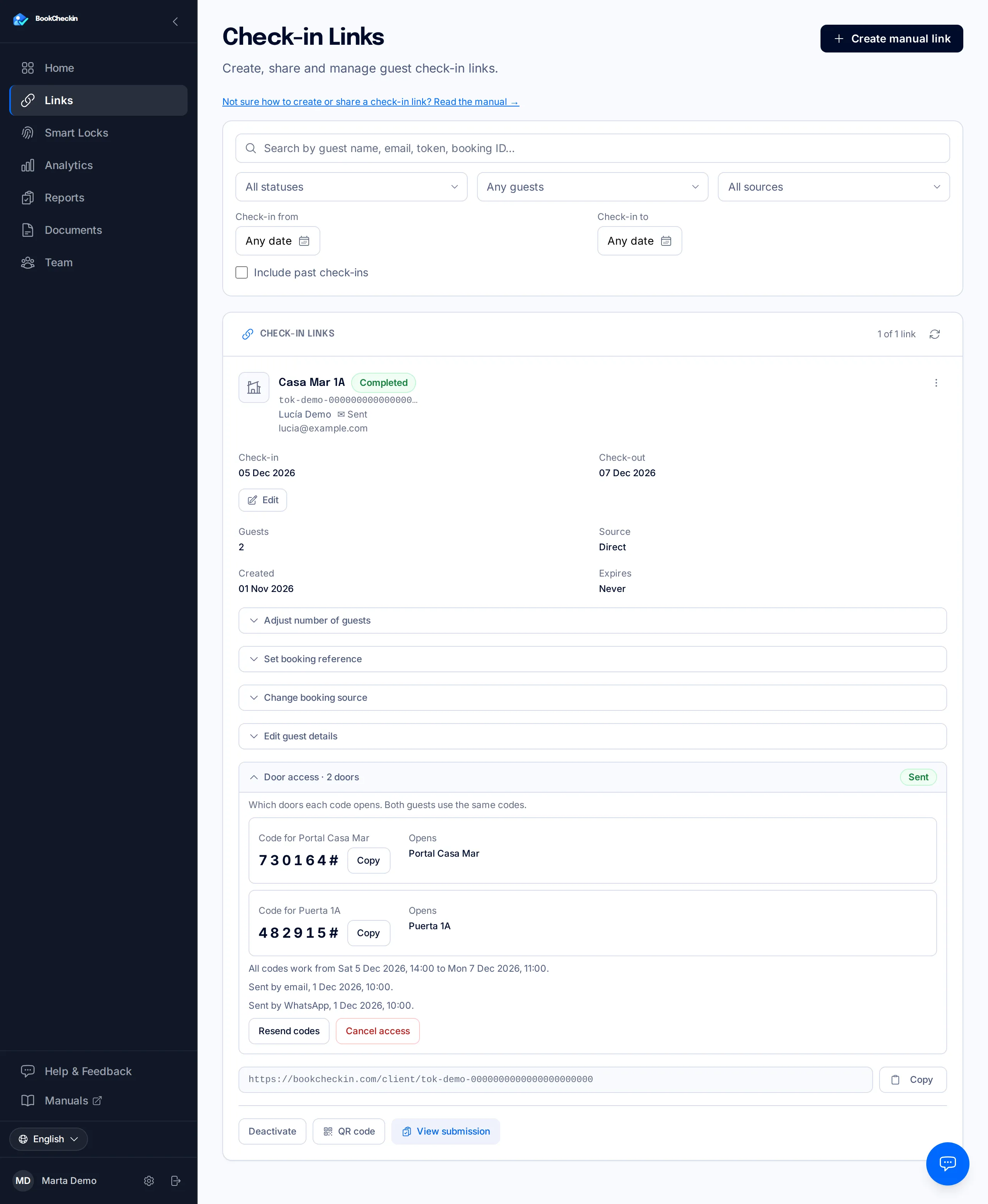
In "Links", open a reservation and expand "Door access". You see each door with its code (1) and its status, for example "Working now" or "Ended". All the guests of the reservation use the same codes. Team members without management rights do not see them: "Codes are shown to managers only."
The actions are below (2). "Resend codes" sends them again. If not every guest has completed check-in yet, "Send anyway" sends the access without waiting. "Guest arriving late: send a fresh code" only appears with a code made by the lock, once 24 hours have passed since its start and it has not ended yet.
"Cancel access" asks for confirmation, stops the access and does not change the booking. Afterwards, "Give access again" sends new access for the same dates.
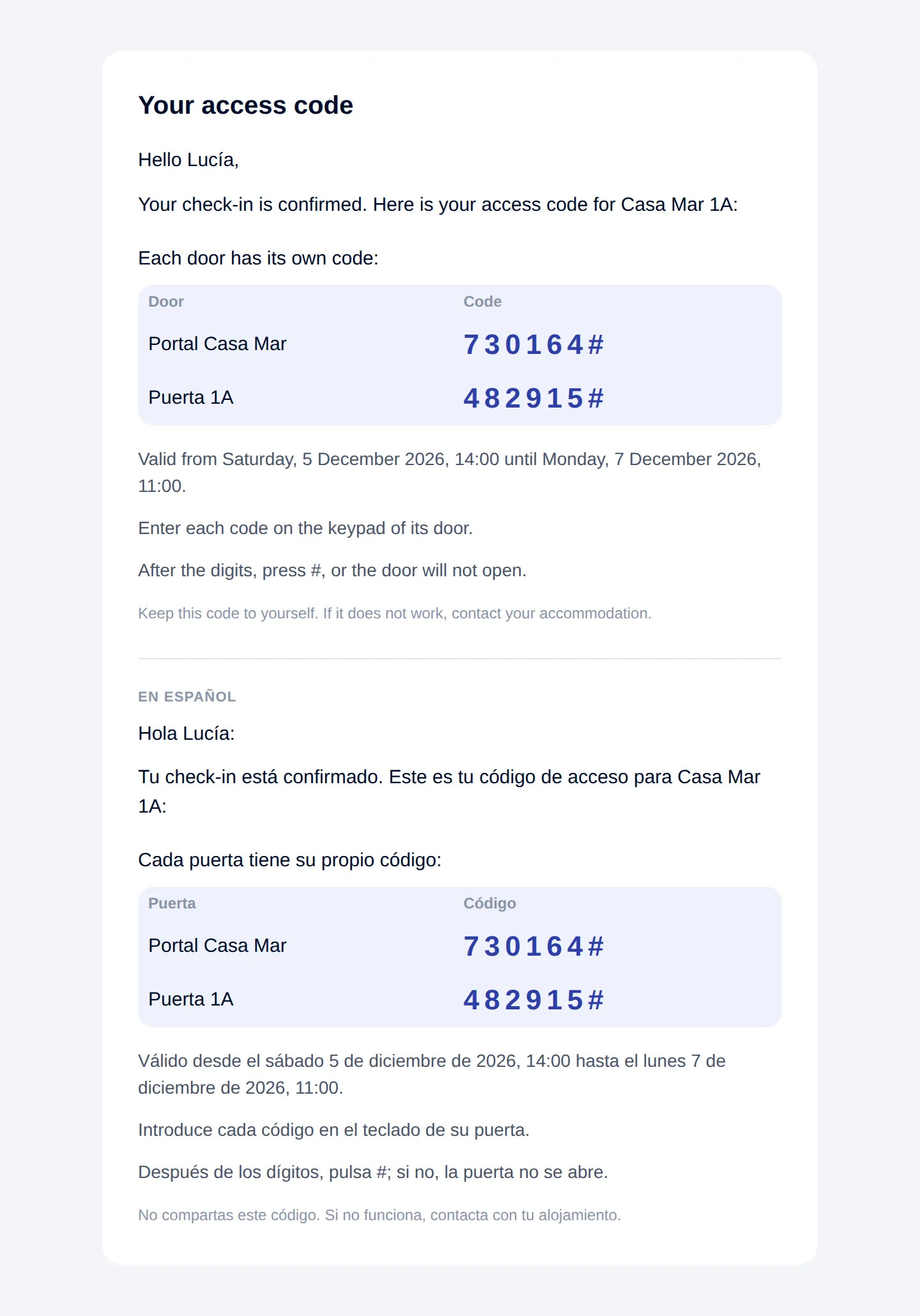
The email the guest receives
This is the email that carries the access, generated with invented data: the code for each door and the period in which it works. All the guests of the reservation use the same codes.
The message goes out in the guest's language: the one on their booking, the one for their phone prefix or, if there is neither, the one of the property's country. If it is not in English, the same message follows below in English. If it is in English, it follows in the language of the property's country; when that language is English too, or the country has no recognised language, the email has one language only.
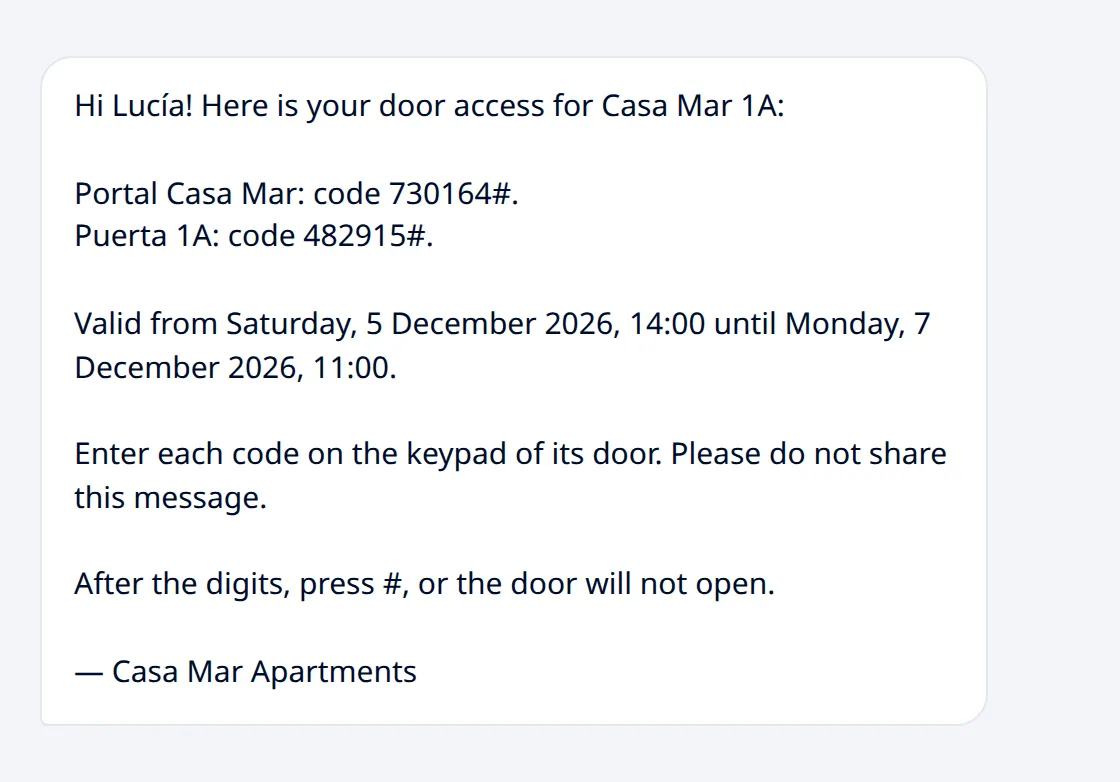
The WhatsApp message
If the "WhatsApp" channel is on and connected, the guest receives the same access by WhatsApp, sent from your connected number. This is how the message looks, with invented data.
If WhatsApp is not connected, it is not sent and the access arrives by email only.
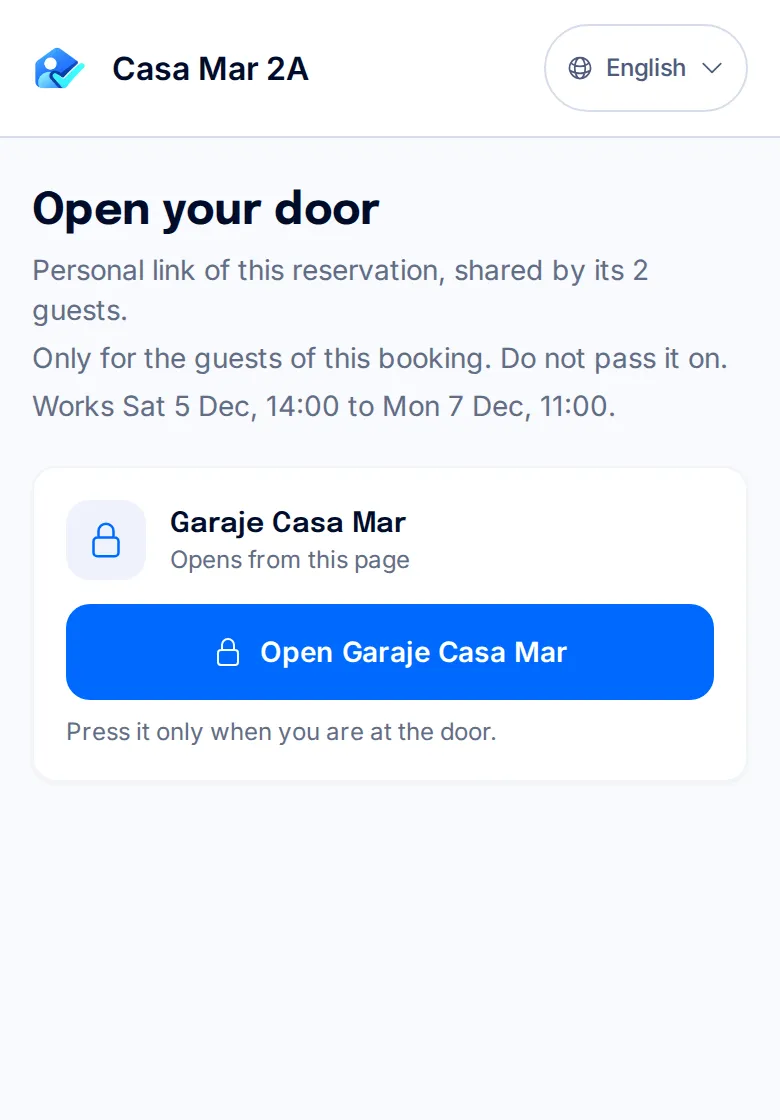
The page to open the door, on a phone
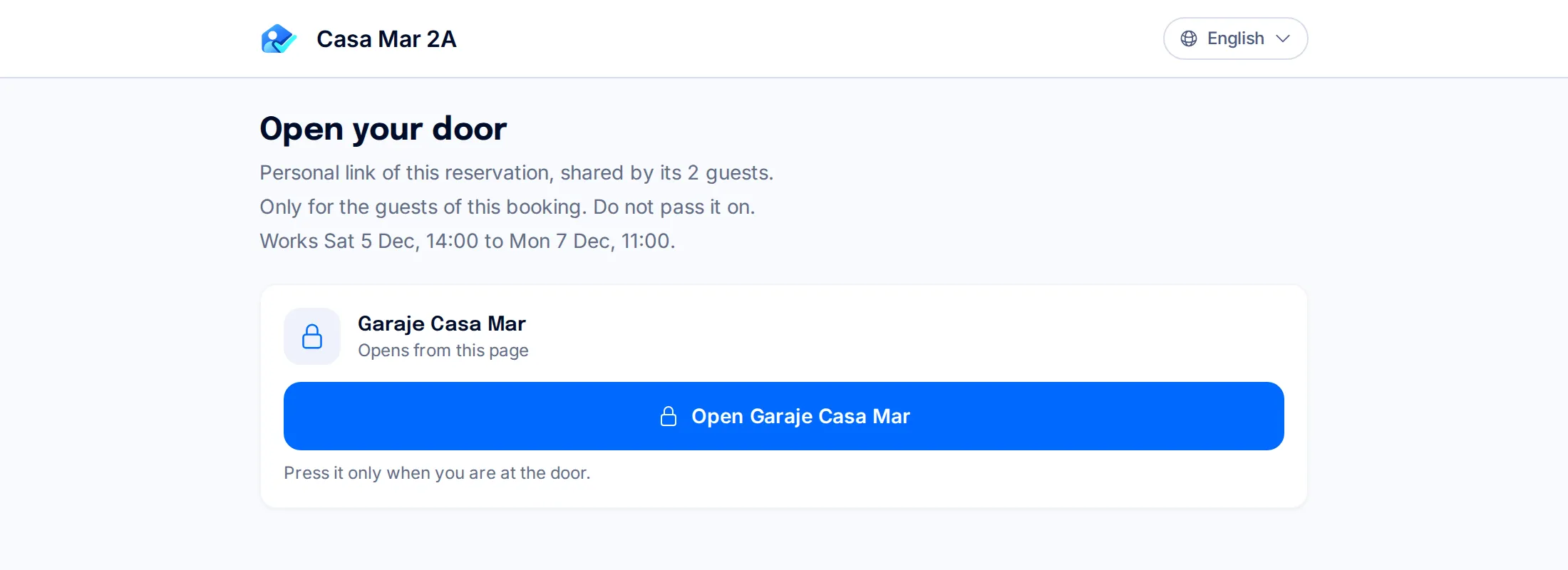
For a door with no keypad, the guest receives a personal link instead of a code. Opening it shows "Open your door" and the button named after the door, "Open Garaje Casa Mar" (1). The link is only for the guests of that booking.
Pressing "Open Garaje Casa Mar", the page asks "Are you at Garaje Casa Mar?". The guest must press "I am at the door" within 30 seconds; the door then opens and they see "Door open".
The link works during the "Access hours" you set in step 8.
The same page on a computer
The page is the same on a computer, with the same two steps: "Open Garaje Casa Mar" and then "I am at the door".
The guest does not need an account: the link they received is enough.
Common problems
If something does not work, open the reservation and look at the door's status under "Door access": the text under the status explains what is happening and what BookCheckin will do.
Then check the lock in "Locks": "Check lock" reads it again. If it shows "Not read yet", bring it in range of its gateway or open it once with the TTLock app and press "Check lock" again.
"Activity", in the "Smart Locks" submenu, lists the access sent, doors opened, cancels and failures. The most frequent questions follow.
Frequently asked questions
What happens if the gateway is offline?+
The status is "Waiting for the gateway": our code is not on the lock yet and the guest does not have it. BookCheckin retries every 10 minutes until 3 hours before check-in. If it is still offline then, it sends a code made by the lock instead and tells you.
Why does the guest's open button fail?+
Most likely Remote unlock is switched off for that lock in the TTLock app. BookCheckin detects it and warns you on the lock's page. Only you can switch it on, in the TTLock app.
Can I cancel a code made by the lock?+
No: its status is "Cannot be cancelled". It keeps opening the door until its end and BookCheckin tells you by email. To end it sooner, delete it at the door with the TTLock app (Bluetooth).
The guest does not get the WhatsApp. What do I check?+
WhatsApp is only sent if you have it connected in Company › Automation. If not, the "WhatsApp" card shows as disabled under "Sending" and the access arrives by email only. Tick at least one channel.
Why can't my team see the codes?+
Only owners and managers see the codes and can change the settings. For the rest of the team the card says: "Codes are shown to managers only."
The guest is arriving late and the lock-made code does not work. What do I do?+
A code with no gateway must be typed once within 24 hours of its start. After that, open the reservation and press "Guest arriving late: send a fresh code", if the button appears: it sends a fresh code.
I see "Available on request" instead of my locks.+
Door access is switched on only for the accounts where we have activated it. Get in touch with us and we will set it up with you.
Related manuals
A tour of your dashboard: what lives in each section
A map of everything in your BookCheckin dashboard: what each menu section is for, and where to go to read more about it.
Create and send a check-in link
Generate a manual check-in link for a walk-in guest or a property without a PMS, and share it however you like.
What your guest sees: the check-in portal
A screen-by-screen walkthrough of what your guest sees and does after opening the check-in link: document, signature and submission.