
Invite and manage your team
Invite teammates as manager or staff, track pending invitations, and control who has access to your account.
Last reviewed: 16 August 2026
Before you start
Open Team
In the app's sidebar, click "Team". Only the account owner sees this section — managers and staff never see the link, even signed in with their own account.
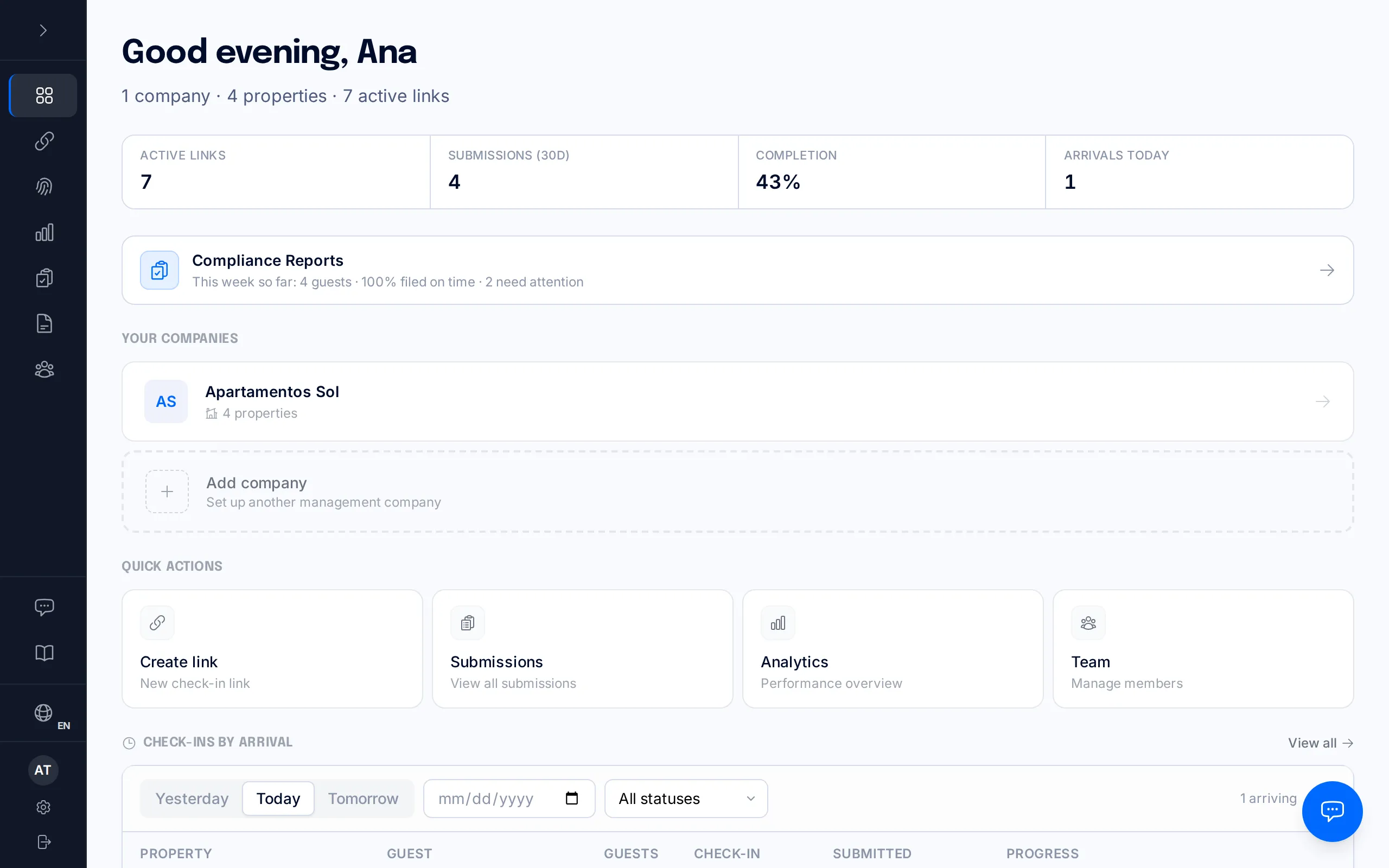
This page is exclusive to the account owner. If you sign in as a manager or staff member, you won't see this option.
Invite a teammate
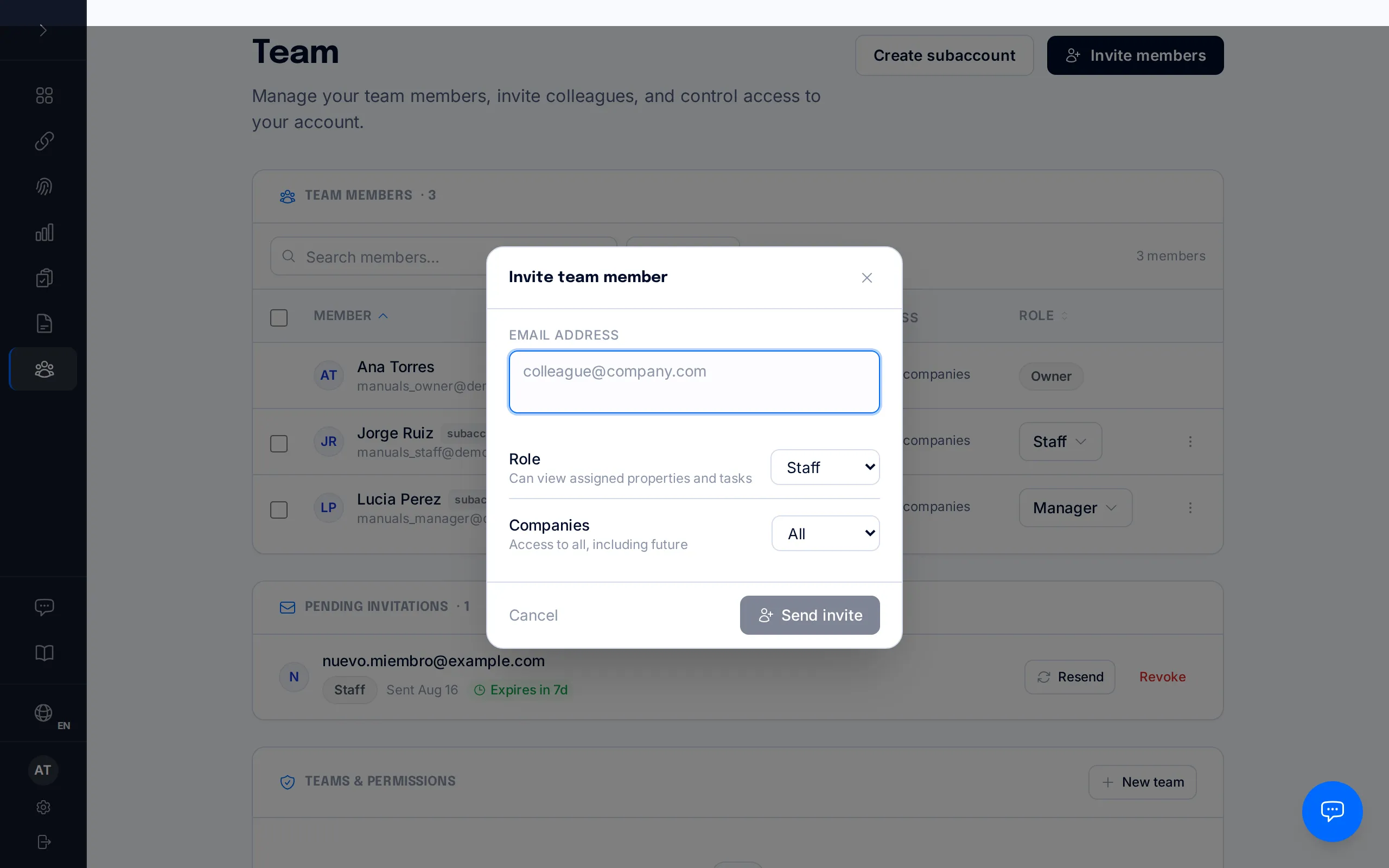
Click "Invite members" at the top of the page. A dialog opens with a text field where you can paste one or several email addresses — one per line, or comma-separated — to invite them all at once.
Pick the role they'll have, manager or staff, and click "Send invite". Each address gets its own email with a link to join your account.
What each role can do
Owner: full access. You're the only one who can invite or remove members, change roles, build custom teams with per-section permissions, and view or manage billing and the subscription.
Manager: gets the same day-to-day operational access as you (properties, reservations, check-ins…), unless you assign them a custom team that restricts a specific section. They can contact support. Because it's a higher-trust role, BookCheckin requires them to set up two-factor authentication the next time they sign in.
Staff: gets the same operational access as a manager, unless you restrict it with a custom team, with two differences: they cannot open support tickets, and they are not required to set up two-factor authentication to sign in.
Neither managers nor staff can manage the team — invite, change roles, or remove members —, create custom teams, or reach billing. Those three areas stay reserved for the owner in every case, no exceptions.
For finer control, the "Teams & Permissions" section further down this same page lets you create named teams (e.g. "Housekeeping" or "Front desk") and toggle, member by member, access to specific operational panels such as properties, smart locks, analytics, or the booking pipeline.
Pending invitations
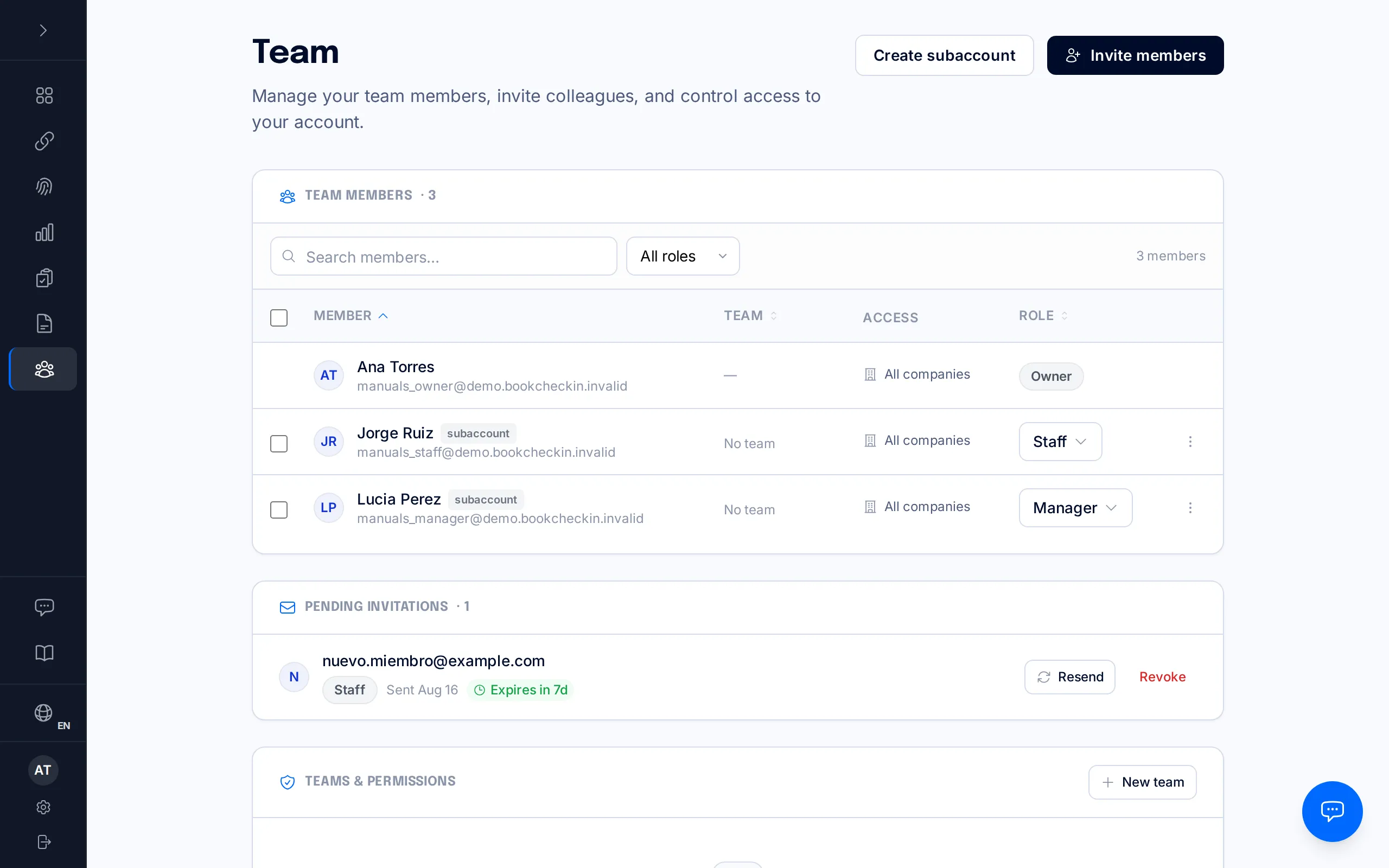
Until it's accepted, an invitation stays in the "Pending Invitations" section showing the assigned role and when it expires — invitations expire after 7 days if nobody accepts them.
Each invitation has two actions next to it: "Resend", which tries to send the email again, and "Revoke", which cancels it for good. If resending fails, or if you got the address or the role wrong, revoke the invitation and send a fresh one from "Invite members".
The invitee accepts from the link in their email: they sign in or create an account with that same address and confirm to join your team.
Change a member's role
On any existing member's row, click the role control (it shows "Manager" or "Staff") and pick the new role. The change applies immediately.
If you promote someone from staff to manager, the next time they sign in they'll have to complete two-factor authentication before they can use the account — the same requirement asked of every manager.
Remove access
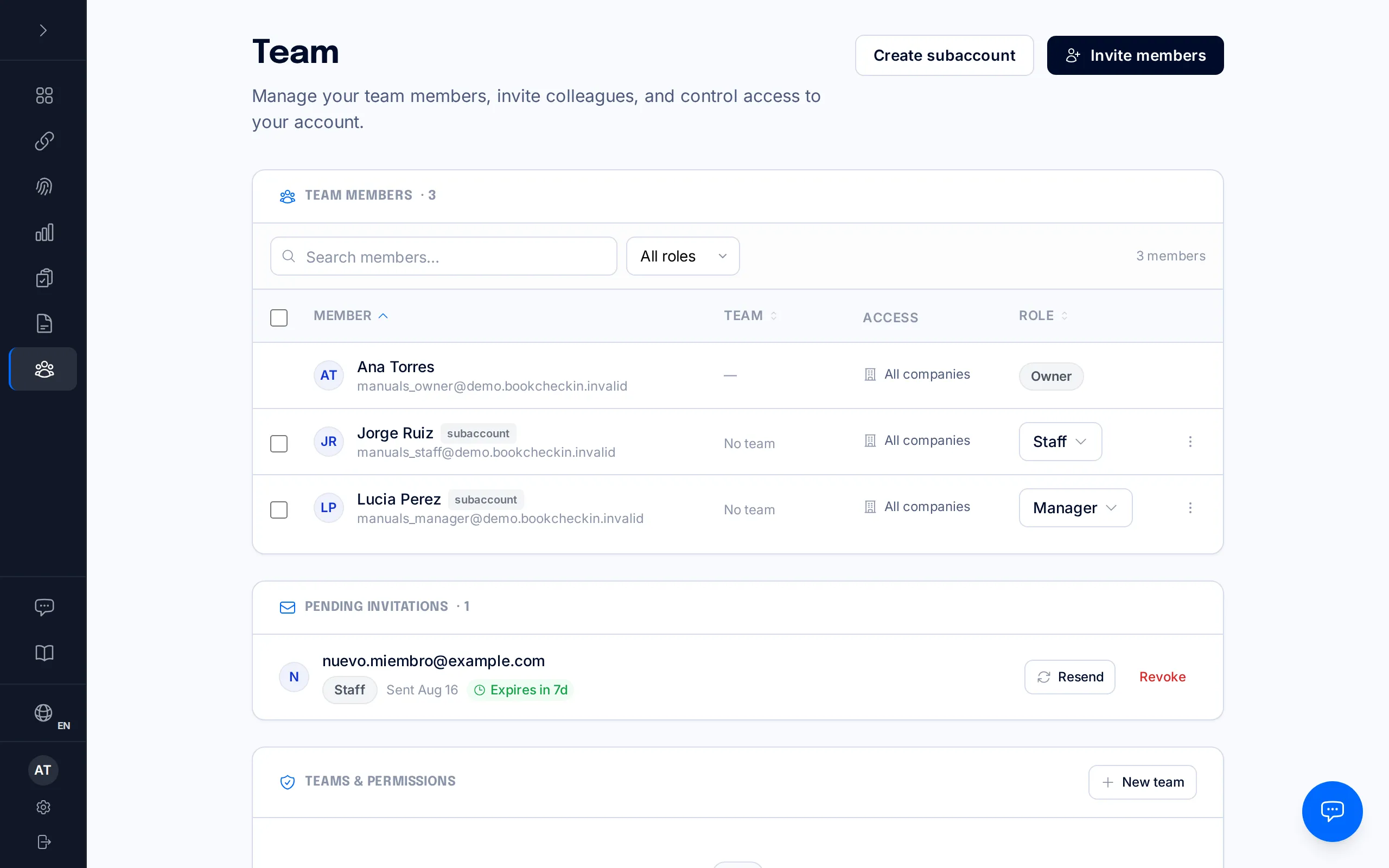
Click the three-dot menu at the end of the member's row and choose "Remove member".
Once confirmed, that person is unlinked from your account immediately: they lose access to your properties, reservations, and settings. It takes effect right away and cannot be undone — if they need access again later, you'll have to invite them again.
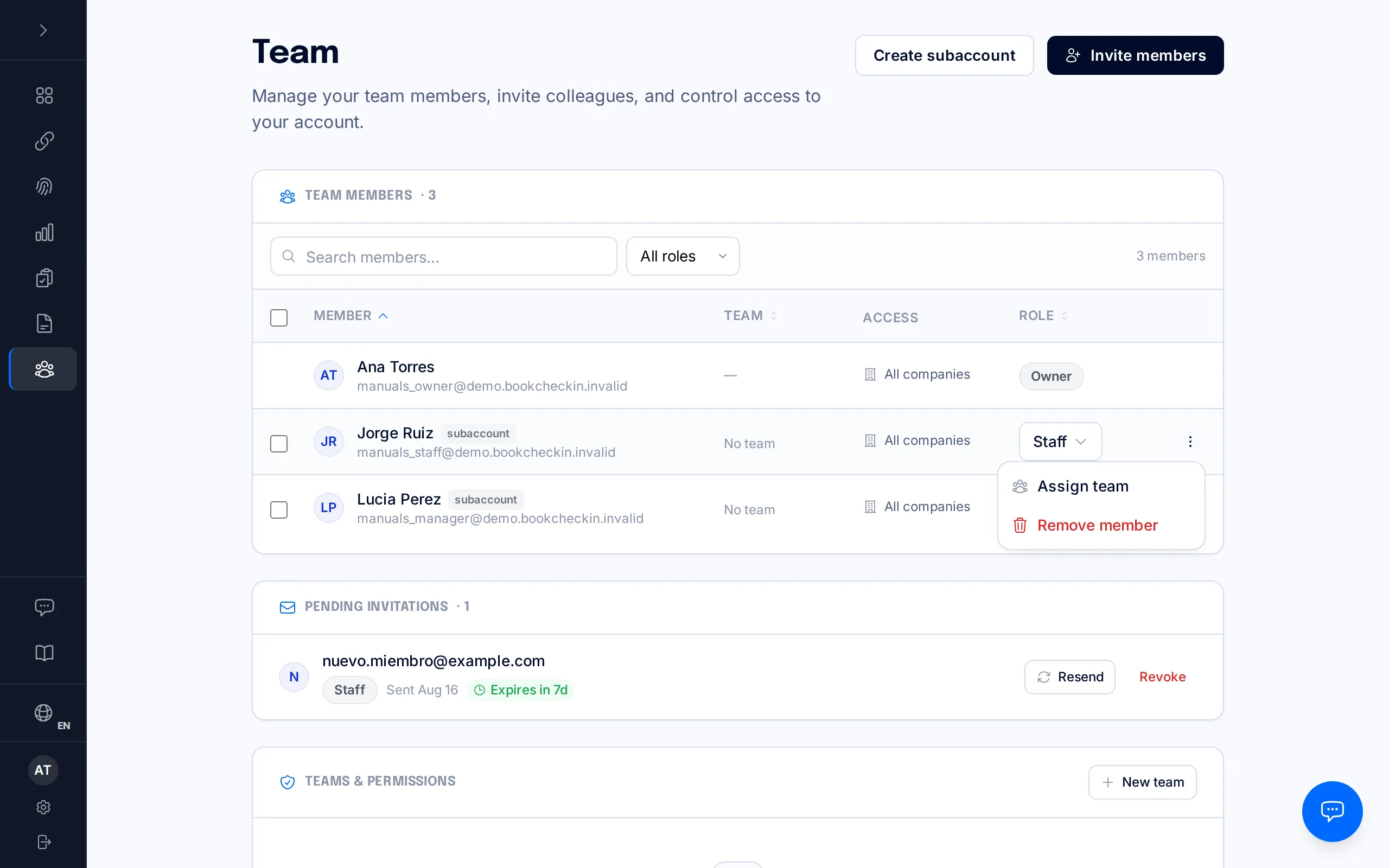
Removing access is immediate and cannot be undone.
Frequently asked questions
How many people can I invite to my team?+
It depends on your subscription plan. If you hit your plan's limit, BookCheckin will let you know when you try to invite someone new or create a subaccount.
Is inviting by email the same as creating a subaccount?+
Almost: with an email invite, the other person accepts and picks their own password. With "Create subaccount" you generate login credentials yourself — useful when you want to hand someone access without relying on them checking their email.
Can staff members contact support?+
No. Only the owner and members with the manager role can open support tickets; staff accounts don't have that option.
Can I limit a manager or staff member to only some companies?+
Yes. When you send the invitation or create the subaccount, you choose whether that person gets access to "All companies" or only to the ones you select. If you need to change that selection later, remove the member and invite them again with the right access.