
Billing and subscription
Check your plan, pick a tier and start the free trial, and manage payment and cancellation through the Stripe portal.
Last reviewed: 16 August 2026
Getting to Billing
Billing doesn't have its own page — it lives inside Settings. Open the Settings menu and go to the "Billing" tab in the side panel.
Only the account owner sees this tab. If you're signed in as a manager or staff member, it won't appear — billing and payment details are the account owner's alone.
Your plan
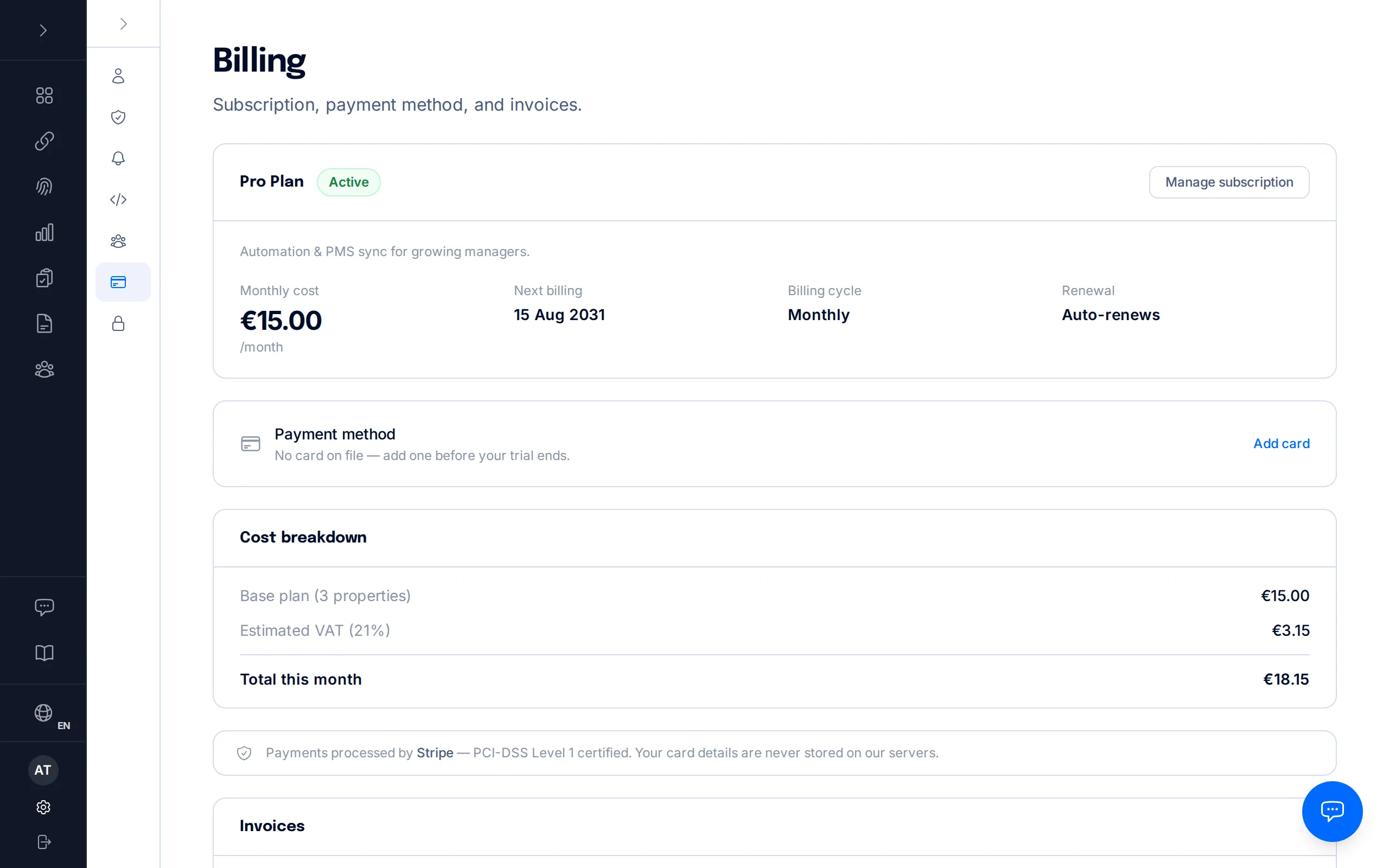
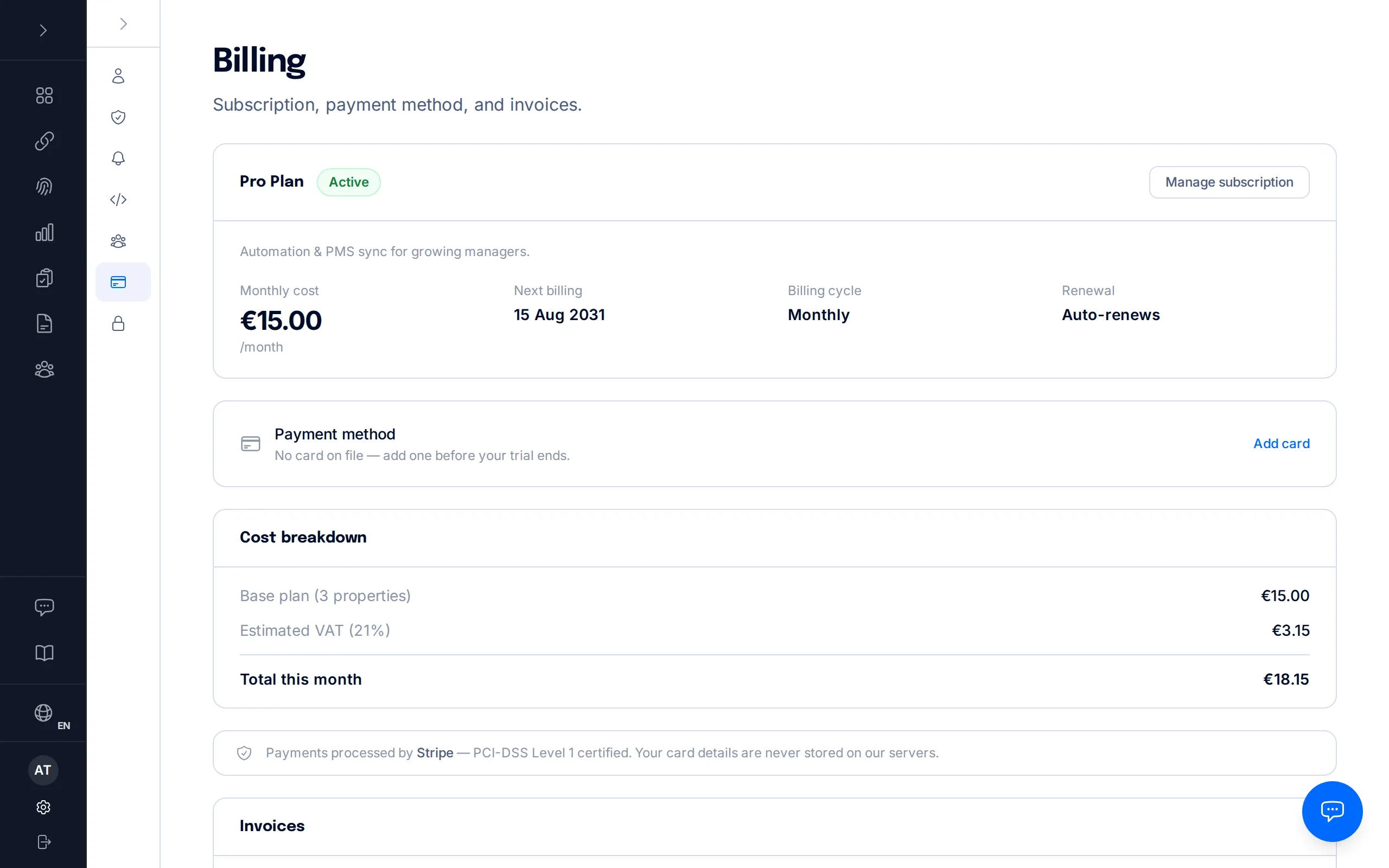
At the top of the page you'll see your current plan card: the plan name (Basic, Pro, or Business) and a status pill — "Active" while your subscription is in good standing, or "Trial" during the 3-month free trial.
Below it, the renewal block shows your next billing date (or the trial end date, if you're still trialing) and whether the subscription auto-renews or has a cancellation already scheduled.
Pick a plan and start the trial
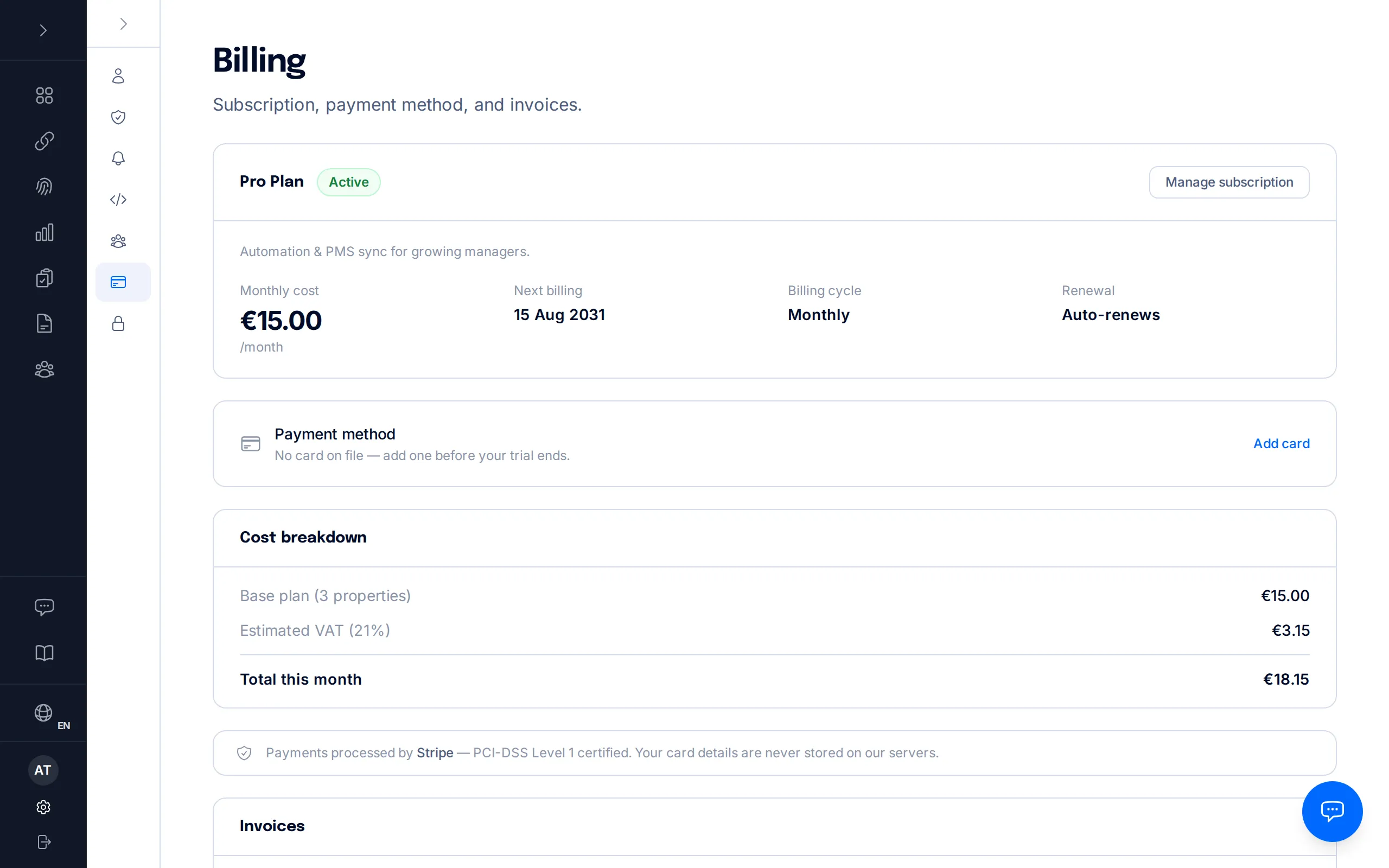
If you don't have an active subscription yet (or you cancelled one), Billing shows a card with a button that takes you to the activation page: a screen of its own where you pick a plan, confirm how many properties you have and see the exact amount before anything is charged.
There you have the three plan cards (Basic, Pro — the most popular — and Business), a property selector with the volume tiers you can unfold, and a summary that never leaves the screen: price per property, subtotal, VAT, total per month, what you pay today, and the date and amount of the first invoice. During the trial, "Due today" is 0,00 €.
The card is asked for at the last step and stored with Stripe; nothing is charged during the trial. If you cancel at that step, nothing is activated. The free trial is one per customer: if you subscribe again after cancelling, or the card already had a trial on another account, there is no trial and the first month is charged when you confirm the card.
You enter your property count when you subscribe, but it isn't frozen: if you later bring more properties into use than you're paying for, the billed quantity increases automatically. To reduce it, contact support.
Moving UP a plan doesn't need us at all: on the Billing page itself, below your plan card, an "Upgrade your plan" block lists the plans above yours. Picking one opens a confirmation showing the real price before anything is applied — if you're on the free trial nothing is charged and the trial is unchanged; if you're already paying, the prorated difference is added to your next invoice. Moving DOWN a plan still goes through support, because it means losing features.
Manage your subscription (Stripe)
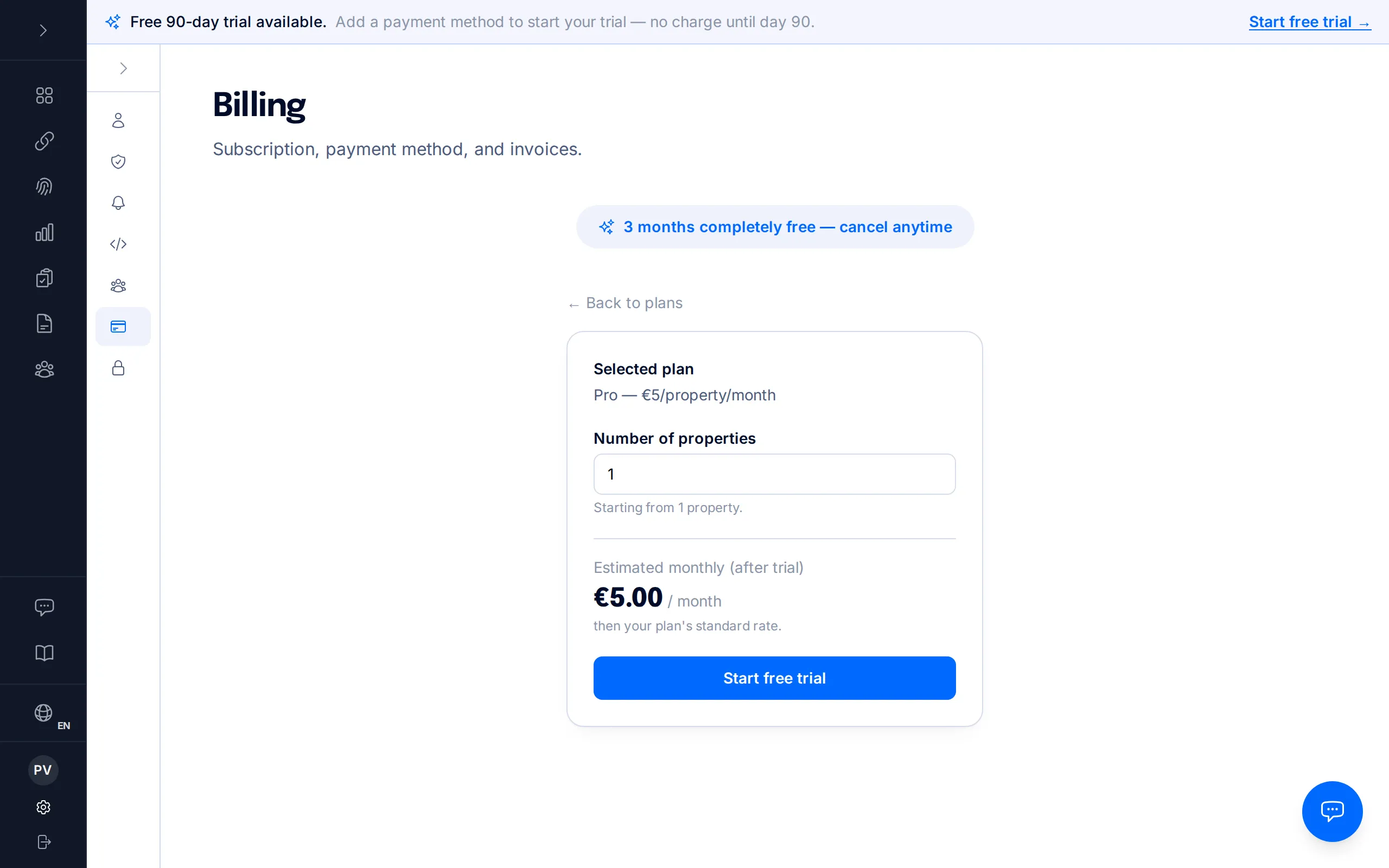
The "Manage subscription" button takes you to Stripe's own billing portal, outside BookCheckin: that's where the saved card is changed and where the subscription is canceled.
There is no cancel button inside BookCheckin — that always happens in Stripe's secure portal. Invoices, on the other hand, can be viewed and downloaded as PDFs right from the invoice history on the Billing page. When you're done, the portal sends you back to BookCheckin.
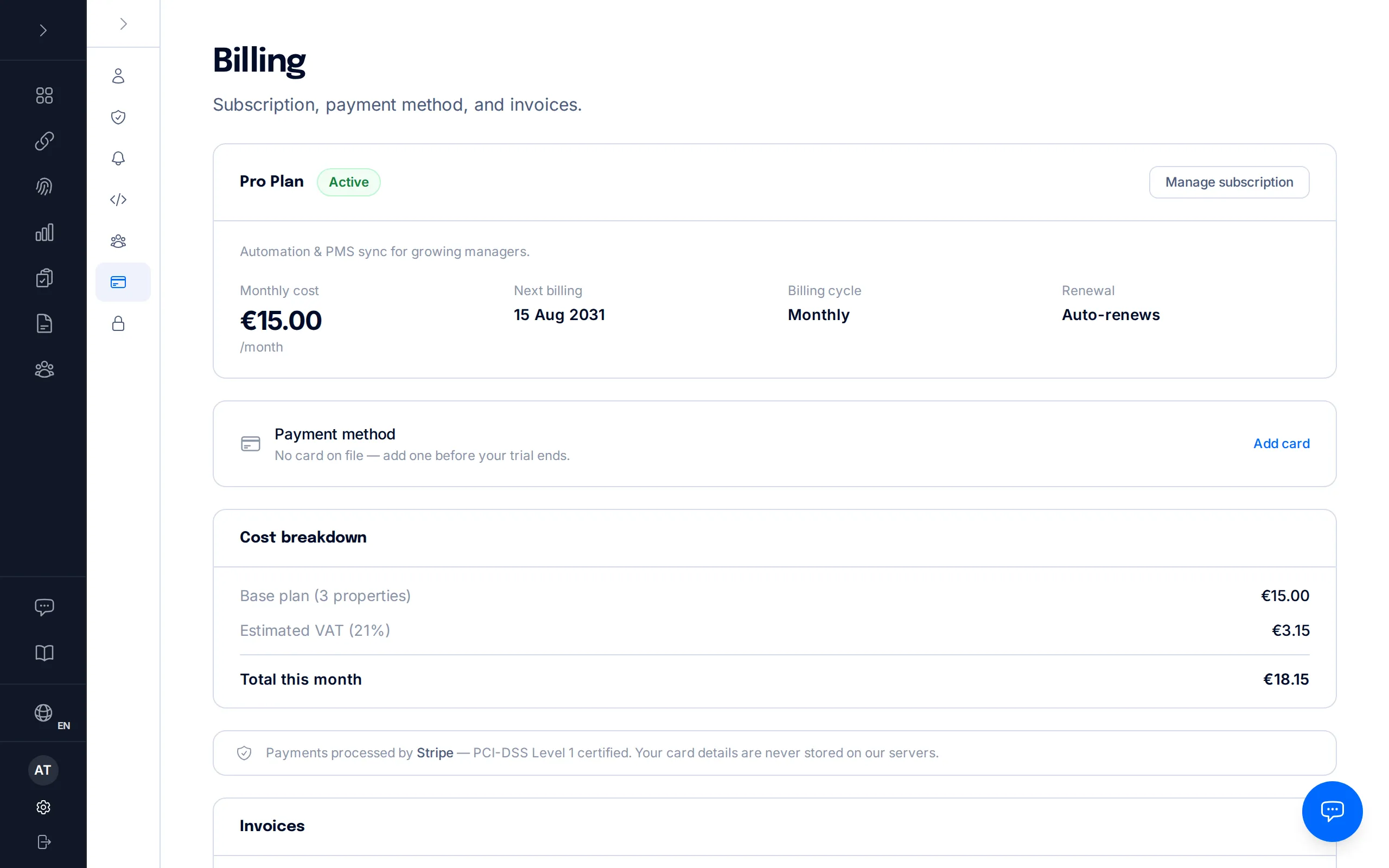
The Stripe portal is the only place subscription cancellation happens. There is no "Cancel" button inside BookCheckin itself — click "Manage subscription" and cancel from there (see step 6).
Payment method
The "Payment method" card shows the brand and last 4 digits of the card on file, and flags it if it's about to expire. If there's no card yet, it says so clearly.
The "Update" button (or "Add card" if none is on file yet) opens the same Stripe portal from the previous step. BookCheckin never stores card details on its own servers — payments are processed by Stripe, PCI-DSS Level 1 certified.
Cancelling
There is no cancel button inside BookCheckin. To cancel your subscription, click "Manage subscription" (step 4) to open the Stripe portal, and cancel from there.
Cancellation isn't immediate: it's scheduled for the end of the current billing period, and you keep full access until then. While a cancellation is scheduled, BookCheckin shows a notice on the Billing page with a "Keep subscription" button to undo it at any time before that date.
Once the period ends, the subscription moves to "Canceled" status. Your data isn't deleted: the Billing page will show a "Resubscribe" button so you can pick up where you left off whenever you want.
Frequently asked questions
Can a manager or staff member change the plan or payment method?+
No. The Billing tab is only visible to the account owner, and the server rejects any attempt by a manager or staff account to modify the subscription, even if they know the URL. Only the owner can manage billing.
Do I need a card to start the 3-month free trial?+
Yes: creating an account is free and needs no card, but your 90 free days start when you choose a plan and add your card. Nothing is charged during the 3-month trial.
What happens if a charge fails when the trial ends?+
If a charge fails when the trial ends (or on a renewal), the app retries automatically; if it keeps failing, the account can be temporarily suspended — your data is kept, but features are disabled until payment is sorted out.
Where do I update my card or download invoices?+
Cards are changed in the Stripe portal, reached via the "Manage subscription" or "Update" button on the Billing page. Invoices can be downloaded as PDFs directly from the history on that same page, or from the Stripe portal.
How do I cancel my subscription?+
Click "Manage subscription" to open the Stripe portal and cancel from there — there is no cancel button inside BookCheckin itself. Cancellation takes effect at the end of the current billing period, not immediately.